Choose what each role sees and changes
Choose the rows each role sees and changes, lock fields with field rules, link each user to their records, and keep a new table private.
A role's row rules choose which items of each table its users may see, add, change or delete (row-level access). A table with no rule of the role is hidden from it. An admin sets the rules on the role's page.
- On the Roles page, click the pencil beside the role, such as Sales.
- Under Row rules, click Add rule beside a table, such as Orders, or the one at the top and pick the Table.
- Pick what the rule lets them do under May: See, Add, Change, Delete or All.
- Under Conditions, click Add condition and pick a field, how it compares and a value, as in a list's filters: "Sales rep is Me", "Status is not Delivered". Me is the user who is signed in, and a condition can reach one reference further, such as an order line's order. The rule holds for the items that meet every condition; with none, for every item.
- Write a Note: what the rule does, in plain words, such as "Sales change their own orders until they are delivered". A user the rule refuses reads it as the reason, on the item's page and in the answer to a script, an AI client or the assistant.
- Click Add rule, then confirm. The rule is added.
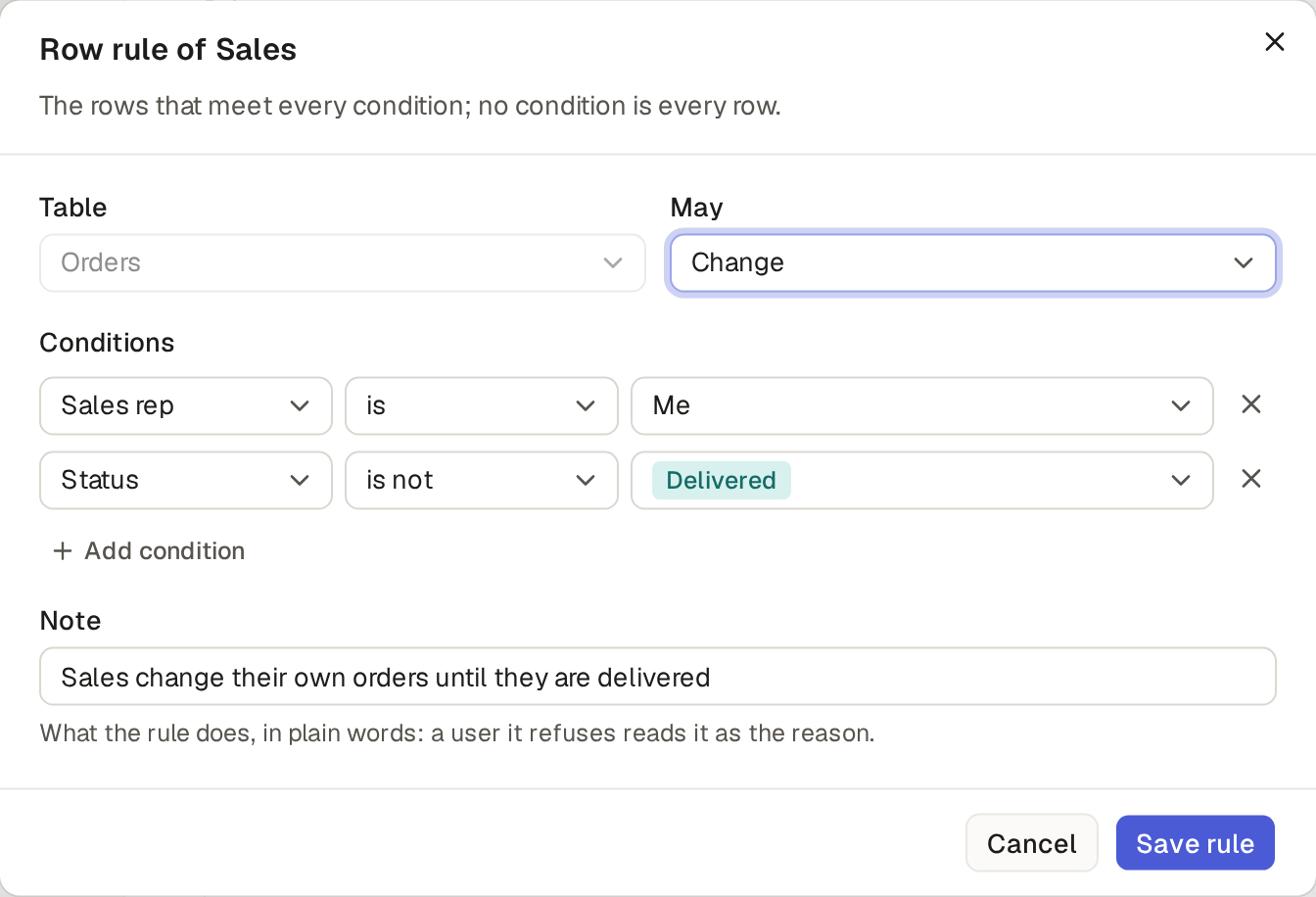
Each rule shows on the role's page under its table, with what it lets them do, its conditions and its note. Nobody writes or sees code for a rule. The pencil opens it to change, then Save rule. The cross removes it.
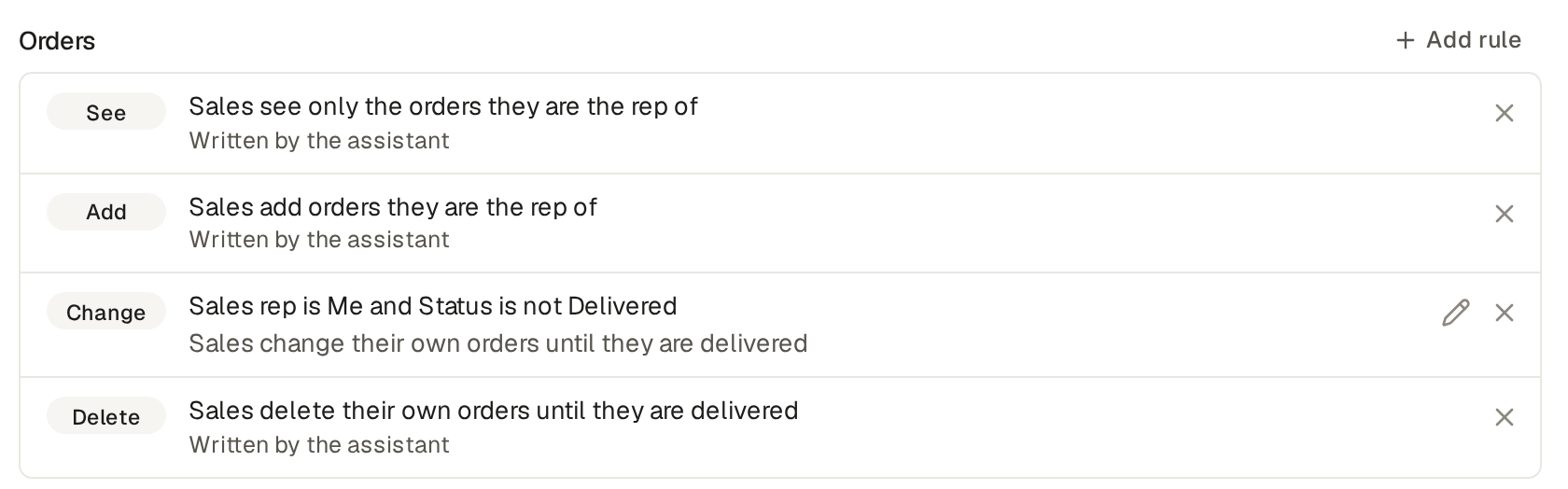
Rules the assistant writes
The assistant writes a rule as conditions where they are enough. Where they are not, its rule shows its note and Written by the assistant: you can remove it, and ask the assistant to change it (Make a role or change its rules with the assistant). Most of the example shop's rules are of this kind. A rule may read its own table: in a gym, a club's manager sees the staff of the clubs where they are a manager in Club staff.
Limits and details
- Admins and builders see and change every item, whatever their role's rules.
- A user with several roles sees an item when a rule of one of their roles lets them, and changes it when a rule of one of their roles lets them change it.
When a user's role stops them, the page says why, so a user does not think the base is broken.
- The role can only look. When a user's roles may not add, change or delete any item of a table, and an admin may, the table's list and its item pages show one line: "You can look at this, but you cannot change it. Ask an admin." An external role does not see the line: looking only is its normal state. A user with a role that builds the base does not see it either.
- The role sees only some rows. When the row rules limit what a user sees of a table, and the list is empty, the page says so with the rule's note: "Your role sees only some jobs: Mechanics see the jobs they do." If the rule has no note, the sentence ends after the table's name. This holds with filters or a search, and without. "No jobs match these filters." and "Nothing is shared with you yet." stay, and the new sentence goes with them.
- The role cannot open the page. When a user opens a table that their roles cannot see, or a page of Builder or Settings that their roles may not open, the page says "Your role cannot open this page." and names the admins to ask. It does not say "Page not found". An item that a row rule hides still says "Page not found", and so does an address that is no table: the base never tells that a hidden item exists.
The same answers in the API
Under a user's API token, the table's route answers 403 with "Your role cannot open this page." for a
table that the role cannot see, and 404 for an address that is no table. GET /api/tables and GET /api/tables/{slug} also tell, in role_limits, if the roles can only look
(look_only), if they see only some rows (some_rows) and the notes of those rules
(notes). The assistant and Base Captain's MCP server give the same answers.
A field rule makes some fields hidden, read-only, editable or required, for one role or for everyone, on one page or on all of them. An admin adds field rules on the Roles page.
- For one role, open its page from the Roles page and click Add rule beside a table under Field rules. For every role, the users who build the base too, click Add rule under Everyone on the Roles page.
- In New field rule, pick the Table, what the rule Makes them, and the Page: viewing, creating, editing, or every page.
- Under Fields, tick the fields, or Every field, the ones added later too. Click Add rule. The rule applies at once, without pausing the base.
Which field rule wins
The last field rule that applies wins, and a field no rule names stays editable. A new rule goes last; the arrows beside a rule move it up or down, and the cross removes it. So two rules make a role that changes one field only: the shop's orders have, for Order check, "every field read-only when editing", then "Priority editable when editing". A field added to orders later is read-only for Order check too.
A role's page lists its own field rules, then the Everyone rules, which count for it too; Edit on the roles page takes you to change those.
For a user with several roles, each role gives a field its state by its own rules, and the field takes the most open of them: editable, then required, then read-only, then hidden. A field that one role hides and another makes read-only is read-only for them. A role that includes other roles counts their field rules as its own: for that role, the last of all those rules that applies wins.
A field rule with a condition
A field rule that holds on some items only, such as Sales changing an order's lines while it is pending, ends in "with a condition". Ask the assistant to make or change one (Make a role or change its rules with the assistant).
On a list, a rule with a condition holds row by row. The column stays on the list, and a row whose rules hide the field shows an empty cell, which does not open to change. Sorting, filtering, searching, grouping, the totals and the export treat the field as empty on that row too, so nobody learns a value hidden from them. The shop's orders have a Cancellation reason, hidden for everyone, then editable when the status is Cancelled: the orders list shows the reason on cancelled orders only.
A role in Base Captain can link each of its users to their records, so a new user sees their work at once. A staff role can do it as an external role does (Open a customer portal). A clinic's Front desk role, for example, links to the clinic whose email is the receptionist's: a new receptionist sees that clinic's visits on their first day.
- On the Roles page, click the pencil beside the role.
- Pick the table under Linked by, its email field under Its address and its field that names a user under Its user. Click Save role.
- Give the role row rules that show each user their own records, such as "Signs in as is Me" (Choose the rows a role sees and changes), or ask the assistant for all of it.
When someone joins with the role, invited or given it on Users, the records whose email is theirs and whose user field is empty get them. A user with several such roles is linked by each of them. If no record has their email, pick the record when you invite them (Invite a user and give them roles).
Link through a table that extends another
A role can also link through a table that extends another (Keep one contact as a customer and a supplier: a table that extends another): a Staff role through Staff, which extends Contacts, with the contact's Email and User. Then no record must exist first. When someone joins with the role, the contact with their email gets a Staff item. When no contact has their email, Base Captain makes a contact with their email and its Staff item. An external role links the same way through Customers, Suppliers, Tenants or Landlords.
Limits and details
- The record's history shows the link, and the base's automations on the user field run, as when you set it by hand.
- Only an admin can set that user field by hand: for every other role, it is read only.
- Staff join only by invitation: sign-up is for external roles only.
- A user who sees no records in a list and may not add any there reads that nothing is shared with them yet, and the names of the base's admins to ask. A user of an external role sees no names there.
The assistant makes roles and changes their rules when you ask it in your words. Only admins change roles and their rules, with the assistant and on the Roles page.
- Open the Assistant and describe what you want: "Add a role Warehouse that sees products and stock movements and may add stock movements, and nothing else. It must not see the cost of a product."
- It answers with a card that lists what changes. Read it, then click Apply.
- The Roles page lists the new role, and its page shows its rules, the field rule "Cost hidden" among them. Give someone the role on Users.
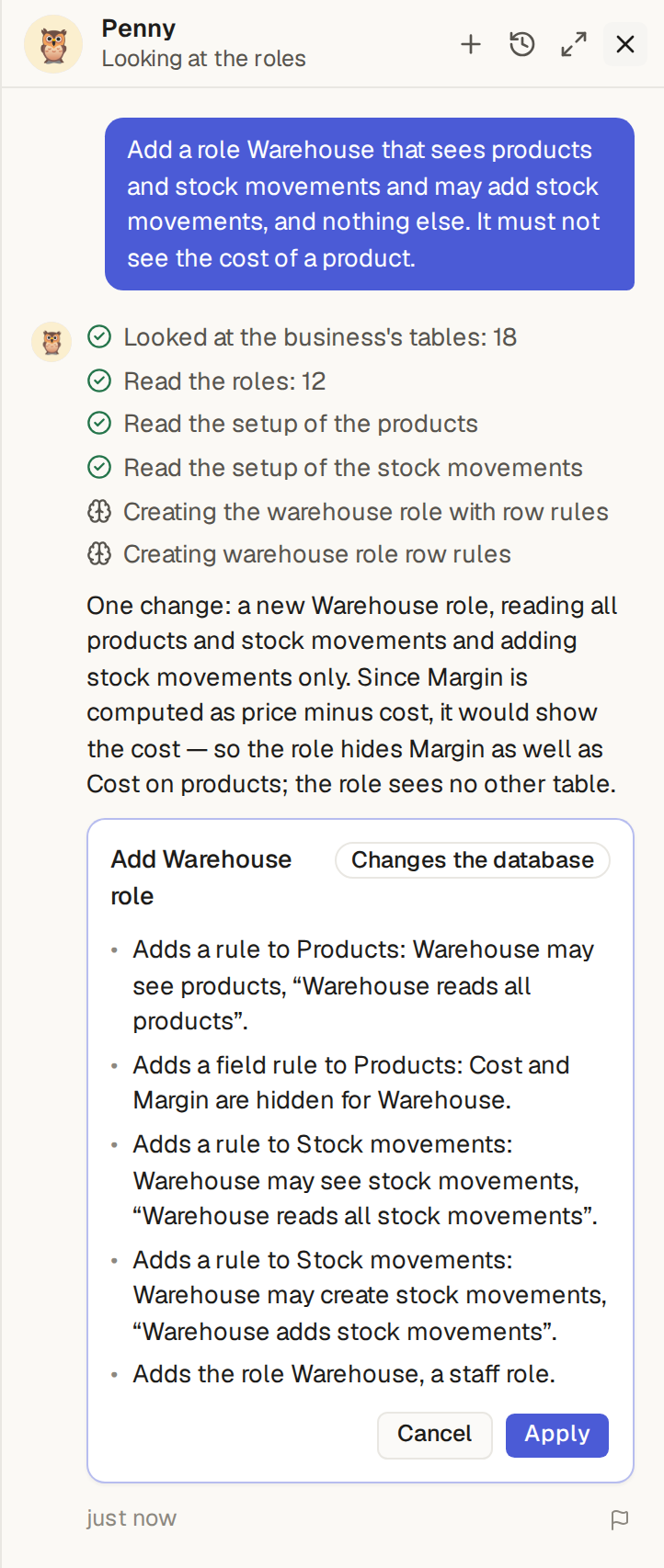
Ask the same way: "Let sales see every order but change only their own", or "Hide the customer's notes from sales". The assistant writes row rules as conditions where they are enough, so you can change them on the role's page later. More on cards and going back in Ask the assistant and review its changes.
A new table in Base Captain starts private: a table nobody has given a role access to is seen only by the users who build the base. Saving a new table says "Only builders see it". Until you give a role a row rule on it, it is not in that role's sidebar, search or exports, and on the Roles page the role's tab shows a dash for it: no access.