Ask the assistant and review its changes
Ask for a change in plain words, see it on a card before it happens, undo it or go back to an earlier version, and find your earlier conversations.
The assistant answers questions about your base and changes it on request, in plain words. Every user of your team has it; the customers of a portal do not.
- Click the Assistant button at the top right of any page. The assistant opens beside the page; under its name it says what it is looking at, such as "Looking at the orders".
- Type your question or your request and press Enter. It knows the page you are on, the item you have open, the filters and sort of your list, the items you ticked and what you typed in a form that is not saved yet, so "these" and "this one" mean what you see. Each message carries this, so there is no need to point at a part of the page.
- It answers in the panel, with a line for each thing it looked up. Asked "Show me the unpaid orders of Liam Johnson", it filters the Orders list for you; asked "How much did we sell last month?", it answers with the total.
- While the assistant thinks, it shows short summaries of what it is doing, such as "Checking how customers are linked to orders", with a brain icon, in the same list as its tool calls, in the order they occur. New summaries appear every few seconds, and the latest pulses while the assistant works. They stay visible after the answer ends and after you reload the page. While the assistant writes a change, its status line says "Preparing the change".
- In a base without tables yet, the assistant opens by itself with a few starts to pick from (Open, add and switch between your bases).
- An admin can turn the assistant off for the base in Settings, AI settings (Set the logo, time zone and currency). Then nobody in the base sees the Assistant button, and the base keeps the conversations.
To have the assistant build the work of your business from start to end, read Tell the assistant how your business works.
A change the assistant proposes for the base itself waits on a card: nothing happens until you say so. For a request such as "Add an internal note to orders that sales, Order check and customers do not see", it first says what it proposes and why, then shows a card:
- its title;
- what changes, in plain words: which roles see a new field and which do not;
- how many records it touches, and any data it loses, such as "Your 46 old orders will have it empty. Nothing is lost.";
- for a change that writes code, a small Show code button that opens the code (Add buttons and behaviour with the assistant).
A card that adds a table names its fields, such as "Adds Milestones with 5 fields: Name, Status, Start date, Target date, Description."; one that changes a field's settings says which, such as its default or its options.
A card that adds an automation that sends an email shows each email before you apply it: who gets it, its subject and its text, as written, with its line breaks. Under "Adds the automation Order paid: thank the customer to Orders.", it says "Sends a mail to {{customer.email}}. Subject: Thank you", then the text under Text of the mail. When the email holds placeholders such as {{name}} or {{base.title}}, a last line says in plain words what each becomes, such as "{{name}} is the Name of the item; {{base.title}} is the base's name, Demo Company", so you know what the customer will read; the text itself stays as written. A role in To shows as the users of that role, such as "the users of the role Manager". A card that changes the recipients, the subject or the text of an automation's email shows the email as it will be. The card of an agent in a chat shows the same lines.
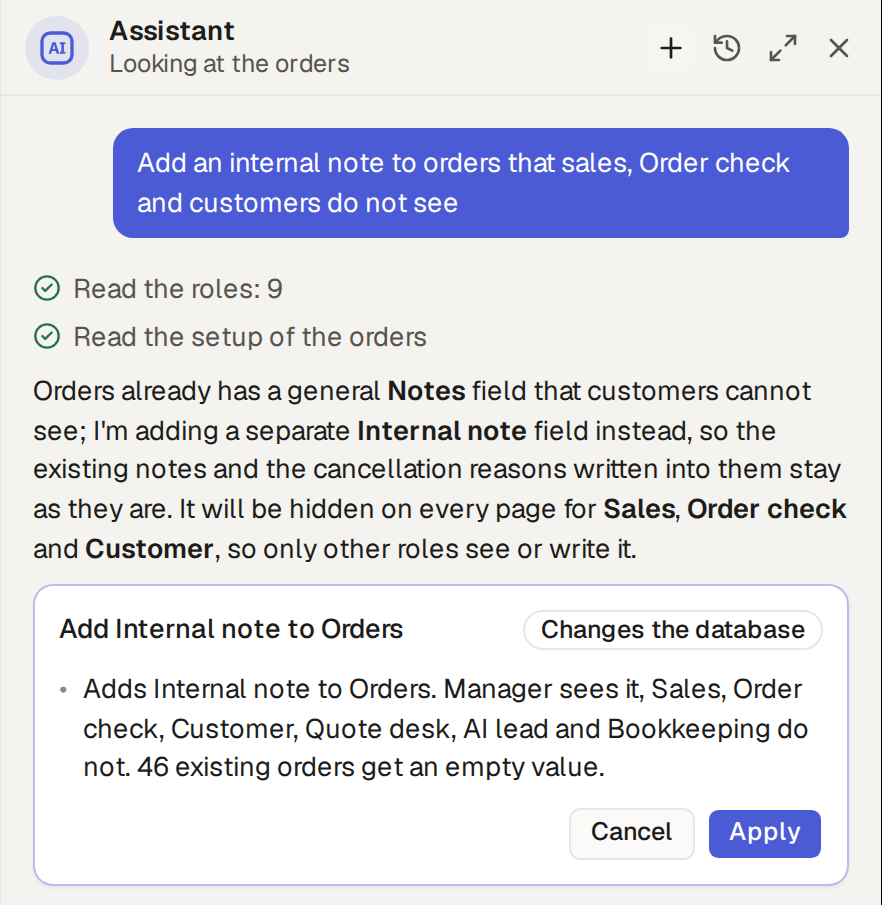
- Read the card. To ask about it first, such as "What would this change?", type your question and send it: the card is cancelled, as with Cancel, and says Declined, and the assistant answers you. If you still want the change, ask for it again.
- Click Apply. The card says Applied with the new version's number, and the assistant says what it did. Or click Cancel, and nothing changes.
- The card stays in the conversation: close the tab, come back later, and it waits there for your answer.
- If a change fails to apply, the assistant says so in a sentence, and what its next card does differently. It does not propose the same change again on its own, only if you ask again, such as after fixing what made it fail.
With an API token, POST /api/builder/preview gives a card's email lines in its summary.
The assistant may do exactly what you may do, and nothing more: it reads and changes only the items and fields your role allows. Asked by a manager to add a field, it answers that this is for the users who build the base.
- A single new item or a change to one item just happens, with its usual message, as when you do it yourself. It waits on a card in a conversation that holds a photo or a PDF (Build tables or fill in items from a photo or a PDF), once the assistant has read a web page in the conversation (Ask a question about a web page), and once it has called a tool of an MCP server (Let the assistant use an MCP server).
- Deleting, and changing many items at once, always waits on a card, such as "Update 8 orders: Sets Priority to High on 8 orders where Status is Pending", which you apply or cancel. So do running a button, erasing an item for good for the admins, inviting a user, changing a user's role and removing a user, and, for the users who build the base, restoring a version and discarding a waiting change.
- Changes to the base itself, its tables, views, automations, workflows and saved replies, are for the users who build the base; its roles, their rules and the base's settings are for the admins; its agents, skills and MCP servers are for the admins and the AI managers (Roles and their types: admin, staff and external). It offers only what your role reaches.
- It never gives an agent, a chat or a workflow step's workers a role with more than you have: "Only an admin can give an agent the role Admin".
- Its changes carry your name in the items' history, marked "via assistant".
Undo takes back what the assistant changed in one answer.
- On an applied card, or under an answer that changed items, click Undo.
- The box "Undo the changes of this run?" says what happens: what it created is deleted, what it changed gets its old values, and what it deleted comes back. Click Undo.
- "Undid 7 changes": the card says Undone.
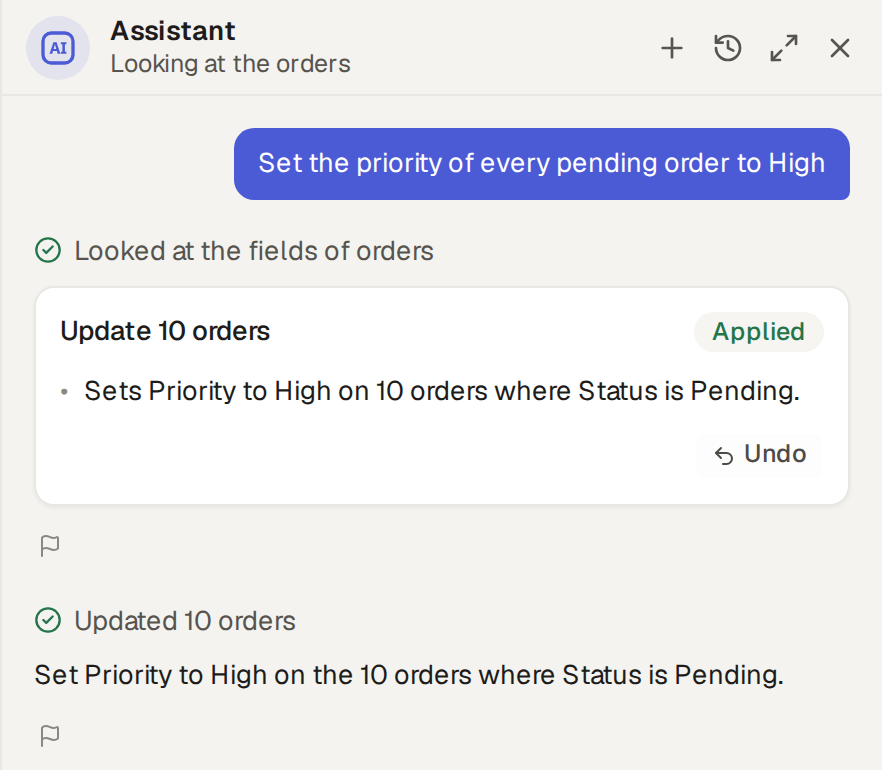
An item someone changed after the assistant did is left as it is, and the box lists it, so the undo never overwrites newer work. To bring back one item you deleted yourself, use Restore (Restore a deleted item), or ask the assistant to bring it back.
Every change to the base, yours or the assistant's, is a version. Click Activity, then Versions: the list, newest first, says what each changed, when and by whom, and whether it was a schema or a cosmetic change.
- Restore, on the latest schema change for an hour after it: the base goes back to just before it, data included. Anything written since is lost, so it is for a change minutes old. The later cosmetic changes go too, and the confirmation names each of them. It also says how many messages in Chat and files in Files were added after the snapshot and are removed, such as "This removes 12 messages in Chat and 3 files in Files that were added after the snapshot."
- Revert with the assistant, for an older change: the assistant proposes a new change that undoes it and keeps the data written since, as a card you review and apply.
- Undo upgrade, in Settings, Modules, for an upgrade of a module that your base took by itself: the base goes back to the earlier release and keeps the changes made since, until the base installs, removes or upgrades a module again (Undo an upgrade).
- Tell the assistant what is wrong in one place, such as "The Projects list does not show the projects' names": it checks the places like it, here the other lists, and fixes every one with the same fault in one card.
- Tell it that something fails, such as deleting several items at once: it first works out where the fault lies, in how the base is set up, in what it built for the base, or in Base Captain itself. The first two it fixes with a card, as usual.
- If the fault is Base Captain's, it does not build a way around it into your base. It says so, and tells Base Captain's team, who hear of it within a minute, with what it found.
Report this answer shares an answer that went wrong with Base Captain's support.
- Under the answer, click the flag, Report this answer.
- The box says what is shared: the whole conversation, including what the assistant looked up for you, and nothing else. With the assistant, that is the part the answer is in, with its summary. Add what went wrong if you like.
- Click Share with support.
You have one conversation with the assistant in each base. There is no new conversation to start: open the assistant and write, and it goes on from where you stopped.
Parts and History
- After an hour with no message, the conversation starts a new part with your next message. A very long part ends too. A part that waits for your answer on a card stays open.
- Scroll up to read the earlier parts. A line between two parts shows when the earlier part started and ended. You can only read an earlier part: what you write always goes to the latest part, and the cards of an earlier part show what became of them, with no buttons.
- When a part ends, AI writes its title, a summary of at most three sentences and one to three topics. It writes them from what you and the assistant wrote and from the cards, never from the records the assistant looked up. Until they are written, the part's first message is its title.
- History, at the top of the panel, is the list of the parts, latest first: when each started and ended, its title, its summary and its topics, marked AI summary. The latest part shows Now. Click a part to go to it in the conversation. To find a part, type words in the search field at the top of History, or set the first and the last day, or both.
- The assistant remembers the earlier parts. It gets the summaries of your last parts, and it can find and read an earlier part, so you can ask "What did we change on the invoices last week?".
- To delete a part, click … beside it in History, then Delete, and confirm. Its summary goes with it. You cannot delete a part while the assistant answers in it. When you ask the assistant to delete a part, it shows a card first. Nothing else deletes your conversation: the base keeps it until you delete it.
- To share a part with support, click … beside it in History, then Share with support (Report a wrong answer).
Long answers
- An answer goes on when you close the tab or move to another page. Open the assistant again and it is there, finished or still coming.
- While it answers, the send button becomes Stop, which ends the answer: "Stopped."
- When one step of an answer takes more than half a minute, a line above the message box says "This is taking a bit longer than usual, sorry about that", with how long the answer has taken so far, counting up. The line stays there until the answer ends, even when new summaries arrive or you scroll up.
- If the model behind the assistant stops answering for a minute and a half, the answer ends with "The model stopped answering, so this answer ended. Send your message again." Send it again: the assistant takes it at once.
Chats with agents
When your role may chat with one of the base's agents, the + at the top of the panel, Chat with…, lists under Chat with the assistant and those agents. Pick an agent to start a new chat with it: in a chat an agent can do what the assistant can do for you, cards included (Chat with an agent). Pick Assistant to go back to your conversation. A chat with an agent is not cut into parts: History lists it under Other chats, below the parts.
The admins and the AI managers can give the assistant a name and a picture. In the example shop, the assistant is called Penny, with an owl.
- Click Settings, then Agents: the assistant is the first row, with the mark Built in, in every base, also in a base with no agents. When the Assistant switch is off, the row shows Off. Click the row to open the assistant's page.
- Give it a Name of up to 60 characters, and a Picture as an agent has, an emoji on a color or an image (Give an agent a picture).
- Click Save assistant.
The panel, chat, comments and the item history then show the assistant with its name and picture, and the assistant knows its name. With no name, it is called Assistant and shows its icon. A base cannot set how the assistant writes.
You can also ask the assistant to change its name or its picture. It
can also use an image that is already in the base, in an item's files or in Files, as its picture. It shows the
change on a card first, and the change applies when an admin or an AI manager approves it. To use an image of your
own, upload it on the assistant's page. With an API token, the change is put_assistant, with the name
and the picture, and through Base Captain's MCP server the same change goes through propose_change.
On a screen 1280 pixels wide or wider, the assistant sits beside the page. To make it wider or narrower, drag its left edge, from 360 pixels to half the window; with the keyboard, go to the edge with Tab and use the arrow keys. Escape closes the assistant and puts the focus back on its button at the top. Your browser keeps the width for the next time. On a narrower screen, such as a phone, the assistant covers the page.
The page beside the assistant fits into the space that is left, and so does a page on a phone, so you do not scroll sideways:
- A list that is too wide first makes its long columns narrower, such as an address or a subject, and cuts their text with "…", only as much as it must. When that is not enough, it hides its last columns, never the first.
- The item's page still shows all its fields and their full text, and when you close the assistant or make it narrower, the columns get wider and come back.
- Under the grid, the list says how many columns do not fit; click it to see their names, or to scroll sideways. A view with Scroll sideways on shows all its columns instead, and you scroll to see them.
- The buttons of a row stay in a column of their own at the row's end.
- A grid of lines, such as the lines of an invoice, puts the cells of a line on more than one row, so you can reach every box and the button that deletes the line.