See your work and notifications in the Inbox
See everything open for you in the Inbox: the work that needs you, the open mail and the notifications, why an item needs you, and when it emails you.
The Inbox, in the rail, is everything your base has for you that is still open: the work that needs you, the open mail and the open notifications. Everyone has an Inbox. The count beside it is everything you must do, one for each row of its list.
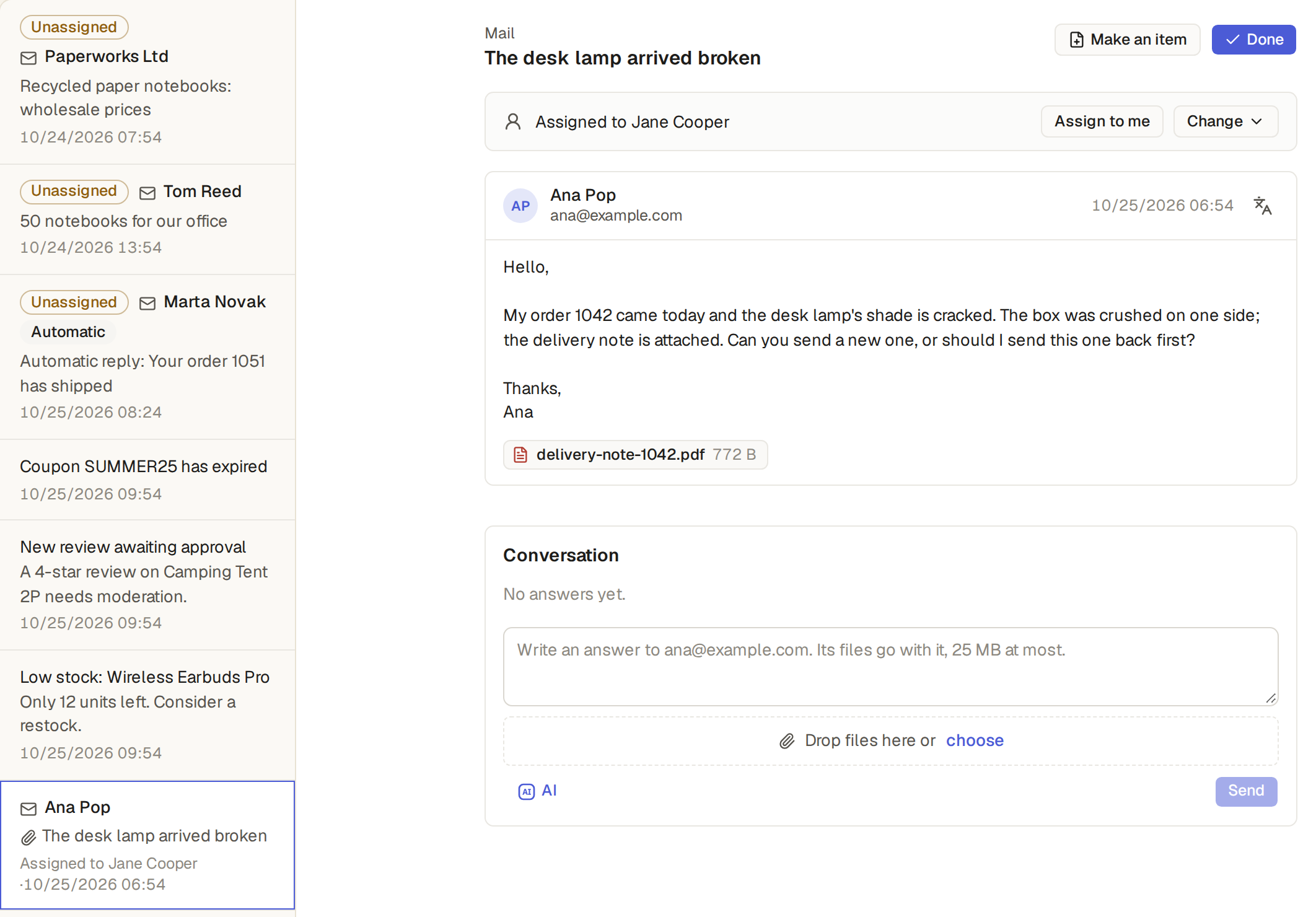
The Inbox is a list, in the sidebar's place, beside a pane. Click a row, and its item opens on the right, so you can read it, pick a step's outcome, give an approval, apply or skip a suggestion or answer in its comments without leaving the Inbox. Open goes to the item's page. On a phone you see the list, and a row opens its item in its place, with a way back to the list.
What the Inbox shows
The list shows all its rows by time, the oldest at the top. When you open the Inbox, the first row opens in the pane.
- What waits for you: the items that need you, Triage's suggestions among them, the steps you work, the approvals you may give, and the mail that waits for you. Each has a badge such as Needs you or Suggestion, and each says what to do.
- Mail that waits: a mail waits for its owner, and a mail with no owner for the triagers (Give each mail one owner).
- Notifications and mail: a step waiting for you, a workflow that finished or failed your item, an agent's message, a reply that came by mail (Mail a comment and get the answer on the item), and what the base's automations send you.
- A failed automation email, for the builders: an automation's email that could not be sent (When an automation’s email fails).
- The base's open mail, for the users who see Mail: each open mail of the base (Read the mail in the Inbox).
- Not in the Inbox: a message, a direct message or a mention in Get notified of mentions and messages. The count beside Chat shows those. A mention in an item's comment is in the Inbox.
- Only what you may see: the Inbox shows only what you may see in the base. An order that the manager sees and the salesperson may not see does not count for the salesperson.
Mark a notification or a mail Done
- Each notification and each mail has Done when you open it. It stays in the Inbox until you click Done: opening it changes nothing.
- Done on a mail takes it out of every Inbox; Search still finds it.
- Each one is done on its own: nothing marks them all at once.
- What needs you has no Done: it goes when you do what it asks.
Mentions and the items you follow
Mentions and the items you follow come from users and items rather than from a workflow, each marked with its own icon. Each opens its item in the pane.
- Mention: someone named you in a comment, "Jane Cooper mentioned you on ORD-00005" (Open an item’s page: comments, history, Follow and Duplicate).
- An item you follow: a new comment on it, "Jane Cooper commented on ORD-00005", a reply that came by mail, or its workflow moving it to another step, such as "Quote request “A price, please” moved to Review", finishing it or failing it. You follow an item with Follow on its page.
- You are never told of what you did yourself, and once only when you are both mentioned and following.
When the Inbox emails you
Each Inbox notification is emailed to you only when you are away from the base, that is when you have not used the base in the last 5 minutes. While you use the base, you see your notifications there, and no email comes.
- At once: a step that waits for you, an approval and a mention are emailed at once, with no wait and no limit, each email ending with its link.
- After 5 minutes: every other notification waits 5 minutes, and is emailed only if it is still open and you have not used the base since it came.
- One email for many: one email then holds every notification that waits for you, grouped by kind, each kind with its count, such as "2 steps wait for you" or "3 direct messages", and each line with its link. After 20 lines of one kind, the email adds "and 7 more in your Inbox".
- Spacing: the time between two such emails grows: 15 minutes after the first, 30 minutes after the second, then 1 hour. It starts again when you come back to the base.
- At most 4 of these emails in an hour and 24 in a day.
- Chat: mentions, channel messages and direct messages follow the same rules (Get notified of mentions and messages): a mention is emailed at once, and messages wait for the next email.
Which notices send no email
An email is for what waits for you, so some notices stay in your Inbox and are pushed, with no email:
- A finished workflow: a workflow that finishes an item, yours or one you follow, sends no email. When the person who picked the outcome wrote a comment, such as why they refused, the notice quotes the comment and is emailed too (Make an outcome need a comment).
- A failed workflow: a workflow that fails your item still emails you.
- Your base's own email: when your base's own email goes to you about the item in the same change, such as an automation's email that tells you your leave request was approved, Base Captain does not also email you its notice. You get one email, and the notice stays in your Inbox and is pushed, its comment with it.
- Several items at once: when one action makes several items wait for you, such as an automation that makes five visits at To assign, one email lists them all, each with its link, such as "5 items wait for you in Kerr Climate Services". Your Inbox still has one row for each.
- A step already passed: the email of a step goes to you only when the item still waits at that step. When an automation or the base's code moves the item on at once, such as a small order that needs no approval, you get no email for that step, and the notice in your Inbox is marked done.
Turn notification emails and push notifications on or off
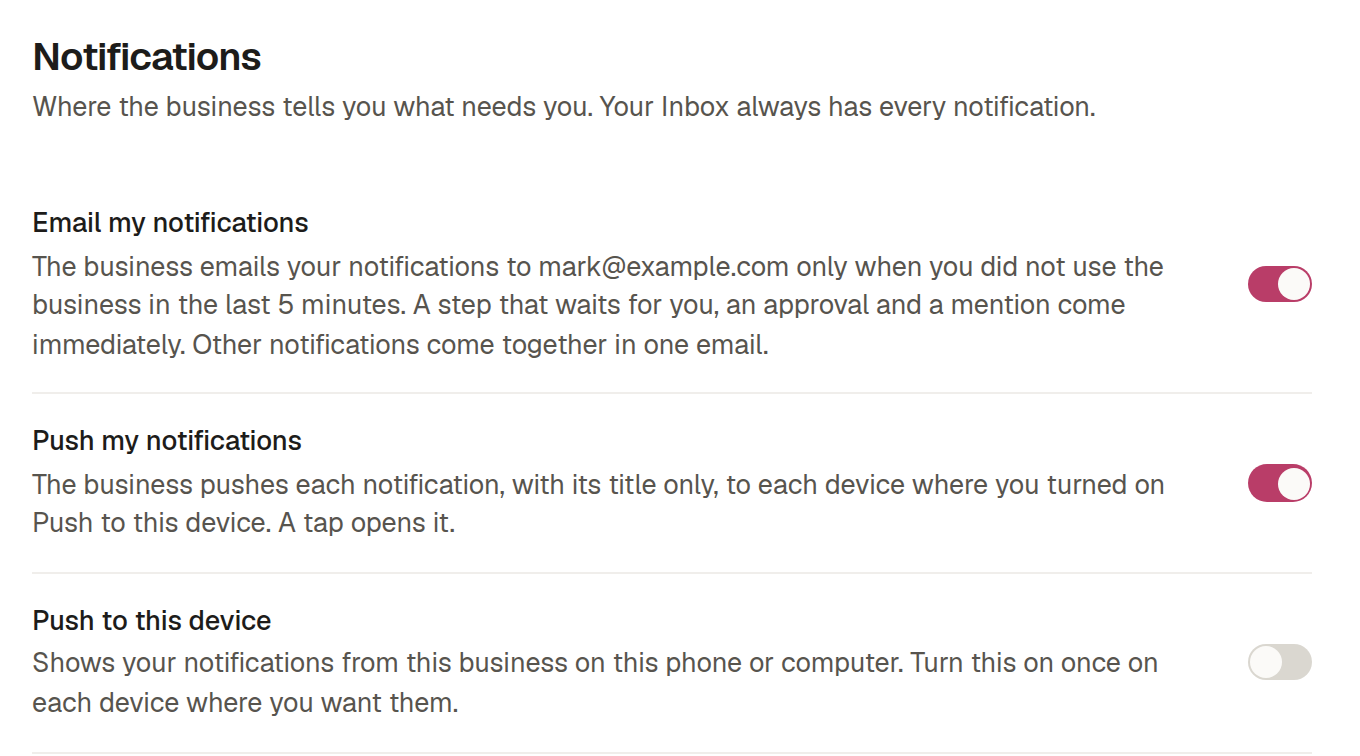
Each Inbox notification is pushed at once to the phones and computers where you turn push notifications on. Open Settings, then Notifications:
- Email my notifications: turn it off to stop the emails. If you turn it on again, Base Captain does not email the notifications that came while it was off.
- Push my notifications, on unless you turn it off. Turning it off stops push notifications on all your devices, from every base.
- Push to this device, under it: turn it on and allow notifications when the browser asks. From then on each notification shows on this device as the phone's or the computer's own, with its title only and none of the item's values, and a tap opens its item. Turn it off to stop it there. Do it once on each device you want them on, in each base you want them from.
- On an iPhone, add the base to the Home Screen first (Share, then Add to Home Screen), open it from there and turn push on in its Settings (Install your base on a phone or computer).
- A browser that blocks notifications: if the browser was told to block the base's notifications, Push to this device says that this browser blocks them. Allow notifications for the base's address in the browser's site settings.
- The Inbox keeps everything, whatever you turn off.
An item says Needs you when its work cannot go on without a person. The item says so in its Workflow box, on a board and in the Inbox of the users it concerns, and says why:
- Asked: an agent asked a question. Answer it with a comment on the item, and the work goes on.
- Stopped: an agent ran past the step's time limit and was stopped.
- Cannot start: the step's worker cannot run, such as an agent whose machine lacks its coding tool.
- Could not move on: the workflow refused a move, such as to Assigned with no technician, or an outcome that leads to no step. It says why and how to go on: fix the cause, such as the item with Edit, then comment on the item, and the work goes on with the outcome first picked. When a person picked that outcome, they may instead pick another outcome of the step, such as Declined: the Workflow box offers the step's outcomes again.
- Limit reached: the item came back to one step more often than the workflow's Entry limit allows. A comment lets it enter the step once more.
- Triage suggests: Triage was not sure of a value, on any item, with a workflow or not. Click Apply or Skip (Let Triage start workflows, fill in fields and give out mail).
Who is told
- An agent that fails tries again, three times, before its step ends in failed.
- The users told are the item's author and the workflow's Watchers, or the builders where it has none.
- Watchers are users of your team: a workflow refuses one of an external role, such as a customer.
- A step a person works would wait for nobody if the users of its role cannot see the item. The watchers are then told, or the builders: the item "waits at" the step for that role, "who cannot see it". Let them see it with the role's row rules (Settings, Roles), or give the step another worker (Builder, the table, Workflows); the message says where. When the item leaves the step, the message is marked done.