Send an email or act when an item changes
Send an email, call another service, set a field, run an agent or start a workflow when an item changes, and post to a chat or send a text message.
An automation (a trigger and its actions) does something when an item is created, changed or deleted, or gets a comment, such as send an email, call another service or start a workflow (What an automation can do). The users who build the base make automations.
The example shop emails a customer when their order ships:
- Signed in as a manager, open an order that has a customer.
- Click Edit, pick Shipped under Status and click Save.
- The customer gets "Order ORD-… has shipped", and the order's Notes say the notice was sent. Its history shows that change as the automation's.
Make an automation
- Click Builder, then the table the automation watches, such as Orders, then Automations, then New automation.
- Give it a Name.
- Under Runs, pick when it runs. For an update, tick the fields whose change counts; none ticked means any change.
- Under Only if the order then matches, add filters, such as Status is Shipped.
- Under Then, click Add action and pick one or more actions.
- Click Save automation. Turn off Enabled to keep an automation without running it.
When you ask the assistant for the automation instead, its card shows the same email before you click Apply (See a change before it happens).
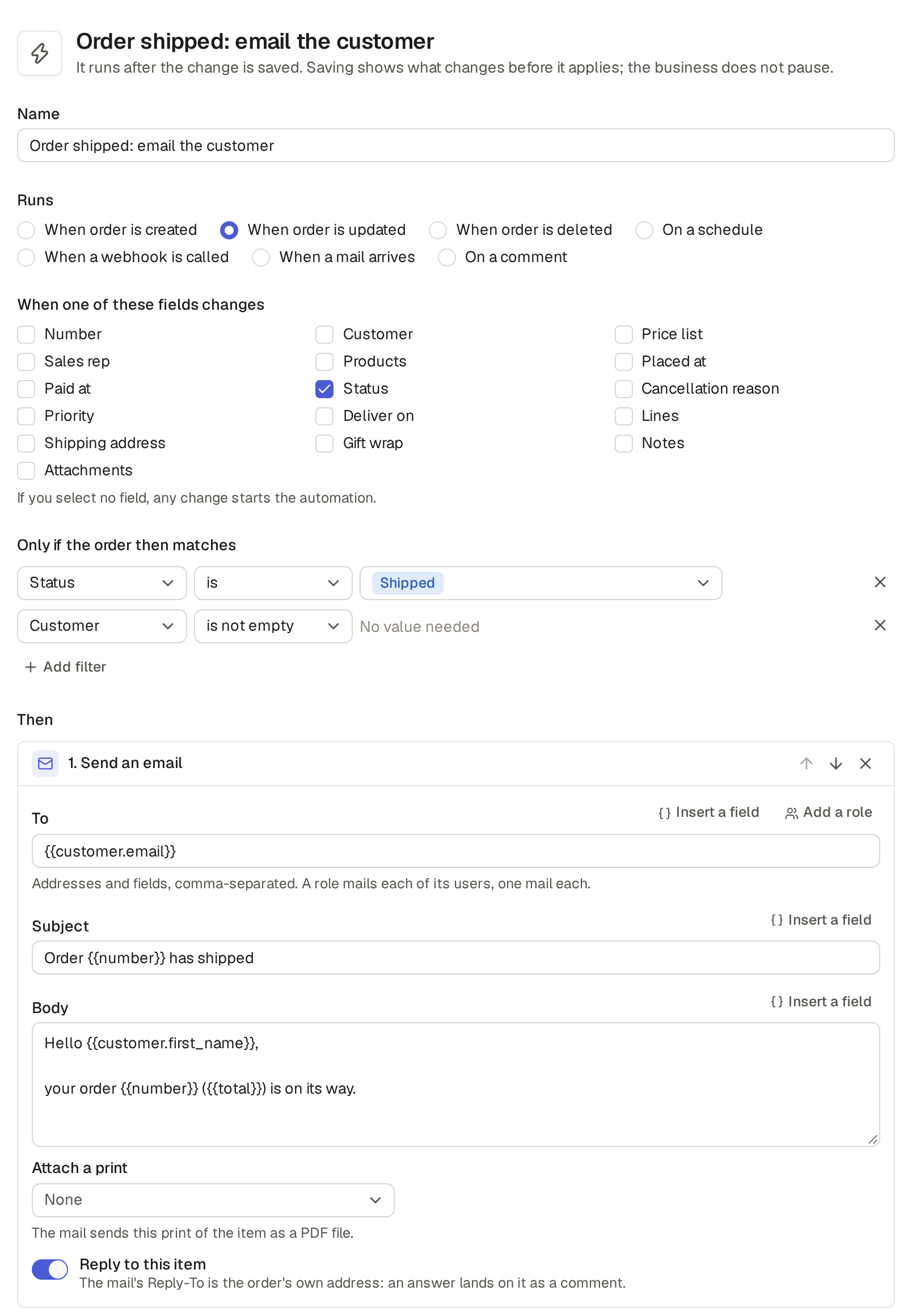
When an automation runs
- When order is created, updated or deleted.
- On a schedule (Run an automation on a schedule).
- When a webhook is called (Make an item from each incoming webhook) or When a mail arrives (Make an item from each mail that comes in).
- On a comment (Run an automation on a new comment).
What an automation can do
- Send an email (What you can type in a mail).
- Call a webhook: call another service (Call another service with a webhook).
- Set a field.
- Create an item.
- Run an agent: hand the item to an agent with what you tell it (Let an agent work by itself from an automation or a workflow).
- Start a workflow.
- Stop workflow: stop the workflow that holds the item or the item a reference names.
- Run an action: run one of the item's buttons (Press one of the item’s buttons).
- Run code, for what the others cannot say (Read, change and try the base’s code).
- Ask for payment, on a table that takes payments: mail the customer a link to pay the item (Ask a customer to pay with a payment link).
An automation's email can hold the item's values, links and a print of the item. Insert a field puts one of the item's values into an email or a value, such as the customer's email.
- In an email's subject and text, a date shows in the base's date format and an amount in its currency, as on the base's pages, such as "06/11/2026" and "£1,250.00" (Set the logo, time zone and currency).
- A field that holds rows, such as an order's {{lines}}, writes one line for each row, with the values its list shows, apart by "·", such as "Desk lamp · 2 · $46.00", at most 100 rows. In a subject the rows are apart by ";".
- For your base's name, type {{base.title}}, the base's Name in Settings, General.
- For your company's other details, type a field of the base's settings, such as {{settings.address}} or {{settings.iban}}, so every mail reads them from one place (Keep rates and the closed month in a settings table). A field that does not exist is refused on save, such as "{{settings.iban}}: the settings table has no field iban".
- In an email's subject and text, Insert a field also offers Link to each print template of the list, such as Link to Invoice: a private link that shows the item printed with it for thirty days, to someone who is not a user of the base.
- Insert a field also offers Link to this item in the base, {{link.base}}, is the item's page in your base, for a mail to your team, such as "You have a new visit: {{link.base}}". The link opens only for a user who signs in and may see the item.
- On a table that gives its items a lasting link, type {{link.lasting}} for its address, which never expires, such as "Anyone can check it at {{link.lasting}}" (Give each item a lasting link: a check page). On another table it is empty.
- To build an address in a mail, put a form after a placeholder: {{…|url}} encodes its value for a
link, and {{…|year}} and {{…|month}} write a date's year, such as "2026", and its month as a number, "1"
to "12" (a date and time's in your base's time zone), or nothing when the field is empty. A certificate's mail
adds it to LinkedIn so:
https://www.linkedin.com/profile/add?startTask=CERTIFICATION_NAME&name={{design.title|url}}&issueYear={{issued_on|year}}&issueMonth={{issued_on|month}}&certUrl={{link.lasting|url}}. - A placeholder takes one form, and only in an email's subject and body. Another form, or |year on a field that is not a date, is refused on save, such as "{{name|year}}: name is not a date field".
- Attach a print sends the item printed with one of the list's print templates as a PDF file, such as the remittance advice to a supplier or an invoice to a customer (Send a printed item to a customer by link). An email on delete, a digest or a schedule with no view has no item to attach.
- Beside an email's To, Add a role adds the
users of one of the base's roles but an outside one, such as Users of Manager, which writes
role:managerin To. Each user of that role with an email gets the mail, one mail each, so no one sees another's address. - Addresses, fields and roles go in one To, separated by commas.
- When an agent runs the action, the mail ends with a line that says it is from an AI agent (Tell an agent's mail from a person's).
An automation's Call a webhook sends a POST to another service's address, its URL.
- What it sends: The item and its changes sends the item as the base's own JSON; JSON or Form sends only the values you list, each a Name and a Value, where Insert a field puts in one of the item's values, such as the order's number. With no values, the editor refuses to save: "Add a value with a name, or send the item and its changes". Through the API and the assistant, the refusal is "a body's format needs values: add values or clear the format".
- Authorization: A bearer token sends a secret from the Secrets in Settings as the service's token, and A user and a password a user you write and a secret as its password (Store the keys of other services).
- The URL can hold a secret too, written {{secrets.NAME}} or picked with Insert a secret, so an address that is itself a key stays in Secrets (Post to a team chat or send a text message).
- Base Captain calls only the hosts listed under Allowed hosts in Settings, General, and the editor warns when the URL's host is not one of them.
- Each call carries its own ID and, with a Signing secret, a signature the service can check. A call that fails is tried again for about a day, and Calls, under the action, lists each call and its tries (Send webhooks to another service).
Where a secret may go
A secret in a webhook goes only where it was chosen to go when its value was entered (Store the keys of other services):
- A webhook that would send it to another host is refused with "The secret NAME may not be sent to …", whatever Allowed hosts says.
- On its own host too, a secret goes only in its places, and nothing is sent when it is elsewhere.
- A secret that is an address goes only as the start of the URL, never in a value or another part of the call.
- A key for a service from the list goes only where that service takes it, such as under Authorization.
- A key typed for another service's address goes under Authorization, in the URL's path or in a query parameter, never in the values the call sends.
An automation's Run an action runs one of the item's buttons, picked under Action (Make a button that does several steps, with no code), as the base itself. The button's Who may run it is not asked, and what its steps change shows in the item's history as the automation's.
A workshop keeps its certificates in the base, each with a button Close the previous that marks the same holder's older certificate of the same type as replaced. The automation "Renewed: close the previous" runs that button when a certificate's Issued on changes: when the forklift licence renewed this week gets its date, last year's closes by itself and leaves the list of expired certificates. A certificate already replaced does not match the button's Only when, so the automation skips it.
Limits and details
- The button runs only when it may run on that item: when its Only when or one of its guards does not hold (Lock an item or a button with a guard, and say why), the automation skips it, and that is no error.
- If one of its steps fails, nothing the automation did to the item is saved.
- The list offers only the buttons an automation can press: one on an item, not on the list, that asks for no values first and opens no form. For a payment, use Ask for payment.
- Run an action runs when an item is created or changed, on a comment, on a schedule over a view, on a webhook and on a mail, never when an item is deleted.
- A button an automation runs cannot lose what lets it run: saving a change that moves it to the list, makes it ask for values or open a form, or removes it, is refused, naming the automation, until you change the automation first.
On a comment runs an automation when an item of the table gets a new comment. Under it, pick which comments count:
- Any comment, a person's or one that came in by mail.
- A comment sent by mail, a person's comment that went to someone by mail.
- An answer received by mail, a mail that came back to the item (Mail a comment and get the answer on the item).
The filters under Only if … then matches read the item as it is after the comment. A comment that an agent, the base's code or an automation writes never runs it, so an automation cannot run itself again and again. In Helpdesk, a reply sent by mail sets the ticket to Waiting for the customer, and the customer's answer opens it again.
All automations, in Builder, shows the automations of every table at once. Click Builder, then All automations, beside All tables.
- Each row shows the automation's table, when it runs, what it does and its Enabled switch.
- Last run, in each row, shows the day of the last run and how many runs and failures there were in the last 30 days, such as "14 runs, 2 failed in 30 days". A row with no run in that time says "Not run in 30 days".
- An automation on a schedule also shows its next run, with Run now (Run an automation on a schedule).
- Click a row to open the automation. To make a new automation, go to its table's Automations page.
The emails your base sends, from an automation, a workflow or a notification, go out from Base Captain's own address, under your base's name followed by "via Base Captain", such as "Shop via Base Captain". Each ends with a line "Sent by Shop with Base Captain. Report this mail" and a link of its own for each address (Name your emails and choose where answers go).
Replies to your base's emails go to the Sender address in Settings, Mail, when the base has one, one email address such as [email protected].
- With no sender address, while the base takes mail (Turn mail on for your base), replies come back to your base: to the item's own address when the email is about an item, where they land on the item as comments (Mail a comment and get the answer on the item), else to the base's own address, where they come into the base's Mail (Get and answer mail in a shared inbox).
- Reply to this item: an email about an item can have Reply to this item on. Replies then go to the item, even with a sender address.
A base sends at most 1,000 emails a day, each to at most 50 addresses, and the count starts again at midnight UTC.
- Past that, the day's other emails from an automation, a payment request or your base's code wait in the base and go out the next day, oldest first.
- A notification to a user, a sign-in or invite link and a comment mailed to a correspondent are not sent past that.
- Mail to addresses outside your base, an invited user who has not joined yet among them, also has the base's fair-use limit. Past it, such an email waits in the same way until the limit's period ends, and an invitation is refused (What happens past a limit).
Refused mail and paused mail
- An address whose mailbox refuses your base's mail for good, or whose owner marks one of its mails as spam or reports it with its link, is no longer mailed by your base; other bases still mail it. A mail to it is not sent, and the base's problems, which the assistant reads, say why.
- When, over the last 30 days, 5 % of your base's mails bounce or 0.1 % are marked as spam, your base's mail is paused, and only your base's: its mails are not sent, the base's problems say so, and Base Captain's team is told and lifts the pause once it is safe.
- A reported mail counts as one marked as spam, and Base Captain's team is told of each report at once.
- Sign-in codes and invitations always go.
When your base cannot send an automation's email, the base's builders get a notice in their Inbox. The notice names the automation, the item, the address and the reason, and opens the item.
- A reason can be an address that is not an email address, an item with no address, a print to attach that could not be made, or a send that failed.
- Each automation has one notice for each reason: while the notice is open, a new failure updates it, so many failures do not fill the Inbox. After you click Done, the next failure gives a new notice.
- An email that waits for a sending limit has not failed.
An automation's Call a webhook with values posts to your team's chat, such as Slack, Teams or Telegram, or sends a text message, with no code. The steps are on their own page: Post to a team chat or send a text message.