Give users roles and see who may do what
Give a user one or more roles, let a role include others, see who may do what on the Roles page, make a role, and see the base as a user sees it.
A role in a Base Captain base is what a user may see and do there (user permissions). Each user of the base holds one or more roles, and may do what any of them allows (Give a user several roles). Each role has a type:
- Admin: the whole base, Builder and every Settings page, users, roles and secrets included. Admins see and change every item.
- Staff: the business's own people. They use the base within each table's rules (Choose the rows a role sees and changes). Two checkboxes add more, and you tick both, one or none:
- Builder builds the base as an admin does: tables, views, forms, print templates, automations, workflows, the base's code through the assistant, Versions and restoring one, History, Statistics, Agent runs, Triage, the skills, and the instructions and skills of an agent. A builder sees and changes every item, whatever the role's rules.
- AI manager sets up Agents, Skills, MCP servers and Machines, gives the assistant its name and picture, and pauses agents and workflows.
- External: people outside the business, such as customers or suppliers. They see only the items linked to them, nothing of Builder, and in Settings only their own pages (Open a customer portal).
A new base has two roles, Admin and Staff. Make more on the Roles page (Make, rename or delete a role) or with the assistant (Make a role or change its rules with the assistant).
What stays with the admins
Some things stay with the admins, and a builder or an AI manager does not get them: General in Settings, Users, Roles, Background jobs, the Security log (Read the security log), the storage on Usage, the export of all the base's data, and adding, replacing or deleting a secret. Builders and AI managers still see the secrets' names, to pick one where a form asks for it, never their values. Only an owner of the base copies or deletes the base, or saves it as an app (Make a user an owner of the base).
Nobody gives more than they have
An agent's roles, the role an agent's chats run under, the role of a workflow step's workers and the roles that a role includes can be set only to roles that have nothing the person setting them lacks: "Only an admin can give an agent the role Admin", or "Only a builder can give an agent the role Consultant". An external role is never an agent's.
A role's description
Each role has a description: one line, at most 160 characters, that says what the role can see and change, such as "Sees the jobs they do and changes their work and status." The invite form shows it under the role, the Roles page shows it on the role's page, and the invitation mail says it. On the invite form and the Roles page, a role with no description shows the line of its type. Every role that an app brings has its own description, and a role that two apps share says the same in both.
The roles of the example shop
The example shop has twelve roles:
- Admin, of type Admin.
- Staff, Staff: the role every new base has, which the modules' rules name.
- Manager, Staff: works with every order, customer and product.
- Sales, Staff: sees only the orders they are the rep of, changes them until they are delivered, and does not see a product's cost or margin.
- Support, Staff: sees every order and every customer, and changes none.
- Sales lead, Staff: includes Sales, and changes every order. Nobody holds it in the example.
- Order check, Quote desk and Bookkeeping, Staff: the roles of the shop's agents, which work under a role like anyone else (Make AI agents that work in your base).
- Consultant, Staff with Builder: builds the base, without the admins' pages.
- AI lead, Staff with AI manager: sets up the agents.
- Customer, External: the customers themselves (Open a customer portal).
Mark Rivera holds Sales and Support: he sees every order, and changes only the orders he is the rep of.
A user with several roles may do what any of their roles allows. One person often does the work of several roles, such as a receptionist who also sells: give them each of those roles on Users (Change a user's roles, or remove a user).
- They see and change an item when the row rules of one of their roles let them (Choose the rows a role sees and changes).
- Each field takes the most open state that one of their roles gives it: editable, then required, then read-only, then hidden (Hide or lock fields with field rules).
- They have the abilities of each of their roles: an admin role makes them an admin, a role with Builder a builder, a role with AI manager an AI manager.
- A user with a staff role and an external role has the staff's pages, and the external role's rules still give them its items. Only a user whose roles are all external is an external user.
- A workflow step for a role, and a mail to a role, reach every user who holds it, each user once.
In the example shop, give Jane Cooper Manager and Sales: when she edits an order, she can change its Sales rep, which Sales alone only reads. An agent may hold several roles too, and works with all of them (Make AI agents that work in your base).
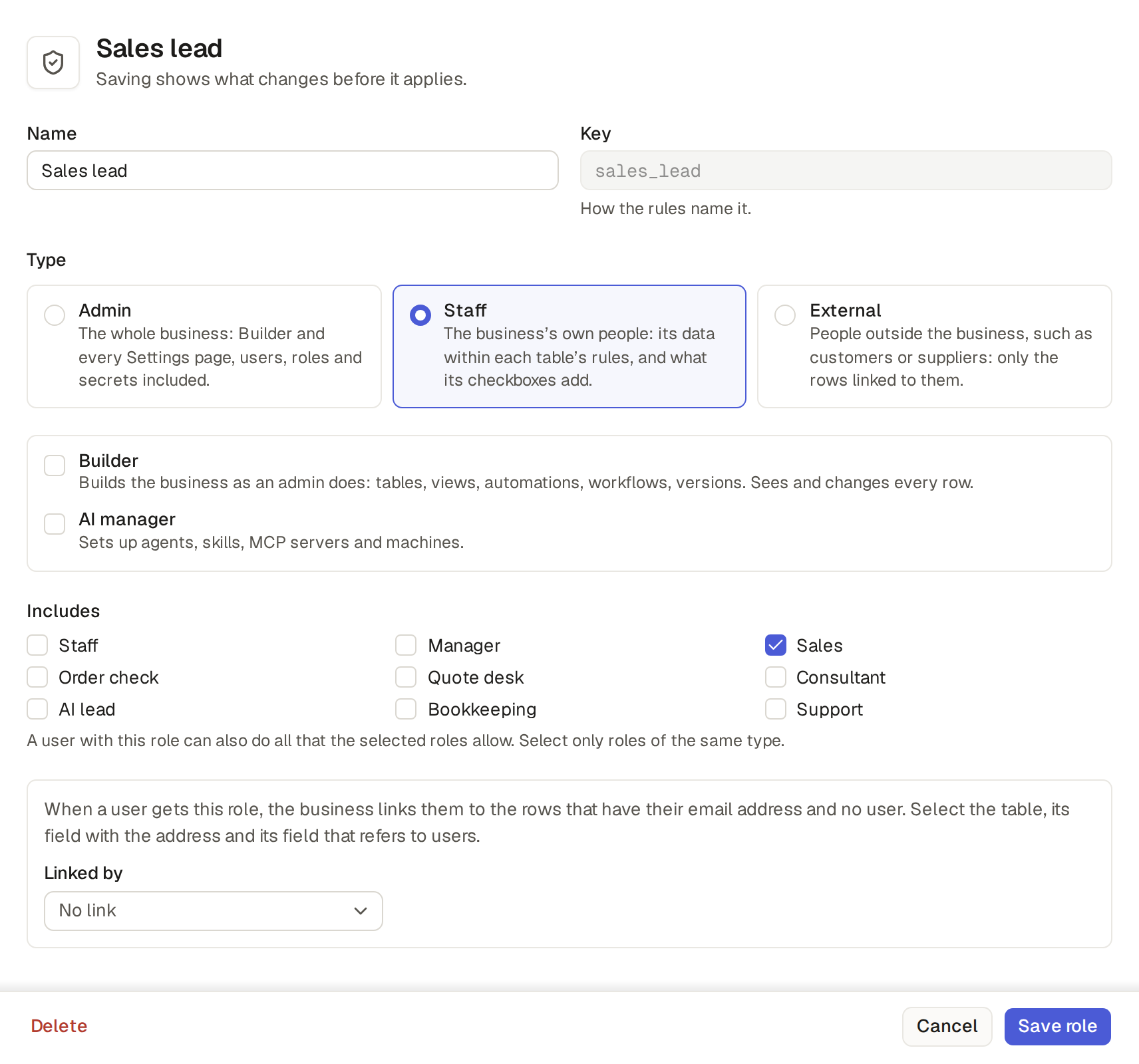
A role in Base Captain may include other roles of its own type: a staff role includes staff roles, and an external role external roles. An admin role includes none, because it may do everything already. A user with the role can also do all that the included roles allow, and what the role's own rules allow on top. A workflow step or a mail for an included role reaches them too. You pick the included roles under Includes on the role's page (Make, rename or delete a role).
Limits and details
- A role cannot include itself, directly or through other roles. Try, and the role is refused: "A role cannot include itself, directly or through other roles".
- A staff role that tries to include an external role is refused: "A staff role includes only staff roles".
- An external role that tries to include a staff role is refused too: "An external role includes only external roles".
The Roles page shows the base's roles and who may do what. Click Settings, then Roles. The page lists the base's roles, each with its type, how many users hold it and a pencil, which opens the role's page. Its name opens the page too. The role's page shows its description. A user with several roles counts under each of them.
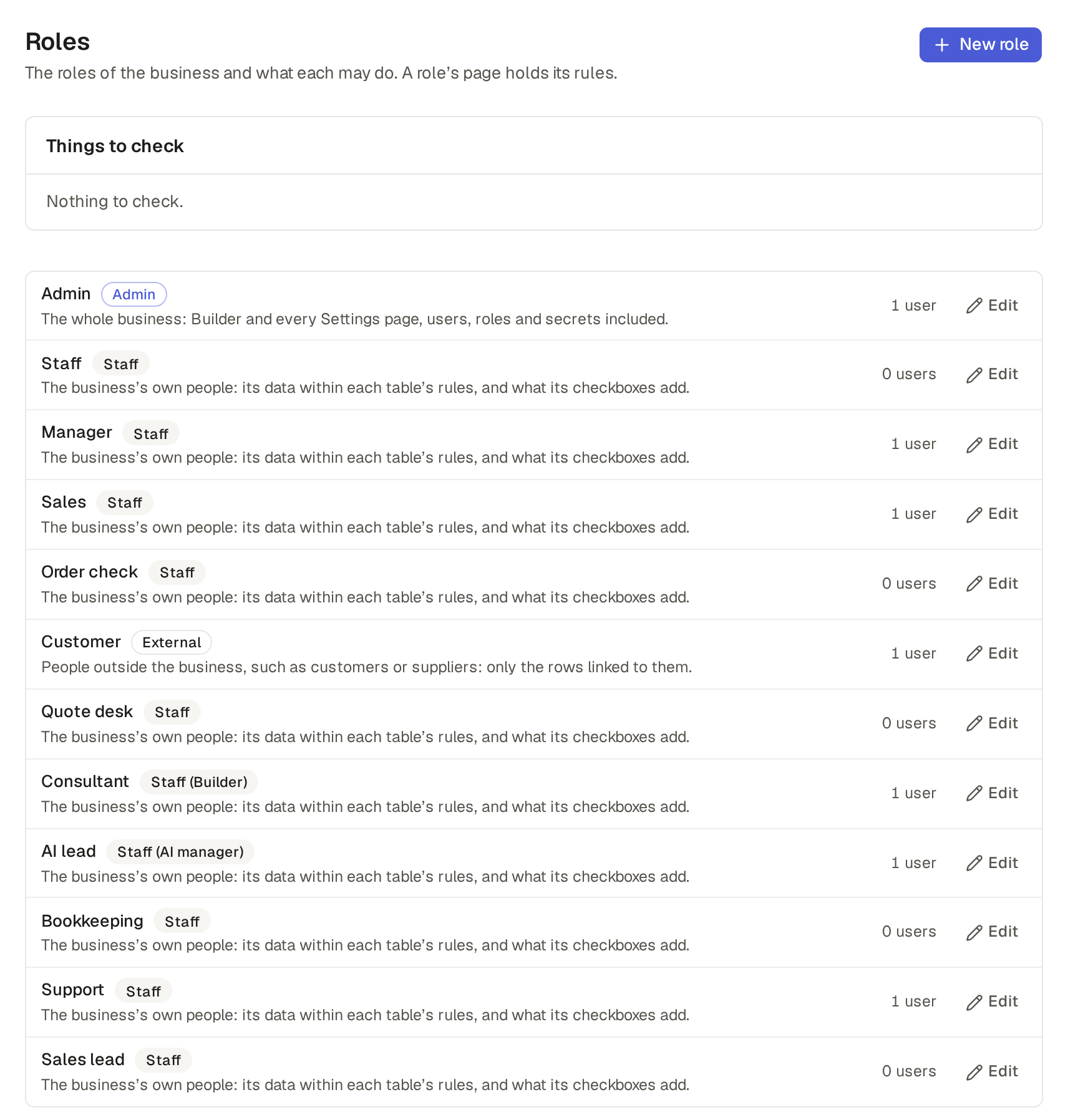
Check the risks to your data: Things to check
Above the grid, Things to check lists the risks of who can reach the base's data, the largest first. Only the base's admins see the box.
- An outside role that sees, changes or deletes every item of a table, not only its own, and whether anyone can sign up as that role.
- An MCP server whose tools change data without asking first.
- A user who can change the base but has not used it for 90 days.
- An API token that nobody has used for 90 days.
- The private calendar links and the open customer links, which show data to whoever holds them.
Each line is one sentence, such as "The outside role Customer sees and changes every item of Orders, not only its own, and anyone can sign up as Customer." It links to the setting that fixes it, and Ask the assistant asks how to fix it. When nothing matches, the box says "Nothing to check."
What each role may do
Under What each role may do, pick a role in the tabs, such as Sales. A grid has a row per table and says whether the role may See, Add, Change and Delete its items: a tick for all of them, Some for those a rule allows, a dash for none, which reads No access when you point at it. Its Fields column shows what the field rules make of the table's fields for that role, such as "Hidden: Cost, Margin" on Products. Hover or click a Some for the rule in words, such as "Sales see only the orders they are the rep of".
Under it, Everyone holds the field rules for every role, the builders too (Hide or lock fields with field rules).
Where the rules hold
The roles' rules hold everywhere: in lists, searches, exports, totals, the dashboard, history, the API and the assistant. A field a role may not see is not in its list's columns or its form at all; one it may not see on some items only shows empty on those rows (Hide or lock fields with field rules).
Where a role may not change or delete an item, its Edit and Delete show greyed out, and pointing at them tells why: the rule's note, such as "Sales change their own orders until they are delivered", or "You can't edit this item" where the rule has none. So does a line's delete button inside the item, and in a grid that changes values in place, the item's cells do not open (Change a value right in the grid). A rule that holds for everyone, the users who build the base too, such as "an issued invoice cannot be changed", is a guard on the table rather than a role's rule (Lock an item or a button with a guard, and say why).
Things to check in the API
Under an admin's API token, GET /api/builder/access-checks gives the list of Things to check, and so
does the tool list_access_checks of the assistant and of Base Captain's MCP server.
An admin makes a role on the Roles page, with its name, description, type and the roles it includes.
- On the Roles page, click New role.
- Give it a Name, such as "Support". Its Key, the name the rules use, follows the name, and stays once the role is made.
- Write its Description: one line that says what the role can see and change, such as "Sees the jobs they do and changes their work and status." The limit is 160 characters, and it is one line. If you leave it empty, the invite form shows the line of the role's type, and the invitation mail gives the role's name only.
- Pick its Type: Admin, Staff or External. For Staff, tick Builder, AI manager, both or neither.
- Under Includes, select the roles whose rules it also gets, if any. Only roles of the same type can be selected.
- Click Save role, then again in the box that asks "Create the role Support?". The role is made.
The new role sees nothing until you give it row rules on its page (Choose the rows a role sees and changes).
Rename a role or change its type
Open the role with its pencil, change it and click Save role. The role of an owner of the base stays an admin role, and so does the last admin role that a user holds.
Delete a role
Delete on a role's page removes the role and its rules. It is refused while a user, an agent or a workflow step holds the role, and says which, such as "Role "Consultant" is held by 1 user": give them another role first.
A role's description in the API
Under an admin's API token, the put_role operation of POST /api/builder/apply takes the description, and so does the tool put_role of the assistant. A description of more than
160 characters, or of two lines, is refused.
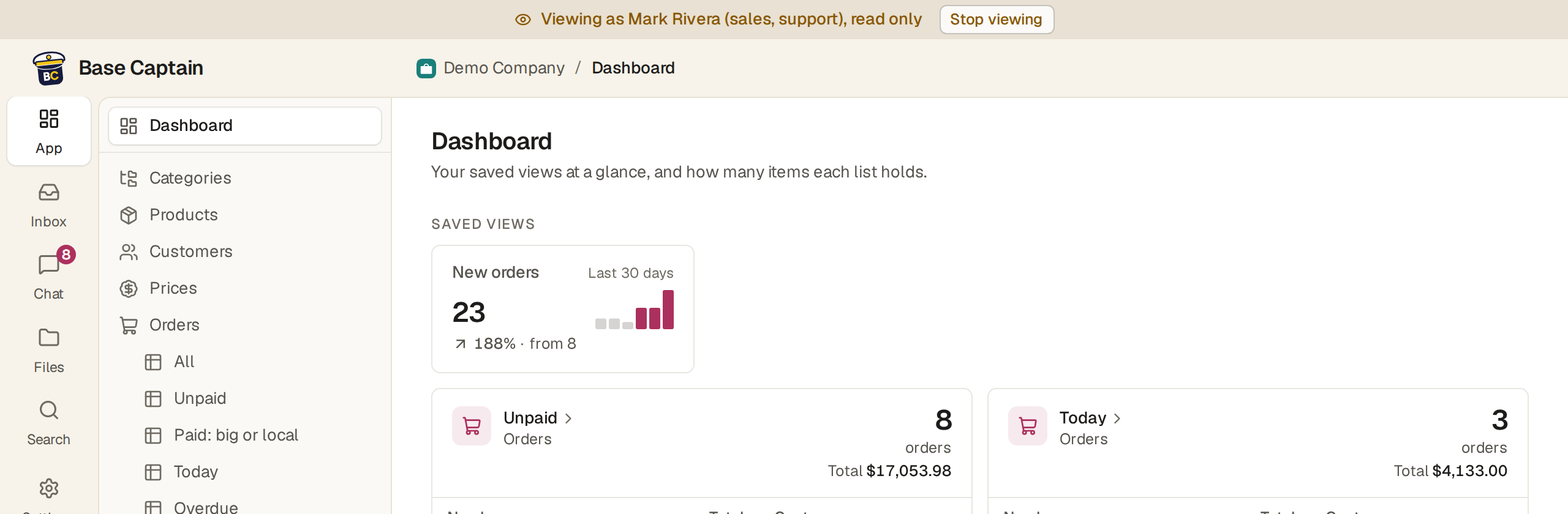
View as opens the base as one of its users sees it, read only, so you can check what their roles give them.
- On Users, click View as beside someone. On the Roles page, View as on a role's tab, under What each role may do, offers the same for its users.
- The base opens as they see it, under the band "Viewing as Mark Rivera (sales, support), read only": their rail and sidebar, their dashboard, their lists. Nothing can be changed meanwhile.
- Click Stop viewing to be yourself again, back on the Roles page.