Make a print template for invoices and slips
Add a print template to a table and write its page in HTML, with the item’s fields between double braces: an invoice, a packing slip or a price list.
A print template (a document template) is the page that Base Captain prints from one item, or from a view's items: you write it in HTML, with the item's fields between double braces. The base's builders add print templates to a table.
- Click Builder in the rail, then the list it prints from, here Orders, then Print templates: the page lists the table's print templates, each with its name and its id. Click New print template.
- Give it a Name, such as Packing slip: an item's page then shows a button Print Packing slip, or lists it under one Print button when the table has three print templates or more.
- The Id follows from the name, packing-slip: lowercase letters, digits and dashes, 3 to 40 of them. Change it now if you like: a print template keeps its id.
- Under Prints, leave One item, or pick The items of one of the table's views to print them instead (Print a view: a price list or a statement of account).
- To print the items that point at the printed one, such as an order's payments or a project's change orders, click Add list under Lists. Pick The items of a table with a reference to this one and the reference they point by, under Linked by, give the list a Key, such as payments, and, if you like, keep only some of them under Only the … where and sort them. Click Add list: the list is a row under Lists, with its filters in words, to edit or remove. A print template holds up to 10 lists; a view's has none.
- Under Roles, select the roles that get the print, such as your staff roles for a checklist that your customers do not need. Select no role and every role that can see the item gets it.
- Write the Template: the page in HTML, with places for the item's values in double braces (Write a print template: fields in double braces).
- Click Save print template. The print template is created at once, with no box. It is in the list, and on the page of every order, as a button.
A print template's page shows a preview once the template is created: pick an item under Preview on and the item shows as it prints for that item, with a Print button; a view's print template shows the view's page. The preview reloads after each save. A template that cannot be printed for that item shows "This page could not be printed." in the preview instead.
To change a print template, open it from Print templates, change its name, its roles or its template and click Save print template. A mistake in the template is refused with what is wrong, under the box, and nothing is saved.
To delete a print template, click Delete, then Delete print template in the box that asks: the print template is deleted, and its button leaves the items' pages.
Each change to a print template is a new version of your base, which you can go back from (Ask the assistant and review its changes).
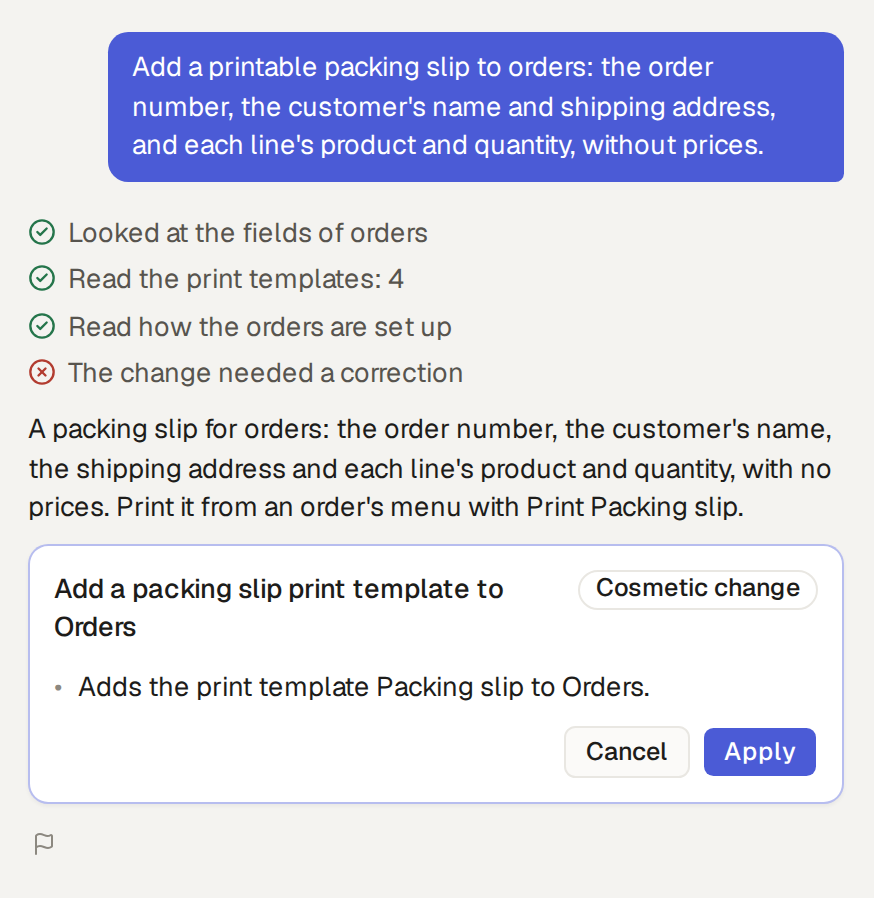
The assistant makes a print template from your own words, on any page: "Add a printable packing slip to orders: the order number, the customer's name and shipping address, and each line's product and quantity, without prices." It answers with a card, such as "Add a packing slip print template to Orders", which says what it adds. Click Apply, or Cancel to leave the base as it is.
Ask again to change one: "Put our bank details under the invoice's total", or "List the order's payments under the total." Your company's details come from the base's settings, so you fill them in once.
Only the assistant sets the condition that offers a print of an item only for some items: "Offer the receipt only for attended visits." The print template's page then says "Offered only when a rule the assistant wrote holds for the item." under Roles. To remove the condition, ask the assistant again. A print template of a view has no condition. What a condition does on an item's page is in Print an item or save it as a PDF.
A print template is the page in HTML. What sits between double braces is filled in from the item when someone prints it.
The item's fields
{{.item.number}}: one of the item's fields, by its key. A reference reads on into the item it points at,{{.item.customer.email}}, and{{.item.customer.label}}is its name.{{range .item.lines}}…{{end}}: the same once for each row of child rows, such as an order's lines, with each row's fields inside,{{.quantity}}. A files field is a list too, each with its.nameand.url, so a picture is<img src="{{.url}}">.{{range .lists.payments}}…{{end}}: the items of a list, by its key (Add a print template), each with its fields as.itemhas them but without its rows, such as{{.amount}}. A list holds only the items the person printing may see, up to 1,000; a print sent by link lists them all.{{with .item.cost}}…{{end}}: shows what is inside only when the field has a value. Wrap a field that may be empty, or that some users may not see.
The base's name and settings
{{.base.title}}and{{.base.logo}}: your base's name and its logo's address, and{{.today}}, today's date. The base's name is set in Settings, General (Set the logo, time zone and currency), and every user who prints sees it, whatever their role.{{.settings.address}},{{.settings.iban}}: a field of the base's settings, by its key, such as your company's address and bank details (Keep rates and the closed month in a settings table). They are kept once and show on every quote and invoice. They follow the rules of the person printing, as the item's fields do; a print sent by link shows them all. In a base with no settings, they print empty.
Dates, amounts and durations
{{date .item.issued_on}}writes a date in the base's date format, such as "06/11/2026", and a date and time with its time in the base's time zone, such as "06/11/2026 14:30".{{date .today}}writes today's date so.{{money .item.total}}writes an amount in the base's currency, with its sign, its thousands grouped and two decimals, such as "£1,250.00". For an amount in another currency, name it:{{money .item.total "USD"}}, or{{money .item.total .item.currency}}for the currency that a field of the item holds. In a base with no currency, it writes the number alone, "1,250.00".{{hours .item.hours}}and{{minutes .item.duration}}write a duration, such as "2 h 15 min", and{{googlemaps .item.address}}is an address's link on Google Maps.{{year .item.issued_on}}and{{month .item.issued_on}}write a date's year, such as "2026", and its month as a number, "1" to "12", for an address that asks for them.date,money,hours,minutes,yearandmonthwrite nothing for an empty field, or one that the person printing may not see, so they need nowith.
The lasting link as a QR code
{{.lasting_link}} is the address of the item's lasting link (Give each item a lasting link: a check page), empty when its table has none. {{qr .lasting_link}} makes a QR code of it, as a picture, in
the print and in the PDF a mail attaches: {{with .lasting_link}}<img src="{{qr .}}" alt="QR code">{{end}}. qr works in
every print template, a view's too, with a text of at most 1,000 bytes.
Links in a print
A link in a print template can carry the item's values, such as LinkedIn's add-a-certification page with the year
and month of year and month: <a href="https://www.linkedin.com/profile/add?startTask=CERTIFICATION_NAME&issueYear={{year .item.issued_on}}&issueMonth={{month .item.issued_on}}&certUrl={{.lasting_link}}" target="_blank" rel="noopener">Add to LinkedIn</a>. A value in a link's address is encoded for you. Give a link target="_blank" and rel="noopener": it then opens in a new tab.
A view's print template
A view's print template has .settings too, but no .item; it has instead:
{{.view.name}}, and{{range .view.filters}}…{{end}}, each of its filters in words, such as "Status is Issued".{{range .items}}…{{end}}: each item, in the view's sort, with its fields and its lines as.itemhas them.{{.totals.total}}: a field added up over every item of the view, as under the list;{{.count}}, how many items the view holds, and{{.truncated}}, true when there are more than the 1,000 it lists.
An example: a packing slip
A packing slip, for example, can be <h1>Packing slip {{.item.number}}</h1><p>{{with .item.customer}}{{.label}}{{end}}</p><table>{{range .item.lines}}<tr><td>{{with .product}}{{.label}}{{end}}</td><td>{{.quantity}}</td></tr>{{end}}</table>.
Print templates keep these rules:
- The page around a print template gives the title and a plain print style; add your own with a
<style>block. - Scripts, and pictures or fonts from other websites, are left out of a print template.