Edit in a list, group rows and see totals
Group a grid’s rows, drag items into your order, see totals, change a value in the grid, change or delete many items at once, and see changes live.
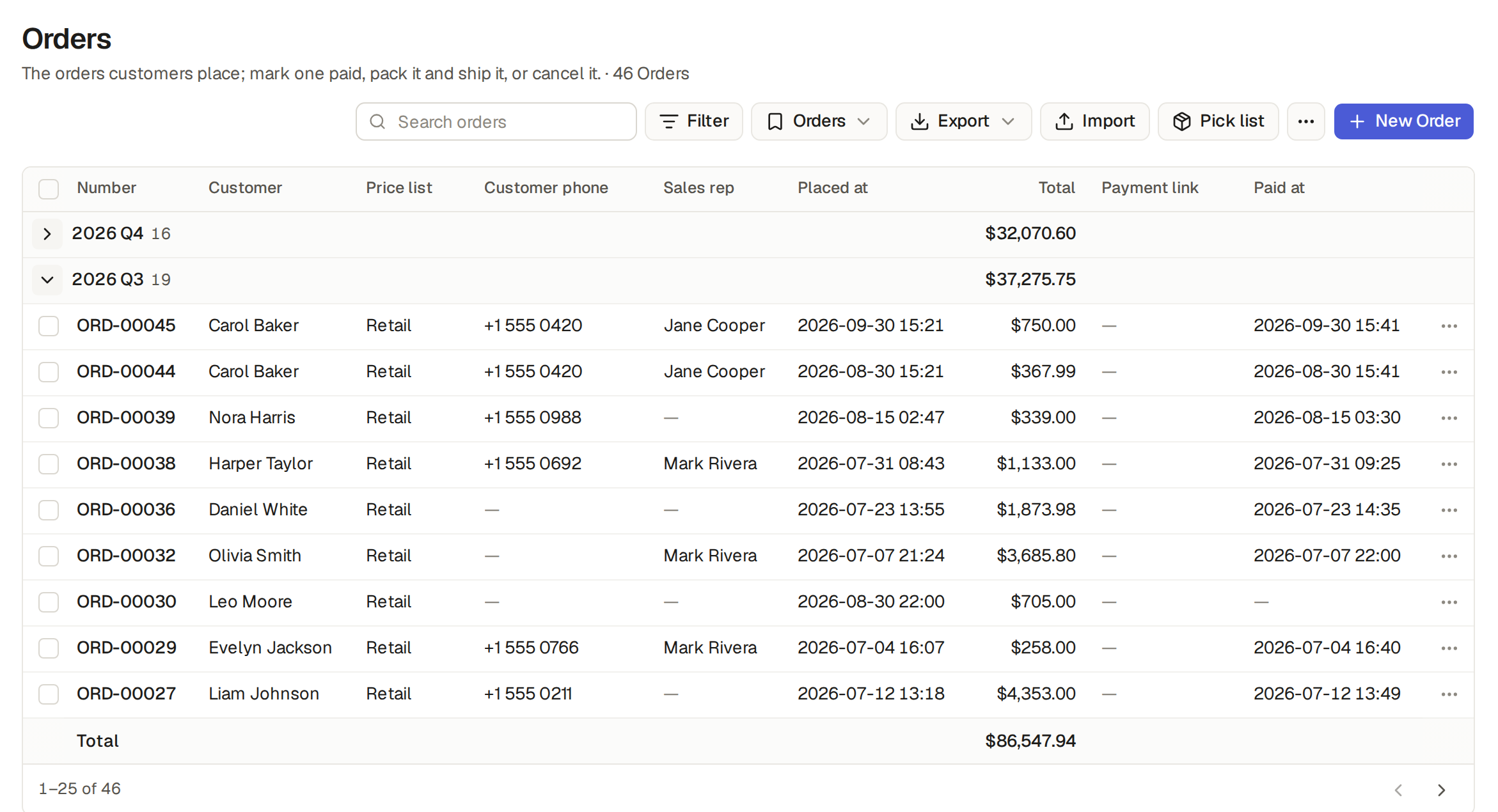
A grid grouped by a field shows its rows under a header for each value, with the group's count and the sum of each column that adds up. You group a list from its Views menu.
- On a list, open the Views menu, beside Filter (Save a view of your own), and click Customize…
- Under Show as, keep Grid and pick the field to Group by: a choice such as Status, a reference such as Customer, a yes / no such as Gift wrap, or a date by day, week, month or quarter, such as Placed at, by month. Click Apply.
- To keep the grouping, save the list from the Views menu: the view opens grouped again. For everyone, the table's Views page in Builder has the same Group by for a grid. The shop's orders have a By status view ready, under Orders in the sidebar.
Each group starts with a header and its count over the whole list, not only the page: the shop's orders by status read Pending 8, Paid 5, Shipped 6, Delivered 21 and Cancelled 6, all 46 of them. Groups follow the order of the field's options, references by name, or in their manual order when the table they point at keeps one (Drag items into the order you choose), Yes before No, and days, weeks, months and quarters newest first. The items with the field empty come last, under a header such as "No Sales rep". A group that goes on to the next page shows its header again there.
Sums in each group's header
Beside its count, each group's header shows the sum of each column of the grid that adds up, as the Total row does (Add up a list’s numbers in the Total row): amounts in a currency, hours and numbers with a unit. The sums are over the whole group, not only the rows on this page: the shop's orders by status show the Total of all the Pending orders beside Pending 8. Grouped by a date by month or by quarter, a list of invoices thus gives the sales of each month or quarter with no spreadsheet. You can also ask the assistant: "Make a quarterly VAT summary of the invoices" makes a view grouped by quarter, with the VAT of each quarter in its header.
Collapse a group
Click the arrow beside a group's name to collapse it: its header stays and its rows are hidden. The group stays collapsed in this browser as you reload, turn pages or change the filters, until you click the arrow again; nobody else sees it collapsed. The tick in the heading then picks only the rows you see.
Limits and details
- A week reads like "2026 W38" and a quarter like "2026 Q3", in the base's time zone. A week starts on Monday and has its number in the year as the international standard (ISO 8601) counts it, so Monday 29 December 2025 starts "2026 W01".
- When the amounts of a group are in several currencies, its sum reads "Several currencies" (Show amounts in a currency).
- Inside each group the rows keep the list's sort: click Total's heading to put each group's smallest orders first, and again for the largest first.
- Search, filters, the Total row, Export and ticking items work as on any list, and an export lists the items group by group.
A table can keep its items in the order you put them in, such as the shop's Categories, in the order of the storefront's menu. Nobody types a position: you drag an item into place. The base's builders switch the manual order on, and whoever may change an item may move it.
- Click Builder, then the table, then List items. Switch on Items keep a manual order and click Save table.
- The items keep the order they were made in, oldest first, and a new item goes last. The table's lists now open in that order: their default sort is Manual.
- On the list, drag a row to its place. It stays there after a reload, for everyone, and the lists others have open follow at once. A grid takes a drag while Manual is its first sort key; a grouped grid takes it inside a group.
Move cards on a board or a calendar
On a board sorted by Manual first, drag a card up or down in its column, or between two cards of another column: its place and its new value, such as its status, are saved together. If the board has Cards stay in their column on, a card drags only inside its own column. On a calendar of a Date field sorted by Manual first, drag an item up or down inside its day; on a Date & time field the time orders the day, so a day takes no drag inside it. On a phone, a row's or a card's menu has Move up, Move down and Move to top.
Limits and details
- A move is not a change of its data: its history gets no entry, nobody is notified and no automation runs. A card dropped in another column changes its value as an edit does, with one history entry.
- References follow the order too: a picker offers the items in it, such as the categories on a product's form, and a list grouped or sorted by such a reference puts its groups and its items in that order.
- To sort by several keys with the manual order among them, use Sort in Customize… (Save a view of your own).
- Switch the manual order off on the List items page, and the order is dropped: the list sorts as any other.
- A table of child rows, such as an invoice's lines, has no such switch: its child rows field keeps their order (Edit an item’s lines with child rows).
The assistant and AI clients move an item when you ask: "Put Clothing right after Electronics". A script with an API
token moves an item with POST /api/tables/categories/items/<id>/move and {"after": "<item id>"} or {"before": "<item id>"}, and sorts a
list by several keys with sort=placed_at:desc,status,row_order.
A list's Total row, under its number columns, adds up the items your filters show, across every page. A grid grouped by a field shows the same sums for each group in the group's header (Group a grid’s rows, with subtotals). On the Dashboard, each card sums its number columns the same way, and so does an automation's digest mail (Run an automation on a schedule). You can also ask the assistant, "How much did we sell last month?", and it answers with the same numbers.
Only what adds up is summed: amounts in a currency, numbers with a unit other than %, durations, and rollups that count or sum. A sum of durations shows in hours and minutes, such as "38 h 30 min".
Limits and details
- A quantity or a year without a unit, a price without a currency and a percentage stay out of the Total row: the shop's orders sum their Total, and its products do not sum their Stock.
- Amounts whose currency comes from a field are summed only while the items hold one currency (Show amounts in a currency).
- A number that would add up but whose sum means nothing, such as a price per unit or an hourly rate, has No total switched on in its box: it then stays out of the Total row, the group headers and a digest's totals. The modules switch it on for their unit prices and rates.
Edit in place lets you change a value right in a list's grid, without opening the item, where the base's builders allow it. In the shop, Orders allows it.
- On the list, click a cell, such as an order's Status. It becomes the field's input: a box to type in or, for a choice, a date or a reference, its list, open at once.
- Change the value and press Enter. The order is saved, and the cell below is ready for the next one.
- Escape leaves the value as it was. A click outside the cell saves it, or just closes it if nothing changed.
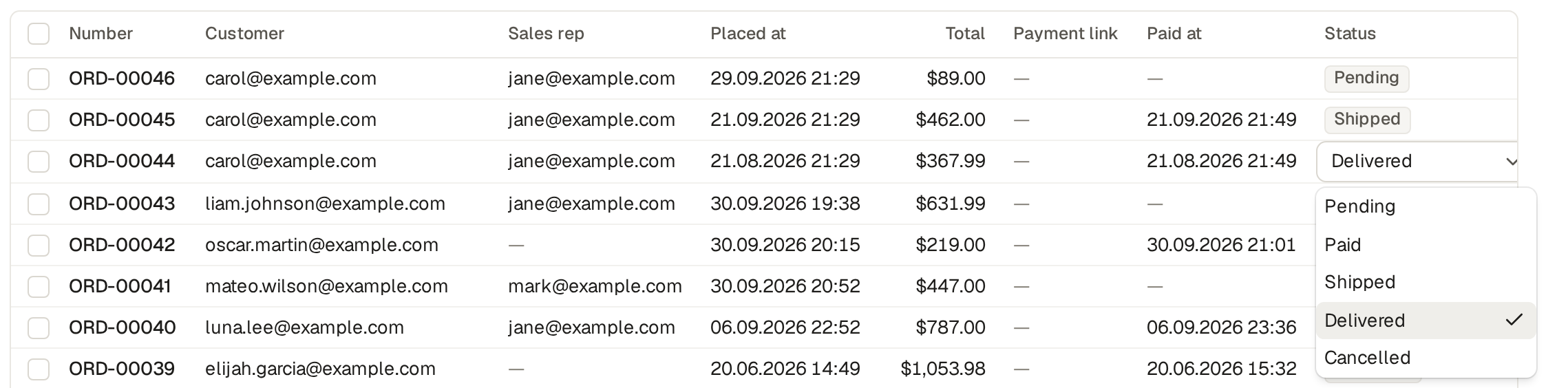
The keyboard works as in a spreadsheet: the arrow keys move from cell to cell, Enter opens one, and in an open cell Enter saves and moves one row down. So you change several orders' statuses with the keyboard alone: Enter, the arrows to pick, Enter, Enter again to save, and the same on the next row. The arrows stop at the edge of the page; turn pages as usual. On a phone, tap a cell.
Turn edit in place on or off
Each grid view has edit in place as a switch, Edit in place, beside Selection: the base's builders set it on the view's page, under the table's Views in Builder (Make a view for everyone), or by asking the assistant, and you set it for yourself in Customize…, under Rows (Save a view of your own). It needs the Edit items page on. A new table's view starts with it on.
Limits and details
- A cell opens only where you may change that field when you edit the item, as the item is now. Elsewhere the cursor shows it cannot and nothing opens: a salesperson changes the status of a pending order, not of a shipped one. On an item you may not change at all, such as his delivered order, pointing at a cell tells why.
- Long text, fields of several choices or references, files, rows such as an order's lines, passwords, auto-numbers, the fields the base works out and the columns reached through a reference (the customer's city) do not open: a click opens the item, as before.
- If someone else changed the item since you opened the cell, the save is refused, "This item changed since you opened it", and your value stays in the cell; Escape shows theirs. A value the base refuses, such as one under a minimum, shows why under the input, which stays open.
- Edit in place works on a table's list and on its views shown as a grid; boards, calendars, charts, an item's related lists and the Dashboard do not open cells.
The ticks of a list select many items at once, to change a field of all of them, delete them or run a button on them. You change only the items and fields your role may change.
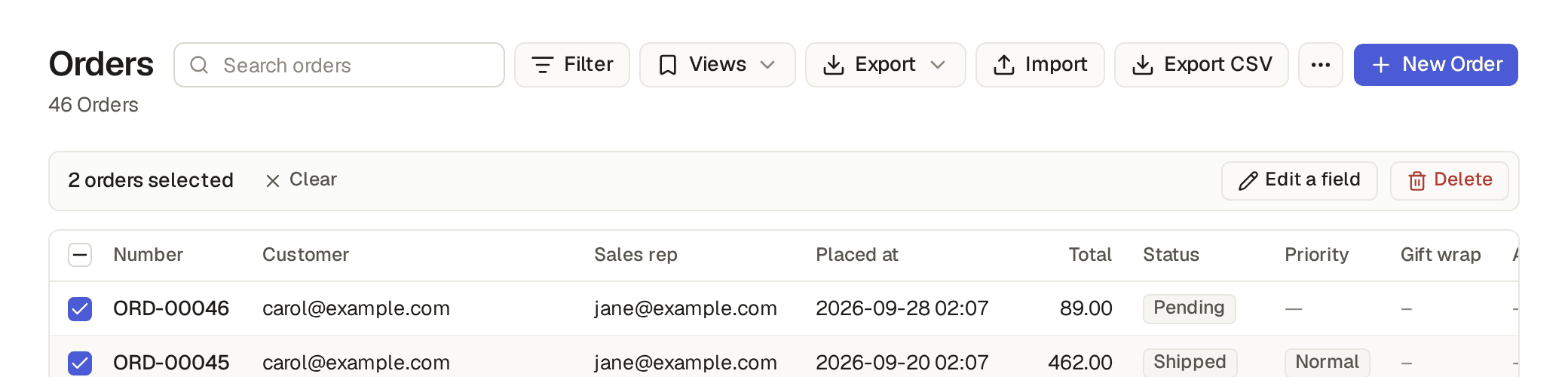
- On a list, tick the box of each item you want, or the box in the heading for the whole page. The selection stays as you turn pages, up to 1,000 items.
- A bar says "2 orders selected". Click Edit a field, pick the Field and its value, and click Update 2 orders. A message says how many orders are updated.
- Or click Delete, which asks first. Clear empties the selection.
Run a button on many items
The selection bar also shows the buttons that run on one or more items (Make a button that does several steps, with no code), each one when at least one ticked item offers it. A button runs on the ticked items it applies to, those where its Only when holds, and skips the others: in the example shop, Approve on a page of reviews approves the reviews not yet approved and leaves the rest.
- When the button asks first or opens its form, it says how many items it runs on when that is not all of them, such as "Applies to 3 of the 5 selected."
- Then the message says what it did and names what it skipped: "Approve: done for 3 reviews. Skipped 2 it does not apply to:", then their names, ten at most and then how many more.
- When the button applies to none of the ticked items, nothing runs and the message says so.
When a guard or a step refuses an item
A guard or a step that refuses an item is different from a button that does not apply (Lock an item or a button with a guard, and say why): something is wrong with the item, so the whole run stops and nothing is saved on any item. The message names every refused item with its reason, not only the first, such as "ORD-00001, ORD-00003: A shipped order cannot be cancelled." when you cancel a selection of orders. Fix those items or untick them, then run the button again.
Pick a workflow outcome for many items
When the ticked items wait at a workflow step that you work, the bar also shows a button for each outcome you may pick, such as Approved on the time entries of a list To approve (Pick an outcome for many items).
Limits and details
- When none of the selected items may be changed, or deleted, Edit a field or Delete shows greyed out, and pointing at it says why. When some may not, the box says how many it skips, such as "1 selected order may not be deleted and is skipped."
- A grid view without Selection has no ticks (Make a view for everyone), and one without Header has no box for the whole page, which is in the header row.
With an API token, POST /api/tables/<table>/actions/<key> with the ids in items does the same. Its answer gives count, the items it ran on, and skipped, each skipped item's id and label. When the button applies to none,
it answers 409 with all of them in skipped. A refusal answers with every refused item in refused, each with its id, label and reason. The assistant
and an AI client connected to Base Captain's MCP server run it with the tool run_action and get
the same lists, so they tell you which items they left.
Lists, boards, calendars, charts and item pages show other users' changes as they happen, without reloading. When the connection drops, a sign at the top of the page says "Reconnecting. Changes show again when the connection is back." When the connection is back, the sign says "Reconnected to the server." for a moment, and the page shows what changed meanwhile.
On an edit page, "Jane Cooper is also editing this" tells you who else has it open; "You are editing this in another tab" that you do.
When someone else saves the item first, the buttons at the bottom of the edit page make way for "[email protected] changed this order." and Load the updated item. If you had typed changes, you also get Keep my changes: fields only they changed show their values, fields only you changed keep your input, and for a field you both changed their value is shown and the footer names the field, so nothing you typed goes without a word. Load the updated item drops all your input, and asks first.