Post to a team chat or send a text message
Post each new order to Slack, Teams or Telegram, or text a customer, with an automation’s webhook and a secret, with no code.
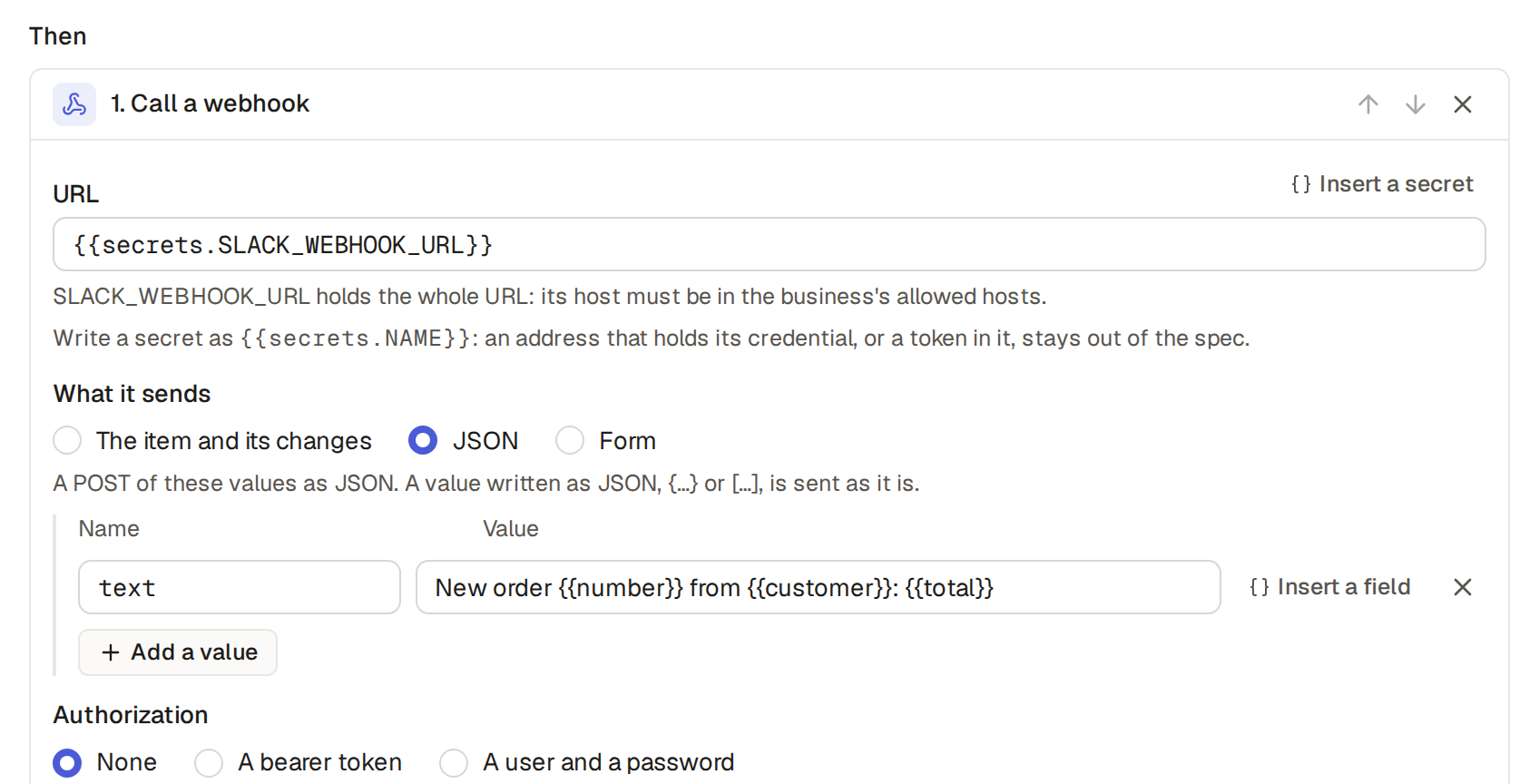
An automation's webhook with values posts to your team's chat or sends a text message (SMS), with no code. The example shop's Tell the team on Slack posts each new order to a Slack channel:
- In Slack, add an incoming webhook to the channel and copy its address.
- Click Settings, then Secrets, and add it as SLACK_WEBHOOK_URL (Store the keys of other services). The value is an address, so it is sent only to its own address on hooks.slack.com, at the start of a call's URL, with nothing to choose. Then in Settings, General add hooks.slack.com under Allowed hosts.
- In the automation, Call a webhook with the URL {{secrets.SLACK_WEBHOOK_URL}}, What it sends set to JSON, and one value named text: "New order {{number}} from {{customer}}: {{total}}". Authorization stays None: the address is the key.
Teams, Telegram and text messages
The same shape reaches other services:
- Microsoft Teams: make a webhook for the channel with a workflow in Teams, add its address as the secret TEAMS_WEBHOOK_URL and its host under Allowed hosts; the URL is {{secrets.TEAMS_WEBHOOK_URL}}, JSON, with a value named text.
- Telegram: make a bot with BotFather and add its token as the secret TELEGRAM_BOT_TOKEN, for the service Telegram, and api.telegram.org under Allowed hosts; the URL is https://api.telegram.org/bot{{secrets.TELEGRAM_BOT_TOKEN}}/sendMessage, JSON, with the values chat_id, the chat's id, and text.
- A text message, through an SMS service such as Twilio: the URL is https://api.twilio.com/2010-04-01/Accounts/<your account id>/Messages.json, Form, with the values To, {{customer.phone}}, From, your number, and Body, "Your order {{number}} has shipped."; Authorization set to A user and a password, the user your account id and the password the secret that holds your auth token, added for the service Twilio; api.twilio.com under Allowed hosts. The example shop's Text the customer has this shape, sent to a test address.
Limits and details
- A secret's value goes only in Secrets, never in the automation and never in a chat.
- Ask the assistant "post to our Slack when an order is cancelled": it writes the automation with the secret in its URL and tells you which secret to add in Secrets, and for which service. Where the secret is sent is yours to choose when you enter the value.
- The editor marks a secret the base does not have yet "NAME (not set)" and still saves. The assistant's card and the builder API's preview of the change say "The secret NAME is not set yet: the webhook fails until it is set (Settings, Secrets)"; you can still apply it.
- If a secret the webhook names is not set, or the secret that is its whole URL holds no address, nothing is sent, and Base Captain's team hears of the problem.
Customer feedback already acts on a Poor answer by itself. The item of the order, the appointment or the job moves to the step Follow up at once. The step is in the Inbox of the admins (and of the managers, with Staff), with a notification and an email. It is the task to fix the cause: someone calls the customer back, then chooses Resolved or Could not reach, and what they write in the summary box stays on the item as a comment (How a workflow moves an item from step to step). To tell a channel too, add an automation on the table of the item:
- Add the channel's webhook address as a secret and its host under Allowed hosts, as above, for Slack or Teams.
- Click Builder, then Orders (or Appointments or Jobs), then Automations, then New automation, and give it a Name, such as "Tell the team on Slack about a Poor answer".
- Under Runs, pick When order is updated and tick the field Feedback. Under Only if the order then matches, add the filter Feedback is Poor: follow up.
- Under Then, click Add action and pick Call a webhook. For Slack, the URL is {{secrets.SLACK_WEBHOOK_URL}}; for Teams, {{secrets.TEAMS_WEBHOOK_URL}}. What it sends is JSON, with one value named text, such as "Poor answer on order {{number}} from {{customer}}: {{comment}}". Authorization stays None. On an appointment or a job, Insert a field puts in its own values instead.
- Click Save automation.
From then on, the channel gets one message each time a customer answers Poor, and no message for another answer. To send some answers to another channel, make one automation for each and add a filter on a field of the item.