Make a public form anyone can fill in
Make a public form that anyone fills in at your base’s address, with choices, order lines, files and a payment, then share its link or embed it on your site.
A public form is a page of its own, at your base's address, where anyone with the link fills in a few fields and sends them: a booking, a request for a price, a lead. Each public form sends one item to one list. The people who fill it in need not be users of the base, and they never see the rest of it.
The base's builders make the forms.
- Click Builder in the rail, then the list the form adds to, here Quote requests, then Forms, then New form.
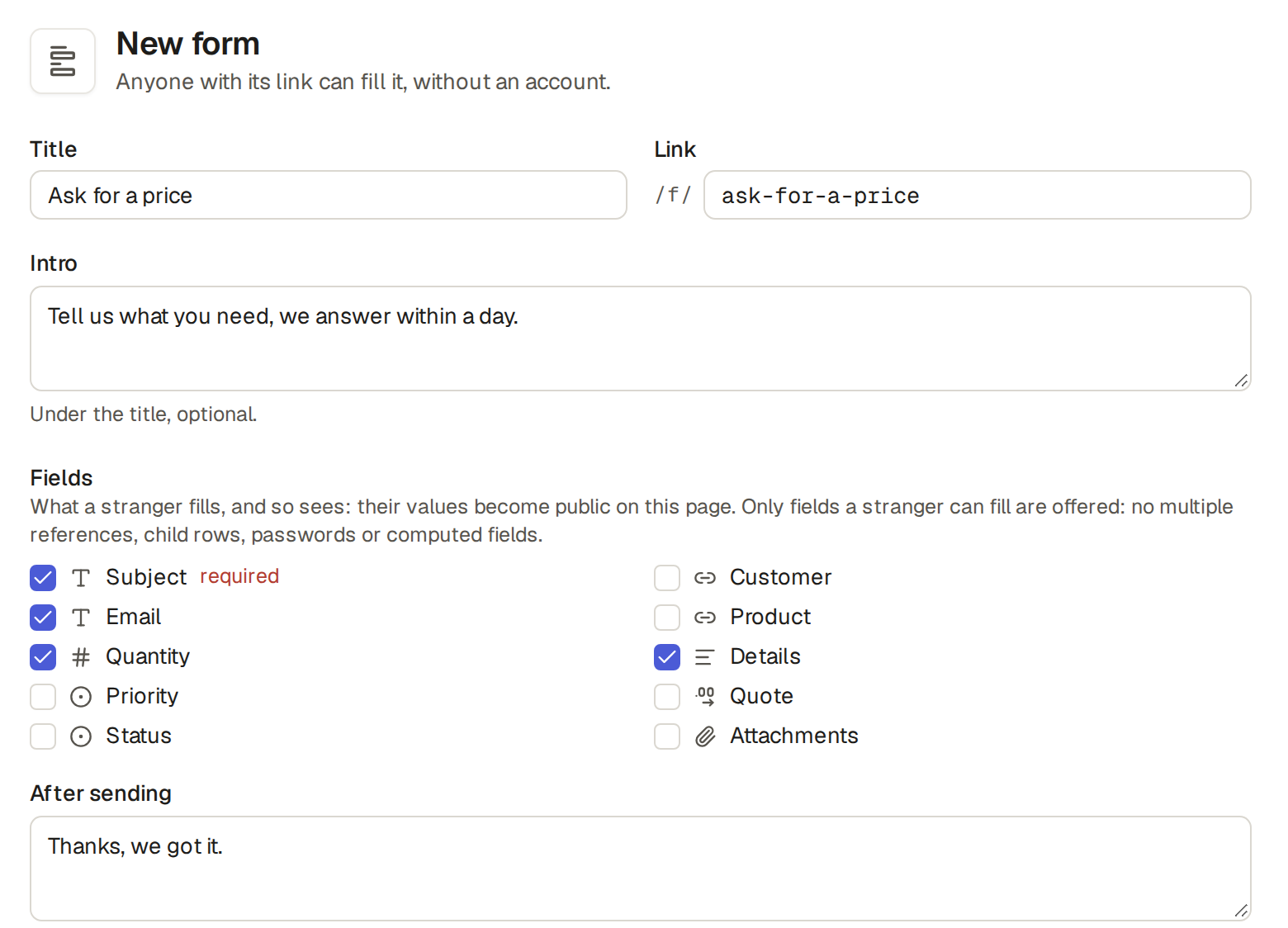
- Give it a Title, such as "Ask for a price". The Link follows from the title, and you can change it now: a form keeps its link.
- Write an Intro if you like: a line under the title.
- Under Fields, tick what the visitor fills in. The fields the list requires are ticked already and marked required. A link to one item, order lines and files are offered too (Let visitors pick an item, add order lines and attach files); several links, passwords and fields the base works out are not.
- Under Help under each field, write the help of each field you ticked if you like: up to 500 characters, which the form shows under the field for the visitor, such as "We reply within a day". A field with no help shows none: the form never shows the field's description, which is written for your staff. Order lines take one help, shown under the lines, and the fields of a line take none.
- Under After sending, write what the page says once the form went through.
- Click Save form, and the form is created.
To hear about what comes in through a public form, add an automation on the form's list, such as "when a reservation is created, send an email" (Run actions when an item changes).
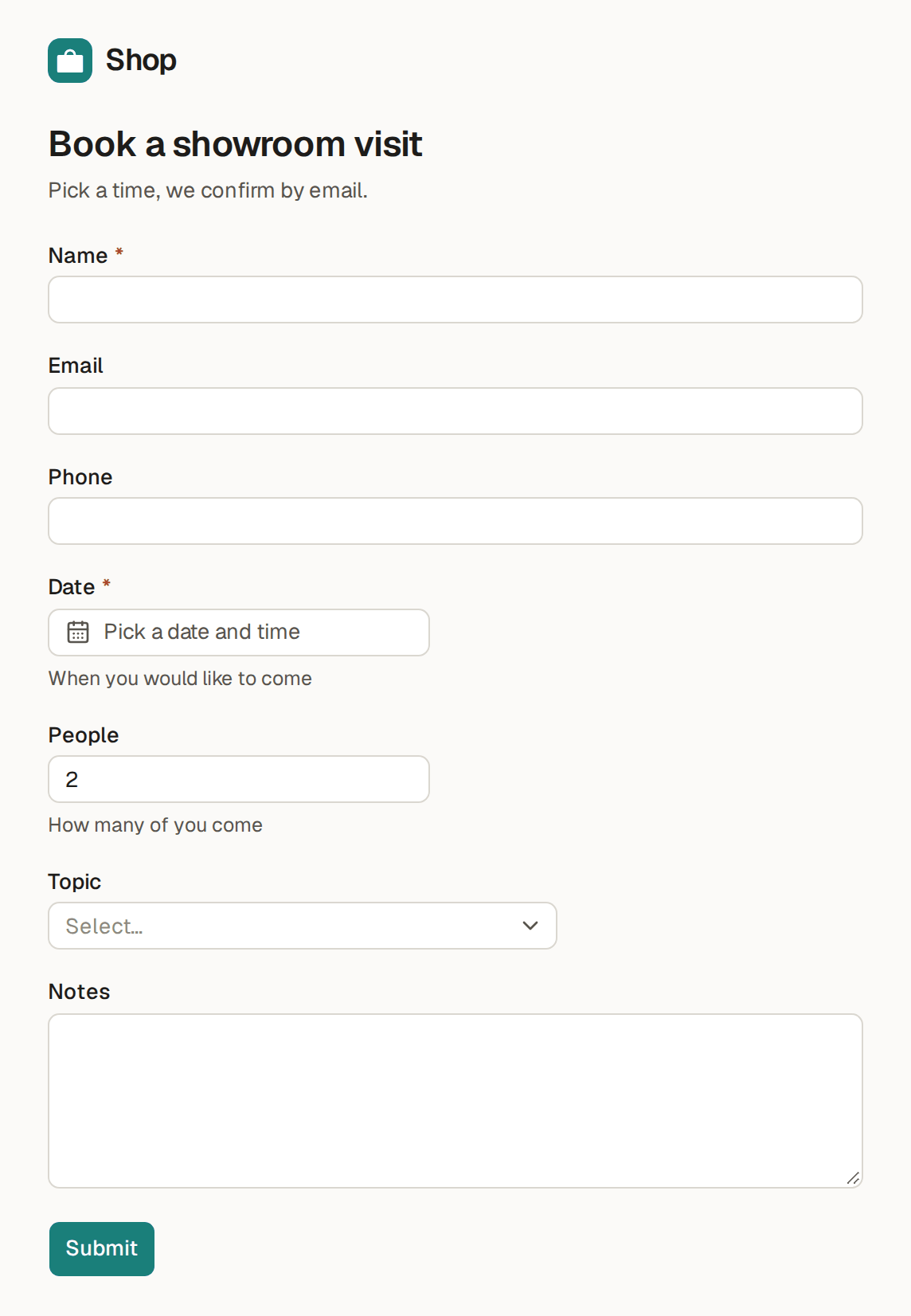
A visitor who opens a public form sees your base's name and logo, the form's title and its intro, then its fields. The example shop has one public form, Book a showroom visit, which makes a reservation.
- Open the form's link.
- Fill in the fields. A red star marks the ones the form needs, here Name and Date.
- Click Send, or Continue to payment when the form takes a payment. The page thanks the visitor with the form's own words, "Thanks, we will confirm by email."
The new reservation is in the Reservations list at once, with what the visitor filled in and the list's usual values for the rest, such as the status New. Its history says Public form created it.
A public form can ask the visitor to pick another item, such as the event they want tickets for, to add order lines, such as one line for each kind of ticket, and to attach files, such as their CV.
Pick one item from a list
A link to one item is a Reference field: tick it under Fields, then under its choices, such as Event: the choices, pick a view of the list it links to (Make a view for everyone). The visitor picks one of that view's items by its name, with the view's filters and sort, at most 200 of them. A choice that has left the view by the time they send, such as an event no longer on sale, is refused with "This choice is no longer available". A link to a user of the base is not offered.
Show beside each choice: under the pick's view, tick up to three of the view's columns. The form then shows their values beside each choice's name, such as "Balayage · €120.00 · 2 h 30 min" on a salon's booking form, so the client sees the price and the length of each service before they pick. A column that links to other items, or that holds files, cannot show there.
You can also ask the assistant or an AI client that you connect, such as "Show each service's price and length on the booking form".
Order lines
Order lines are a field of child rows, such as the tickets of a ticket request: tick the field under Fields, then tick under it the fields each line shows, in order, such as Ticket and Quantity. A line must show every field it needs that has no default value, else the form is not saved. For a link in a line, pick a view of its choices and its columns, as for a link to one item. A line offers no files and no rows of its own, and never the link back to the item, which the base fills in.
The visitor starts with one line and clicks Add a line for each more thing they order, such as one line for a Standard ticket and one for a Student ticket, up to 20 lines, or removes a line with the button beside it. A required field of lines needs at least one. A mistake shows under the field of its line, and the item and its lines are saved together or not at all. A limit counts the lines, such as each line's quantity against the event's capacity.
Files
Files: tick a Files field and set Largest file, from 1 to 25 MB, 10 when empty. The visitor attaches up to 5 files to each such field; the page says "Up to 5 files, 10 MB each" and turns away a larger file before sending it. The files are on the new item, for whoever may see that field.
What a stranger sees of your lists
Only the names of the view's items and the columns you tick show on the form, and they are public: pick a view of only what a stranger may see, such as the events on sale, and tick only the columns a stranger may read, such as a price.
Forms in the apps
The apps' forms do this: Event tickets' Ask for tickets picks an event on sale and takes a line for each kind of ticket, Recruiting's Apply for a job an open position and takes the CV, Hair salon's Book an appointment a service with its price and length, and Physiotherapy clinic's Book a visit takes a referral letter or a scan.
A public form can take the payment too, such as a deposit for a booking, a ticket or a gift: the visitor fills in the form and pays by card at once, and you need not ask for the payment later. The form must be on a table that takes payments (Let a table take payments).
- Open the form from Forms and turn on Ask the visitor to pay. The switch shows only on a form whose table takes payments.
- Click Save form, and the form is saved.
The visitor's button then reads Continue to payment. The base makes the item, then the visitor gets a page with Pay, pays on Stripe's or PayPal's page and comes back to the form's thanks, from After sending. When the item has nothing to pay, or the base holds no payment provider, the form thanks the visitor at once, as any form does.
A visitor who leaves without paying leaves an unpaid item. Your team sees it in the list, and can Ask for payment on it later (Ask a customer to pay with a payment link). On your own website, in a frame (Show a public form on your own website (embed)), the form shows its thanks with Pay, which opens the payment in a new tab.
A public form can also show inside a page of your own website, in a frame. You say which sites may show the form, and no other site can.
- Open the form from Forms. Under Sites that may show this form, write each site's address, one a line, such as https://www.example.com: http or https, the site's name and its port if it has one, nothing after it, and at most 10. Anything else is refused, such as "https://www.example.com/contact is not a site address: http or https, a host and an optional port, nothing else".
- Click Save form, and the form is saved.
- Under Code for your site, click the copy button beside the code, an
<iframe>with the form's link, and paste it into a page of one of those sites.
The form then shows in that page. Any other site that puts the form in its pages gets nothing: the browser refuses to show it there, as it does for a form with no sites listed and for every other page of your base. The form's own link works as before, for anyone.
Public forms keep these rules, whatever the form holds:
- On the Free plan, a public form opens to everyone once an owner adds a payment method, with no charge. Until then, the form says "Only the people in this base can open this form. Add a payment method to open it to everyone. This is only to prevent fraud and abuse. You will not be charged." The base's users open it while signed in, to build and try it, and anyone else gets Not found (What the Free plan includes).
- What a form shows becomes public: the titles of its fields, their help, the choices of a list of options, the names of the items a visitor may pick and the columns shown beside them. Leave off a field whose choices you would rather keep to yourselves.
- A visitor fills only the form's fields and cannot read or change anything else. A form turns away the robots that fill in every box and anyone sending too many at once.
- A date and time on a form is in the base's time zone (Settings, General), which the form names beside the field, whatever the visitor's own.
- When one of the base's limits turns the answer away, such as tickets for an event that is full, the page says so, "This would take the event past its capacity.", or the limit's own sentence, such as "Only 3 places are left for this event.", and nothing is saved (Stop double bookings and overselling with limits).
- At the foot of each form, Report this form lets anyone tell Base Captain that the form breaks the law or the rules, without signing in, and leave an email address to hear back (Report abuse).
A script with your API token gets the links of a table's public forms from GET /api/tables/<table>:
its forms gives each form's id, title and url (Use your base from a script with an API token).