Give a workflow step to a person or customer
Make a workflow step wait in a person’s Inbox, or for a customer who answers by a private link to the printed item, and pick outcomes for many items.
A workflow step that a person works waits for them: the step is in their Inbox, and they pick how it ended on the item's page, or for many items at once in a list (Pick an outcome for many items). The users who build the base set the step's workers. Here the salesperson takes the requests that name no product.
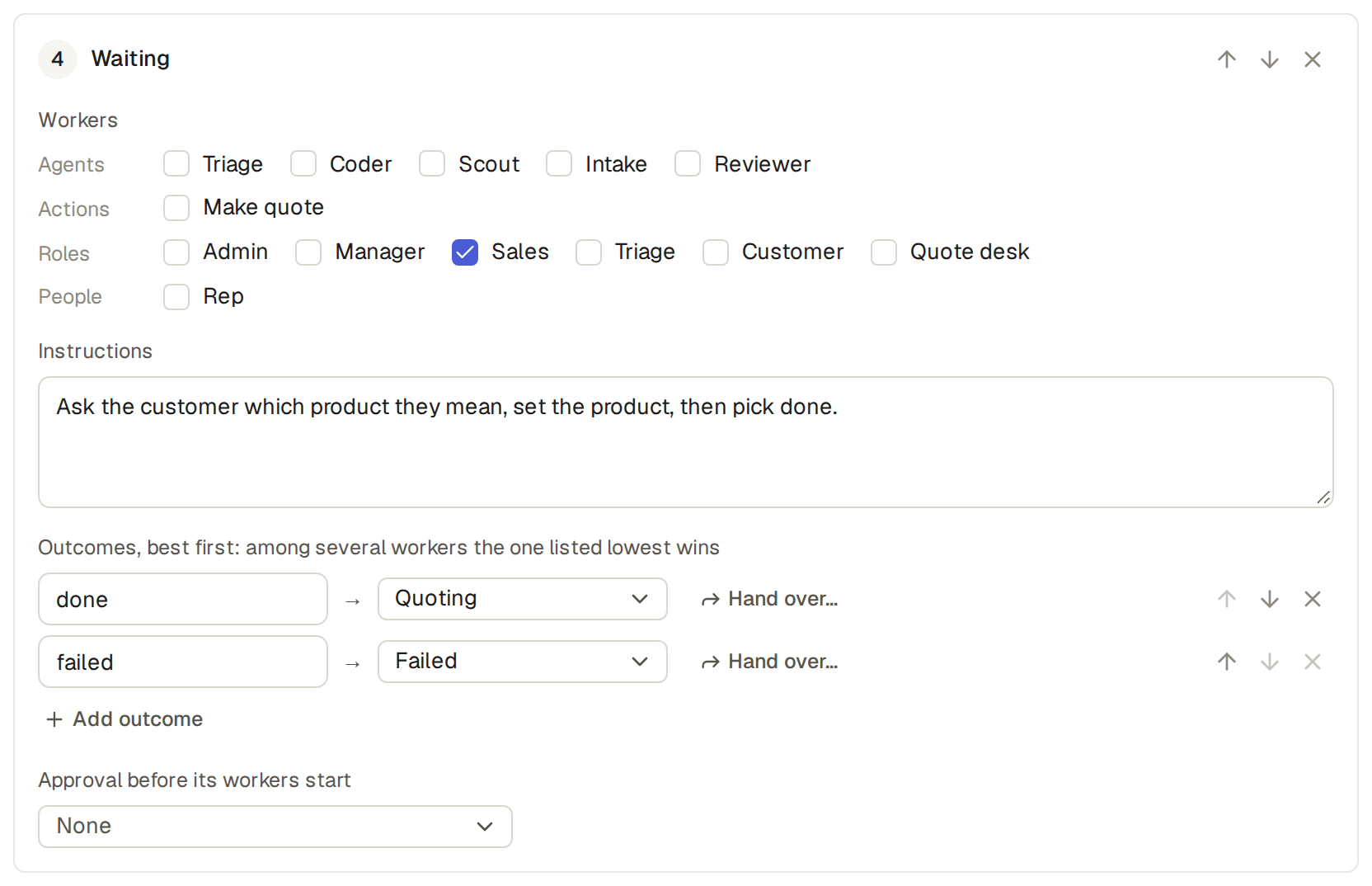
- In the Quotes workflow's Table, find step 4, Waiting. Under Workers, tick Sales in the Roles row.
- Under Instructions, write what to do: "Ask the customer which product they mean, set the product, then pick done."
- The step now has the outcome done, and failed, which only the workflow uses. Pick Quoting for done and Failed for failed, then save the workflow.
- Start Quotes on A price, please, a request that names no product. Intake ends its step with "unclear", and the request waits at Waiting.
- Sign in as a salesperson. The salesperson's Inbox shows the request under Your step, and an email says so too. Both give the step's instructions, then "Pick its outcome on its page."
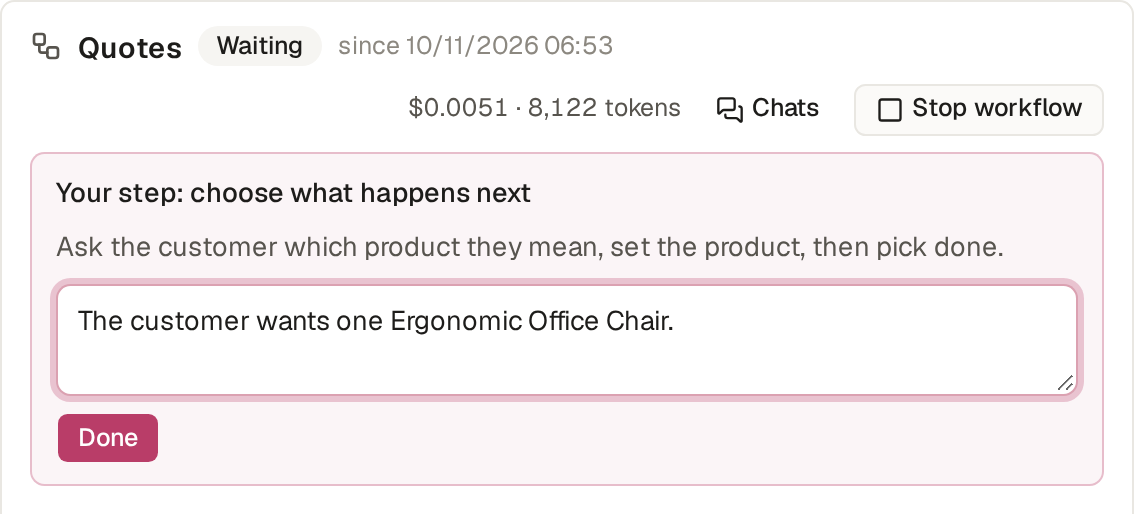
- The salesperson opens the request, clicks Edit to set the Product and saves. In the Workflow box, under Your step: choose what happens next, they read the step's instructions, write a summary if they like and click done, the only outcome they see. The request goes on to Quoting.
Put the item's values in a step's instructions
A step's instructions can name the item's fields, as an email does (What you can type in a mail), such as "Ask {{customer}} which product they mean in “{{subject}}”."
- The worker's notice and email fill in the item's values: "Ask Elijah Garcia which product they mean in “A price, please”."
- Each worker gets only the values of the fields they may see; a field their role may not see (Hide or lock fields with field rules) stays empty.
- An agent reads the instructions as you wrote them.
Give a step to one person, not a role
A step goes to one person when you tick a field under Users, such as Rep: the step then goes to the user the request names there.
Pick an outcome for the step's worker
The owner and the admins, when they may edit the item, may also pick a step's outcome for its worker, such as when they answer a request themselves.
- On the item's page, the Workflow box shows "This step is for Sales. You can pick for them." (for a step given through a field, the name of the user the field names), with the same outcomes.
- The item's history says for whom, such as "Done for Sales."
- The step stays in its worker's Inbox only, not in the owner's or the admins' Inbox.
Make an outcome need a comment
An outcome that needs a comment makes sure that a send back or a refusal always says why. In the workflow's Table, turn on Needs a comment on the outcome, such as "send back". The person who works the step must then write in the summary box before they pick that outcome.
- Without a comment, Base Captain refuses the pick: "“Send back” needs a comment. Write why."
- The same is true when a user picks for them, and through the API and the assistant.
- Agents and actions do not need a comment.
- When the pick ends the workflow, the notice that the workflow finished the item quotes the comment, such as "It is at To fix. Jane Cooper wrote: “The photo is missing.”", and the notice is also mailed (See everything open for you in the Inbox).
Offer an outcome only for some items
An outcome can have a condition on its item, so that Base Captain offers the outcome only for the items that it
fits, such as an outcome that skips an approval for a small quote. In the workflow's Table, click Only when… beside the outcome and write the condition as you write a field rule, such as quote < 1000. In the text, the condition is the outcome's when.
- While the condition is not true for the item, the item's page and the customer's link do not show the outcome, and an agent is not told about it.
- Nobody can pick the outcome then: not the person who works the step, a user who picks for them, an agent or an action.
- A pick through the API or the assistant is refused, and the message says that the condition is not true for the item.
- When a change to the item makes the condition true, the outcome shows again.
Pick an outcome for many items
Picking an outcome for many items at once saves a manager who approves a week of time entries from opening each one.
- In the list, such as the time entries of To approve, tick the items (Change or delete many items at once).
- The bar over the list shows a button for each outcome of the steps that wait for you on the ticked items, such as Approved and Returned. Click one.
- When the outcome needs a comment (Make an outcome need a comment), a box asks for one comment first, and Base Captain posts it on each item.
Base Captain picks the outcome on each item as if you picked it on the item's page, under the same rules. Each item gets its own line in its history, its own notices and emails, and goes from your Inbox. The message names the outcome and the number of items, and the list shows them again.
- Base Captain leaves an item as it is, and names it in the message, when its step does not wait for your pick, when the outcome is not one of its step's, or when the outcome's condition is not true for it: "Skipped 2 that do not wait for your pick:", then their names.
- You pick this way only for the steps you work yourself: to pick for another worker, open the item.
- When a pick is refused on an item, such as by a guard or a check of its table, nothing is picked on any item, and the message names each refused item with its reason.
- At most 1,000 items go in one pick.
Pick outcomes with the API or the assistant
- With an API token,
POST /api/tables/<table>/workflow/pickpicks an outcome for many items, with{"items": ["<id>", …], "outcome": "approved", "summary": "…"}. - The answer gives
count, the items picked, andskipped, each skipped item'sid,labelandreason. When no item waits for your pick, the answer is 409 with all of them inskipped. - The list of a table,
GET /api/tables/<table>/items, says underpickswhich of its items wait for your pick, at which step and with which outcomes. - The assistant picks with the tool
pick_outcomeand the items'ids, on a card that you apply first; an AI client connected to Base Captain's MCP server uses the same tool.
A workflow step can wait on a customer who is not a user of your base, such as the customer who asked for a quote. Entering the step mails them a private link to the item printed with one of its print templates, with the step's instructions, and they click how the step ends. The example shop's Sent step works this way. The users who build the base set it up:
- In the workflow's Table, find the step. Under Workers, in the Customer row, tick Customer by email.
- Pick where their address is: an email field of the list, such as Email, or of the item a reference names, such as Customer › Email. Then pick the print template the link shows, such as Quote. A list with no email field or no print template cannot have a customer step.
- To let the customer write a comment with their answer, pick a text field of the list in the box No comment, such as Comment. The link's page then shows a box with the field's name under the buttons, and Base Captain saves the comment in that field with the answer.
- Write the Instructions to the customer, since they are the mail's text: "Here is our quote for your request. Choose accepted and we turn it into an order; choose declined if you do not want it."
- Name the outcomes the customer picks from, such as accepted and declined, say where each leads and save the workflow.
What the customer gets and sees
When a request enters a customer's step, the request's email gets a mail from Base Captain's address under your base's name, such as "Quote A price, please", the print template's name and the item's label, with the instructions, the link and the day until which the link works.
- The link opens a page with your base's name and logo, the quote, a Print button, a Download PDF button and a button for each outcome.
- A click records the answer, "Thanks, your answer is recorded: Accepted.", and the request moves on. Its history
says "Accepted through the mailed link.", by Customer link. The link's page then shows "We have
your answer: Accepted. Thank you." above the quote, with no buttons, until the link expires. A print template
can thank the customer for each answer: an
ifover the item's status, such as{{if eq .item.status "call-back"}}Someone will call you today.{{end}}. - An outcome with Needs a comment turned on works here too: the customer must write the comment to pick it. A step whose customer has no comment field cannot have such an outcome.
Mail the customer again when they do not answer
A customer's step can mail the customer again when they do not answer. In the step's Customer row, type a number of days from 1 to 29 in Mail again after (days), such as 3: "If nobody answers, the base sends the same mail again after this number of days. It sends it one time only." Leave the box empty for no second mail.
- The second mail has the same text as the first, with a new link.
- The base reads the address from the item again, so a corrected address gets the second mail.
- A number out of range is refused on save, such as "mail again after 40 days: it must be 1 to 29 days".
- While agents and workflows are paused, no mail goes again.
- The apps that send a quote, an estimate or a change order to a customer for approval mail it again after 3 days.
Pick for a customer who phoned, or send the link again
On the item's page, the Workflow box of a customer's step shows "Waiting on …, by link". A user who may edit the item can answer for the customer or send the link again:
- When the customer answers by phone, the user clicks Pick for them and the outcome. The link then no longer works, and the item's history shows who picked, "Accepted for …".
- When the customer lost the mail, the user clicks Send the link again beside the newest link under Links: the base sends the same mail at once, with a new link. If you send it before the days of Mail again after (days) are over, those days count again from your mail.
- The item's links, and how to revoke one, are under Send a printed item to a customer by link.
Ask the customer to sign
An outcome of a customer's step can ask the customer to sign, such as accepted on a quote. In the workflow's Table, on an outcome of a step that a customer works by email, turn on Asks for a
signature. Then pick a text field of the list under Name field, such as Signed by, and a date and time field under Time field, such as Signed at. In the text, the signature is the outcome's signature, with its name and time.
- For that outcome, the link's page shows a box for the customer's full name and a tick that they agree to the terms. Base Captain takes the answer only with both: "Type your full name to sign." and "Tick that you agree to the terms to sign."
- Base Captain then saves the name and the day and time of the signature in the two fields, with the answer. The item's history shows them in the answer's entry, and a print template that shows the two fields prints them.
- When a user picks the answer for a customer who phoned, nobody signs, and the two fields stay as they are.
- A step that no customer works cannot have an outcome that asks for a signature.
- An outcome that asks for no signature works as before.
The Quotes module asks the customer to sign when they accept a quote. In Projects, Send to the customer sends a change order to the customer, and they sign when they approve it. In the Client delivery desk, the customer signs when they approve the Scope of work. The prints of a change order and of a Scope of work show "Signed by … on …".
Apps that ask a customer by link
The Print shop quotes and Auto repair apps send their quote and their repair order to the customer by link, and Customer feedback asks each customer how the job went, with a comment.
Limits and details
- The link works until the step moves on, and thirty days at most. Each mail has a link of its own, and each link works until the step moves on, thirty days at most from its mail.
- The first answer through any of the links counts; the others then say "This link no longer works: it has moved on."
- If the item has no address, or the mail cannot be sent, the customer's part of the step ends in failed, with the reason in the history.
- If a link the step still waits on is revoked or expires, the users who may edit the item are told once, "Quote request “A price, please” waits on a dead link to …", or the workflow's watchers, or the builders, so someone picks for the customer.
- A step has at most one customer, and may have other workers beside them.