Start from an app and add or remove modules
Start your base from an app and the add-ons you tick, add or remove a module later, delete the sample data, and save your base as an app of your own.
Start your base from an app and the add-ons you tick, then add or remove modules in Settings, Modules as your base changes. A base is made of modules. A module is a part of a base that you add and remove as one: its tables and fields, its roles, views, workflows and agents, and sample data to try it with. Some modules, the apps, hold all that one kind of business needs, such as Hair salon. The others are add-ons: each adds one thing to an app, such as Staff or Commission, or one list that any base uses, such as Suppliers. Everything a module brings can be changed afterwards.
To start a base from an app, pick the app and its add-ons on Create your base, and Base Captain makes the base with sample data. A base is made only by a person who is signed in, or by their AI or a program with an API token of all their bases that can create bases (Connect Claude, ChatGPT or Claude Code): a token for one base cannot make one.
- Sign in at www.basecaptain.com: with no base yet, Create your base opens. In a base, click your picture, then New base. Give the base a Name (Create a base).
- Say in What does your business do? what the business does, and click Recommend an app. Start from and Create my base show once the recommendation has answered; coming from an app's page, at once, with its app chosen (Let the assistant recommend an app).
- Under Start from, pick an app: click Choose, search for the app, such as Hair salon, and click it, and the box closes. The page shows the app with Change, which opens the box again. Your own apps are under Your own apps (Save your base as an app of your own). If you pick no app, the base starts empty.
- Under the app, the page shows its add-ons, such as "Add-ons: none". No add-on is ticked at first: click Customize and tick the ones you want (Pick the add-ons that change an app).
- Send the form. The base is made, at once on the Free plan or when the Pro plan starts, and it opens with the app and every module it needs, filled with sample data whose dates are around today, and you as its admin. Base Captain makes the base's address from its name, such as salon-k7q2.basecaptain.app.
Fill in your company's details in the base's settings (Name your base, describe it and keep the company’s details). When you are ready for your own data, the owner deletes all data in one step (Delete all data).
You are the base's only user at first. Invite the others in the base's Settings, Users (Invite a user and give them roles).
Let Base Captain recommend an app
Create your base also helps you pick: from what the business does, Recommend an app picks the app to start from, and ticks the features the description names, such as Stylists' commission for "three stylists work on commission". Untick a feature you do not want, and the base is made without it (Let the assistant recommend an app).
An app comes with the add-ons that change it. Hair salon alone is for one person who does the work. Staff adds the people who work in the salon, such as the stylists, Locations adds the salons, Commission adds each stylist's commission and Customer feedback asks clients what they thought. Other add-ons fit any app, such as Suppliers or Location limits.
- When you create your base, the page shows the add-ons of your app, such as "Add-ons: none". Click Customize.
- The box, such as Customize Hair salon, lists the add-ons that change your app first, each with what it adds, then the others under More add-ons.
- Tick the ones you want and click Done. The page lists them. A new base starts with none ticked.
An add-on brings the modules it needs with it. Add or remove an add-on later, when the base changes (Add a module to your base). Your data and your own changes stay.
Each app's page on this site lists the add-ons that change it (Apps).
The page Settings, Modules of your base lists its modules and those you can add. Only someone who builds the base sees this page. It shows:
- the modules your base has, each with its release. A module that has a newer release shows Upgrade and why the release waits for you. A module that your base upgraded by itself shows Undo upgrade (Upgrade a module and keep your changes);
- the switch Upgrade modules automatically, which only an admin can change (How your base upgrades by itself);
- then the modules you can add: under Add-ons for your app, those that add to it; under Shared add-ons, those that fit any app; and last, under Other apps, the apps your base does not have, with their add-ons. Each shows what it adds and the modules it needs.
To add a module to your base, someone who builds the base installs it from Settings, Modules.
- Click Install beside the module.
- The window lists the modules that come in, each module it needs that your base does not have yet, then the module. It shows what changes in your base, line by line, before anything happens. It names each part that comes into a table of another module, and the module that holds it. When the install changes who sees what, it says so and names each rule that it adds or removes. It also names what the install deletes, with the data it holds.
- For an app, such as Hair salon, pick the role of each of the base's users that joins the app with it. Users who have a role keep their roles.
- Click Install. The page says the module is installed.
What the module adds comes in empty: its sample data is not added. If your base has a table or a field under the same name as one the module adds, the window says so and the module is not installed. Where you changed something that the module changes too, you choose which to keep, as for an upgrade (Choose where you and the release both changed it).
To remove a module from your base, someone who builds the base removes it from Settings, Modules.
- Click the bin beside it, Remove.
- Read the confirmation. It names each table that goes, with how many items it holds, each field that goes from the tables that stay, and your own views and other parts on a table that goes. It names the parts that other modules hold only for this one, each role that goes while users have no other role, and each rule of who sees what that the removal adds or removes. It names what stays too, such as a choice that your items still hold, and the version you can go back to.
- Click Remove. The page says the module is removed.
While another module of your base needs it, a module cannot be removed: the message names the modules to remove first. The same holds while a field of your own points to one of its tables. A removal is one change, saved as a version: in Activity, Versions, Restore the version before it, and its tables, fields and items come back (Go back to an earlier version of the base).
A module can hold parts for another module, such as a field on one of its tables that points to a table of the other module. These parts come and go with the other module: when you install it, the field comes; when you remove it, the field goes, with its data. A module can also change who sees what while another module is in your base, such as a rule that lets managers see only some of the items.
Each install, upgrade and removal of a module is one change to the base, like any the assistant proposes, saved as a version of the base you can go back to. Your own changes to the base are kept across it.
When a module's new release changes something that another module of your base reads, the upgrade takes that other module to its latest release too, in the same change, and the window names it, such as "Upgrades Orders to release 10, with Event tickets." (What a new release of a module brings). Your base also takes a module's new release by itself when nothing stops it, with the modules it takes along, and you can undo that upgrade, which takes all of them back together (Undo an upgrade).
The assistant knows your base's app and the add-ons that change it. When what you ask shows that one of them fits, such as commission for your stylists, it says in a sentence what the module adds and offers it, once in a conversation. It never offers one because of how many users your base has.
Or ask for one at any time: "Add the stylists' commission", "Remove the suppliers". The assistant shows the module and those it needs, the users who join, what the change deletes, the rules of who sees what that it adds or removes, and the changes, on a card. Nothing happens until you approve it. Its work uses the plan's AI, as any of its work does.
The Tasks app has one list, Tasks, each with a title, a status, an assignee, a priority, a start date, a due date, a description and its steps: short lines in their order, each with a Done tick. The lists and the board show how many steps are done, such as 2 of 5. Its Board view shows the tasks by status: To do, Planning, In progress, In review, Blocked and Done. Its Timeline view shows each task from its start date to its due date, with a line for each assignee (Show items on a timeline (Gantt chart)).
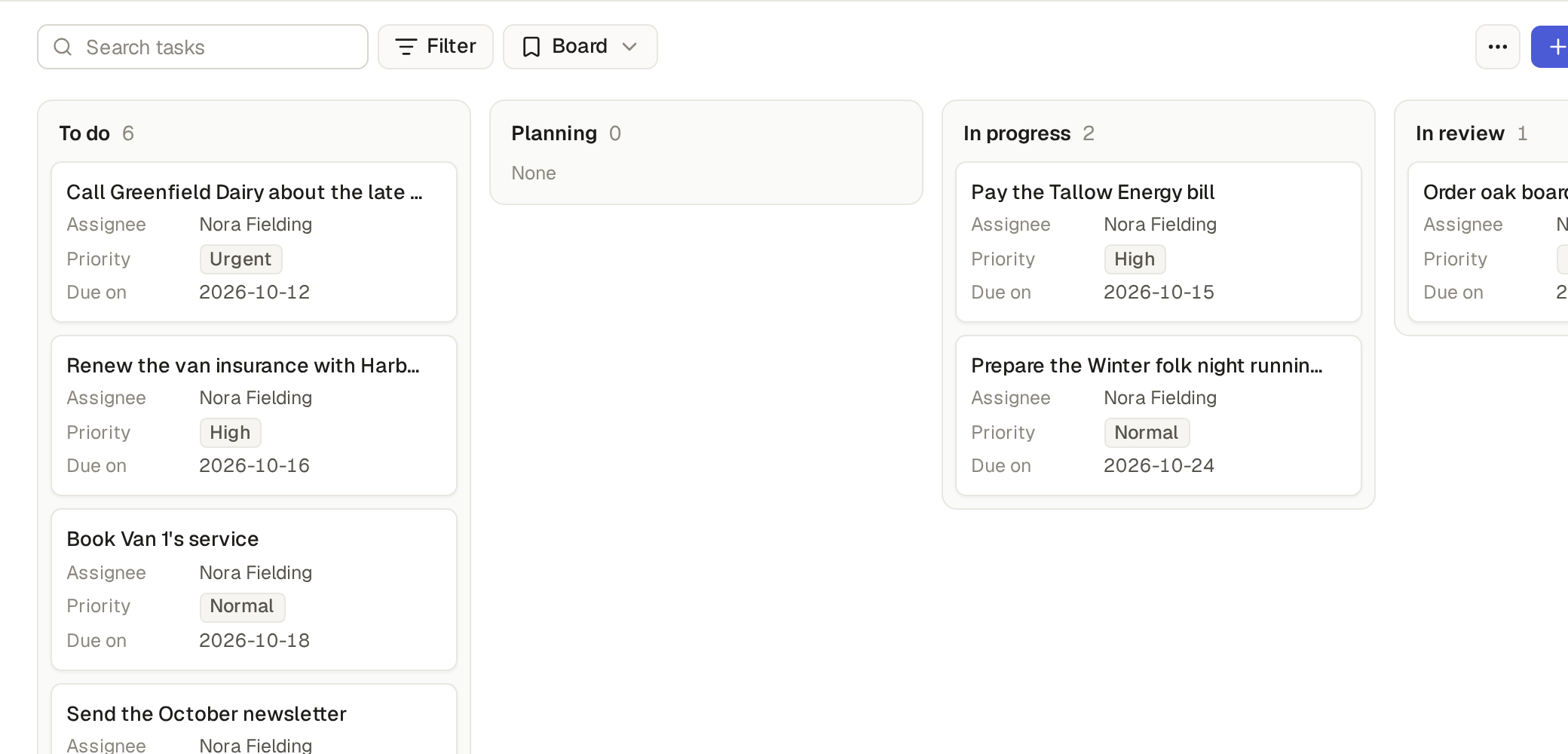
The Tasks app comes with an agent and a workflow:
- Planner, an agent that writes a task's plan as its steps, at most ten (Make AI agents that work in your base).
- Task flow, a workflow on the task's status: on a task's page, Start Task flow moves it from step to step, from to do to done through the review (Move items from step to step with workflows).
To make your base yours, change what its modules brought, bring in your data and invite your team:
- Ask the assistant, in your words: "Add a lead score to contacts", "Hide the deal value from staff". It shows the change on a card before anything happens (Ask the assistant and review its changes).
- Or change the tables yourself in Builder (Make a table and its fields).
- When a module gets a new release, your base takes it by itself and keeps your changes, or it waits for you (Upgrade a module and keep your changes).
- Bring in your own data with Import on each list (Import and export CSV and Excel files).
- Invite your team and give each a role (Invite a user and give them roles).
A base made with sample data can start again empty, for your own data, in one step. Only the owner of the base can do it, and only while the base still holds the data it was made with.
- In your base, click Settings, then General. The section Delete all data shows to the owner of a base made with sample data.
- Click Delete all data. The confirmation says how many items your users added, which are deleted too, and for each list how many items go.
- Type the name of the base, then confirm. The message says how many items were deleted.
Every item of every list goes, the sample items and the items your users added, with their files, comments and history. The sample users go, and so does every conversation with the assistant, for every user. The tables, views, forms, automations, agents and roles stay, and so do your users, the plan, the secrets, the connections and the settings. Your automations do not run for the deleted items, so nothing is mailed. This cannot be undone. Then the section goes. A base made without sample data has no Delete all data.
From the dashboard
While the base holds its sample data, the owner's Dashboard shows one line that says so: "This base holds sample data to show how it works. Delete all data when you start with your own." It has Delete all data, which asks the same confirmation as the settings, and one first step, such as Add your first customer. The first step is the first list in the App menu that you may add items to, and it opens that list's new form. Other users do not see the line. It goes when the data is deleted.
With the assistant
Ask the assistant: "Delete all data". It shows the same counts on a card, and nothing happens until you approve it. The conversation you ask it in stays.
Sample chats
When you create a base with Add sample data, you can also turn on Add sample chats. The assistant's History then holds example conversations about the sample data, dated today, so that you can see what the assistant does. The assistant does not take them for things you told it.
An app of your own is a base you saved to start the next one from, when you build bases for others. Only an owner of the base can save it as an app of their own.
- In your base, click Settings, then General, then Save as your own app.
- Give it a Title and, if you like, a Description, shown under its title on Create your base.
- Under Sample items, tick the items to keep, from the first 50 of each list. None is ticked to begin with. A table whose list is off is not offered, and the line under the lists names it; its items still come along when a picked item references them.
- Click Save app. The message names the app, with a button that opens Create your base at www.basecaptain.com.
The app holds the base's tables and fields, roles, views, workflows and agents, and the sample items you ticked with every item they reference: an order brings its customer, its lines and their products, at most 200 items in all. A field that named a user names you instead. Users, secrets, machines and files stay behind. The base's code comes along too, so its buttons and automations work the same in each base you start from it.
Start a base from an app of your own
On Create your base at www.basecaptain.com, the box of Choose an app shows your own apps first, under Your own apps, with the base each came from and the day you saved it. Only you see them, and no one else can start from them. Pick one as you would a built-in one: the new base has its sample items and you as its admin, and no automation runs for those items, so nothing is mailed when it is made. The owner deletes all data in one step, as for a built-in app (Delete all data).
Change or delete an app of your own
To change an app of your own, save it again; to delete it, click the bin beside it and confirm. The bases started from it stay as they are.
Modules and apps keep these rules:
- Any install, upgrade or removal of a module that deletes something asks you to confirm first, and names what goes.
- An install, an upgrade or a removal is refused while an item is at a workflow step that goes, and while a part of your own uses a part that goes: the message says what to move or change first.
- A user keeps up to 20 apps of their own.
Signed in, GET /api/auth/modules lists the apps to start a base from, and POST /api/auth/bases takes the base's name, the app in module by its name and
the features in modules.
With the API token of someone who builds the base, GET /api/builder/modules lists the base's modules
and those it can add, POST /api/builder/modules/preview shows what an install, an upgrade or a
removal, or the undo of an upgrade, changes, and POST /api/builder/modules does it; a change that
deletes something needs "confirm": true.
Through Base Captain's MCP server, the tools are list_modules, install_module, upgrade_module, undo_module_upgrade and remove_module, and list_module_users lists the people of the base that an install of an app can add, with the roles they
can get (Use your base from a calendar or a script).
With the owner's API token, GET /api/builder/data gives the counts of Delete all data and POST /api/builder/data/delete deletes the data; through Base Captain's MCP server, the tool is delete_all_data. Anyone else gets a 403.