Create, copy, export and delete a base
Create a base, copy it, give it its name, logo and settings, see who its owners, admins and customers are, export its data and delete it.
You create your bases at www.basecaptain.com, where you sign in: the Sign in link at the top of this site goes there. You manage each base in its own Settings. In the example, the base is Demo Company, the shop.
A base is what you make on Base Captain for your company, your shop or your club. It is made from the app and the add-ons you pick, and it has its users and its plan. Each of its users holds one or more roles in it. Some of them are its owners (Owners, admins and staff).
The base holds all of its work: its tables, its Chat, its Files, its Inbox and its Search.
Open a base and switch to another
- Sign in at www.basecaptain.com, and the base you opened last opens. When you have no base yet, or an invitation waits for you, Create your base opens instead, with your pending Invitations above it, each with Accept and Decline.
- In the base, click your picture, or your initials, at the bottom of the rail: the menu lists your Bases, with a check beside the one you are in. Click another to open it, with no new sign-in. New base, under them, opens Create your base.
- Anyone who holds an admin or staff role in the base finds it under Bases in the menu of their picture. You invite them in Settings, Users, with an API token or by asking the assistant (Invite a user and give them roles).
Where each setting of a base is
- Plan, under Base in the base's Settings, holds the plan, the storage, the payment method, the billing details and the invoices (Upgrade to the Pro plan). The foot of General holds Copy this base and Delete this base. Both are for the owners alone (Make a user an owner of the base).
- How long Chat keeps its messages, and whether the base keeps its data from AI, are settings of the base, for its admins: Delete old messages in Settings, Chat (Delete old messages after a time), and the switch in Settings, AI settings (Keep your records away from AI).
- At www.basecaptain.com, the foot of each page has Settings and Sign out once you are signed in, and before that a button that sets the theme, System, Light or Dark. Settings opens your own settings in a box, with a tab each for Profile, Security, Appearance, Notifications and API tokens: the same settings as Settings, Personal in any of your bases (Set preferences, password and security).
A closed base
A base that is closed, because it is suspended or its data was deleted, does not open. You find it at the foot of Create your base, and its page there says why it is closed.
You create a base at www.basecaptain.com, in one step, on the Free plan (What the Free plan includes). When you sign up, you have no base: you create one after you sign up (Create your base), or join one when you are invited. Create another base for a second set of work, such as another company or a client.
- Sign in at www.basecaptain.com. With no base yet, Create your base opens. In a base, click your picture, then New base.
- Give it a Base name, such as "Acme Ltd", with no @ in it.
- Say what the business does and click Recommend an app (Let the assistant recommend an app). What you write becomes its About this base (Name your base, describe it and keep the company’s details). Start from and Create my base show once the recommendation has answered.
- Under Start from, pick the recommended app, choose an app yourself, built-in or one of your own, or an empty base. Under an app, tick the add-ons you want (Start your base from an app (a template)).
- Click Create my base. The base is made at once, on the Free plan, with you as its owner and its admin, with no payment method and no payment. A message says so, and the base opens.
When you come from an app's page, Create your base has its app and its add-ons picked already, and its name filled, and Start from and Create my base show at once. A temporary base becomes your base when you keep it (Keep a temporary base as your own).
Limits and details
- The number of free bases one person may have at a time, and in all, is limited for fair use. A base you were invited into does not count. At a limit, Create your base says which limit you reached and does not make the base, such as "You have 3 free bases. Upgrade one to Pro or delete one to make another base." To make another, upgrade one of your free bases to Pro (Upgrade to the Pro plan) or delete one (Delete a base).
- A free base whose data you delete gives its place back at once, and so does one whose data was deleted after its Free plan ended.
- The number of bases one person may have on all plans is limited for fair use too. At it, Create your base says so, and we can raise it.
- If the base's data cannot be made, Create your base says why, and no base is made.
Copy a base to start a client's base from one you made, or to try a big change on a copy first. A copy is a new base. Only an owner of the base copies it, and only while the base is on a running Pro plan. A base on the Free plan, writable or read-only after the Free plan's end, and a base whose Pro plan stopped cannot be copied, with or without its data: Copy this base is not shown in its Settings, and the API and the AI clients answer "Only a base on a running Pro plan can be copied. Upgrade to Pro to copy this base." (Upgrade to the Pro plan).
- In the base, open Settings, General, and click Copy base under Copy this base, at its foot.
- Give the copy its Name, such as "Acme Ltd 2". It gets an address of its own, made from its name.
- Choose whether the copy takes the base's data: its items, with their comments, and its files. Without data, the copy has no items and no files.
- Confirm. A message says so, and the copy shows under Bases in the menu of your picture.
What the copy takes, and what it leaves
- The copy has the same tables, roles, views, workflows, agents and code, so its buttons and automations work as they do in the base you copied.
- Its owners are the owners of the base you copied, each an admin of it, and nobody else comes with it: invite the others again.
- Secrets and machines are not copied: add the secrets again; until then, a webhook that needs one does not work.
- The copy never takes the private channels, the direct messages or the group chats, or the files sent only in them.
- The copy sends and runs nothing that the base you copied had sent or had waiting, and nothing changes in the base you copied.
Limits and details
- The copy is a new base on the Free plan, free for 30 days, and counts as one of your free bases.
- When the data needs more storage than the Free plan has, the copy is refused: "The copy needs more storage than the Free plan has. Copy it without data, then upgrade it to Pro." To upgrade the copy, an owner clicks Upgrade to Pro in the copy's Settings, Plan (Upgrade to the Pro plan).
- No assistant or AI client copies a base.
The users of a base are its owners, admins and staff, all in one list: the base's Settings, Users. There you invite them, change their roles and remove them (Invite a user and give them roles). Each user is one of these:
- Owner: a user with the owner mark, who pays for the base and changes its plan. What only the owners do, and how a user gets the mark, is in Make a user an owner of the base.
- Admin: a user with an admin role in the base. Admins manage its users.
- Staff: a user with a staff role, who uses the base with the roles they hold in it.
Nobody leaves a base by themselves: an admin removes them in the base's Settings, Users (Change a user's roles, or remove a user). An owner deletes the base's data (Delete a base).
A customer of your base, a user who holds only an external role, is not one of the base's people: the base does not show under Bases in the menu of their picture. They stay in the base, and you add and remove them there, in Settings, Users (Open a customer portal).
The base's Name and About this base are in its Settings, General, for its admins, and the company's details are in the base's settings. These are the one place for them: every print and mail reads them.
The base's name
- Change the Name in General, and the base has the new name everywhere: in the browser's tabs, in the path along the top, in the menu of your picture and on the sign-in page, "Sign in to continue to Demo Company".
- The company's name is the base's own Name. It is your base's name on every print, mail and link page, and in what your agents write, so type the name your customers know, such as Brightline Commercial Cleaning.
- Your base's emails show it as "Brightline Commercial Cleaning via Base Captain", or "Acme Ltd via Base Captain" (Name your emails and choose where answers go).
- The name cannot contain @: "A base's name cannot contain @".
- The logo is in General too (Set the logo, time zone and currency).
About this base
About this base is what the business does and how it works, such as "We repair bikes and sell parts." What you wrote in Create your base is its start. The assistant and every agent in the base are told the base's name and About this base, so their answers fit your business: change it, and the next chat or run knows.
The company's details
The company's details, such as its address, its tax number and its bank details, are in the base's settings, such as Business details under Settings, Base. That is the one place for them, where every print and mail reads them (Keep rates and the closed month in a settings table).
The base's logo, date format, time zone and currency are in Settings, General, for the base's admins.
- Click Settings in the rail, then General.
- Change the Name if you need to (Name your base, describe it and keep the company’s details).
- Under Logo, click Upload (Replace once there is one) and pick a square PNG, JPEG or WebP of up to 1 MB. It shows in the path along the top and on the sign-in page. Without a logo, the mark is the name's first letter.
- Pick the Date format, such as dd/mm/yyyy, and the Time zone, such as Europe/London. Every user who did not pick their own date format sees the dates in this format. The base uses its time zone for its emails, prints, schedules and automations, and each user who picks Base default sees the dates and times in it (Set your theme, time zone and notifications).
- Pick the Currency, such as GBP. Each amount whose field uses the base's currency shows in it, such as £1,234.50 (Show amounts in a currency). With None, these amounts show as plain numbers.
- Click Save settings. The base's name and mark change at once.
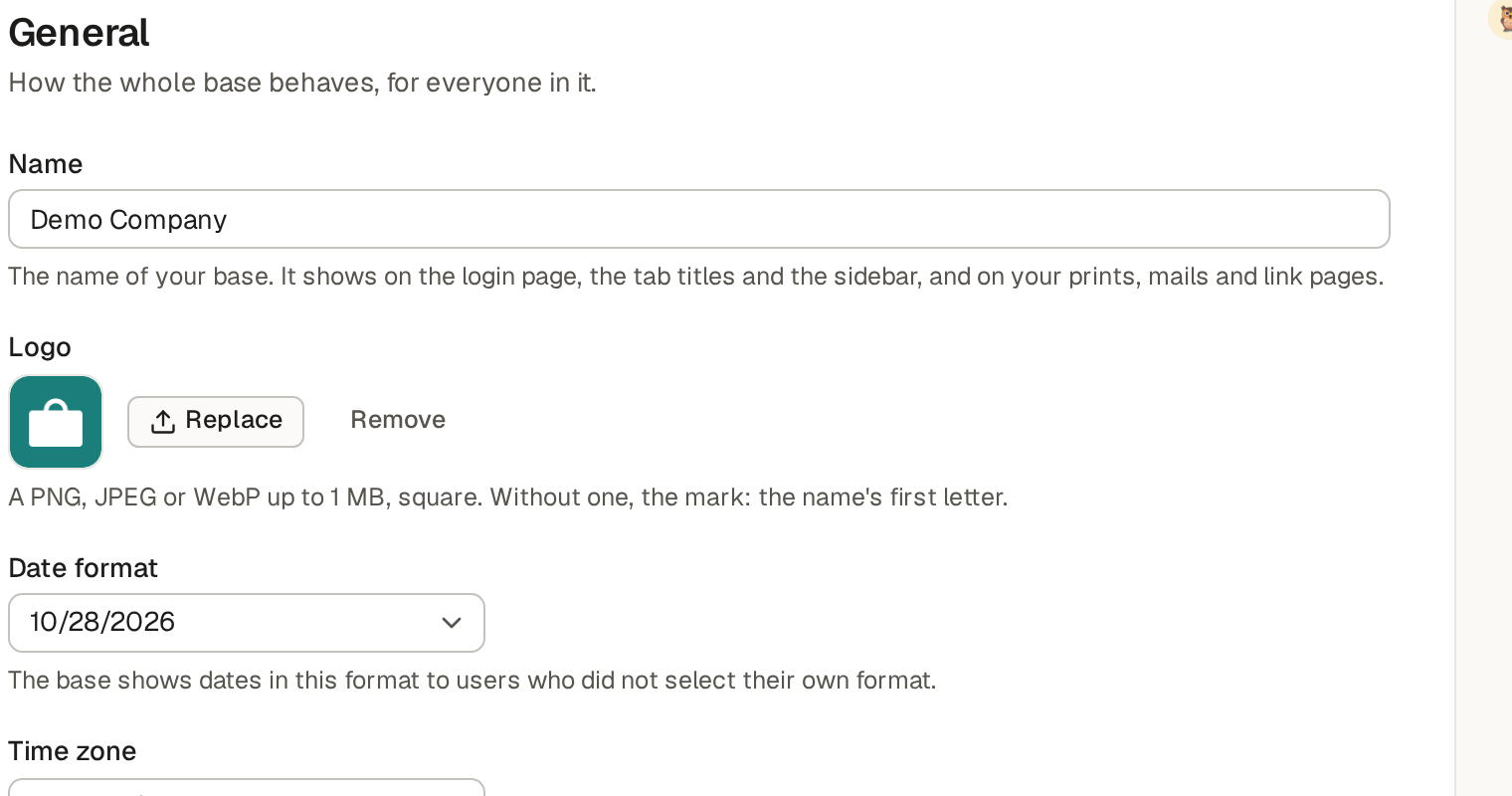
A new base takes its time zone from the computer of the person who creates the base, and its date format and currency from the region of their browser: dd/mm/yyyy and GBP from a browser set to English (United Kingdom), mm/dd/yyyy and USD from one set to English (United States). A base made through the API with no time zone takes UTC. Change them here when they are not yours.
Hide the assistant, Chat or Files
Three switches show three parts of the base to its users: Assistant in Settings, AI settings, Chat in Settings, Chat, and Files on this page. A new base has the three on. When you turn one off and click Save settings, nobody in the base sees that part: Assistant removes the Assistant button and its panel, Chat removes Chat from the rail with its pages, and Files removes Files from the rail with its page. The base keeps the data. It keeps the conversations with the assistant, and the channels and their messages. The base keeps its files, and the file fields of items continue to work. When you turn the switch on again, the base shows that part again, with its data. Only an admin changes the Assistant switch. The assistant's name and picture are in Settings, Agents (Give the assistant a name and a picture).
Every saved change is a new version of your base, which you can go back from (Ask the assistant and review its changes).
A settings table holds the base's own settings in one item, such as its company's address and bank details, its rates and the last month whose books are closed. The table has exactly one item, made with the table and never deleted, and anything else in the base can read it. The example shop's is Company, with its VAT rate and its Last closed month. The company's name is not in it: it is the base's own Name (Name your base, describe it and keep the company’s details).
- Make the table as any other, with a default for each required field. In Settings, open General and pick it as the Settings table. A base has one such table.
- Click Save settings. Its item is made at once, with the defaults, and nobody can add a second one or delete it.
- Everyone who may see it opens it from Settings, under Base, where it shows under the table's name, such as Company. It is not one of the lists in the main sidebar.
Read the settings in rules, prints and mails
A guard, a step or a default reads the settings item in SQL as (select vat_rate from company). The
shop's Make the invoice copies the VAT rate onto each new invoice this way, and its invoices' guard
refuses any invoice dated in or before the last closed month. Set Last closed month to any day of
September, and an invoice dated in September can no longer be made, changed or deleted.
Print templates and emails read the settings item too, so your company's address and bank details are kept once
and show on every quote and invoice: {{.settings.address}} in a print template (Write a print template: fields in double braces), {{settings.iban}} in an email of an automation or a button (Run actions when an item changes).
Who may change the settings follows the roles' rules, as for any list (See who may do what: the Roles page).
All of the base's data downloads in one zip file: Export your data in Settings, General, for the base's admins (Download all of your base’s data in one zip file). The zip holds every item with its comments and files, the channels you may read with their messages, and the folders of the Files page.
An owner deletes a base's data in its Settings, General. It is the one delete of a base, and it cannot be undone, so download what you want to keep first (Export the base's data).
- Click Delete base under Delete this base, at the foot of General.
- Confirm. A message says so, and the base you opened before it opens, or Create your base when no other base of yours opens. The base's data, with all its files, is deleted.
What stays after the delete
The base itself stays, with its owners, its plan, its billing details and its invoices. Its other users no longer find it. Its owners find it at the foot of Create your base, and its page at www.basecaptain.com says "Base Captain deleted the data of this base on 21 December. Its owners, its billing details and its invoices are kept." Under it, the Plan still opens Manage card and invoices, where the owners download the invoices. The page offers nothing else: no copy, and no way to start the base again.
Limits and details
- While the Pro plan runs, the data cannot be deleted: "Cancel the Pro plan first." Cancel it (Cancel or change the card), and delete the data once the base is read-only.
- Only an owner deletes it, in Settings, General: no API token, AI client or assistant does it.