Import and export CSV and Excel files
Import a CSV or Excel file into a list or update items from it, export a list or all your base’s data, and build a base from a spreadsheet.
To import a CSV or Excel file into a list, open the list, click Import, drop the file and pick the field each column goes to.
- Open the list, Customers here, and click Import.
- Drop a .csv or .xlsx file on the box, or click choose one.
- A workbook with several sheets asks which one to import, with each sheet's name and how many rows it has: pick one. Another sheet, beside the columns, takes you back to the list. A CSV file or a workbook of one sheet goes straight on.
- For each column of your file, choose where it goes. A column headed with a field's exact name, capitals aside, such as First name, is matched already; any other starts at Skip, so pick its field by hand: here the column E-mail goes to Email. Leave Skip on a column you leave out, and untick The first line has the column names if your file starts with data.
- Check the first rows shown, then click Import 3 rows.
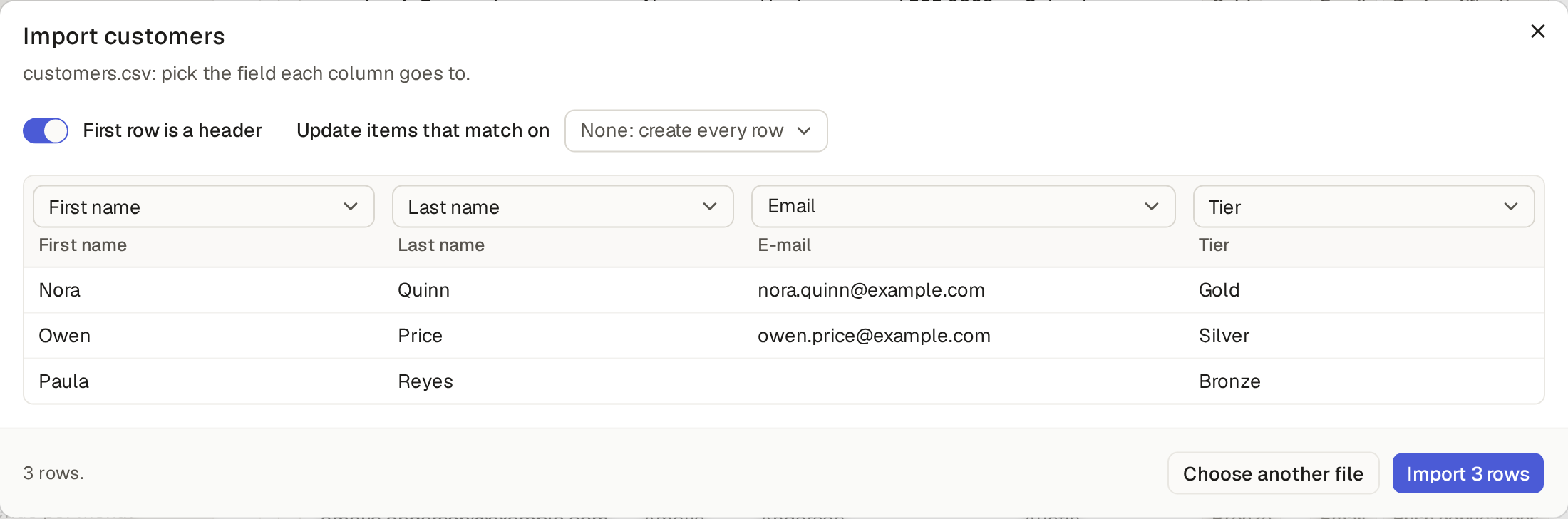
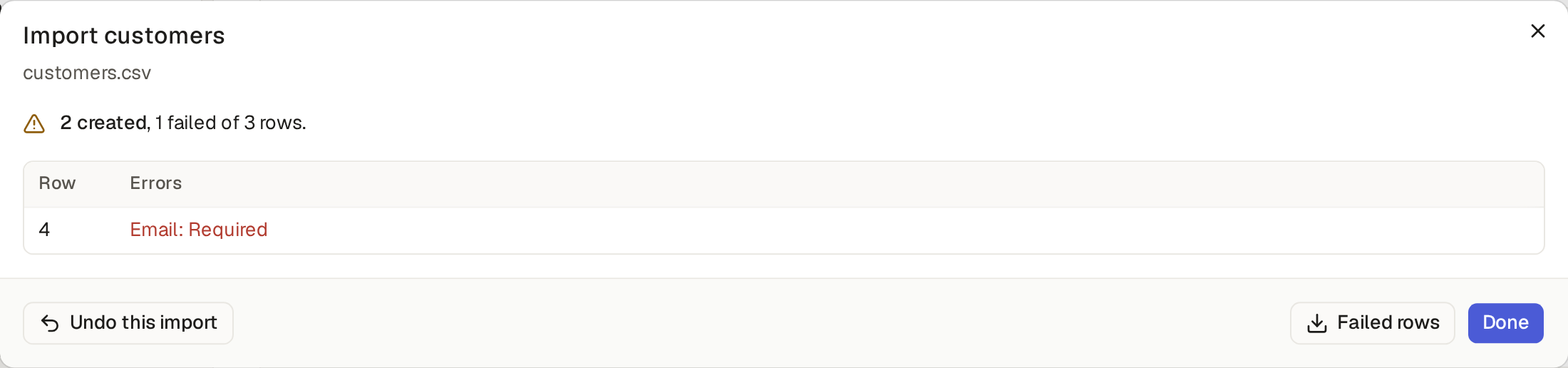
The import runs by itself: you can close the box and it goes on. At the end it says what it did, such as "2 customers added and 1 customer failed.", with each failed row and why, and Failed rows downloads them to fix and import again. If the base stops answering for a long while, the box says "Lost track of the import" instead: Open the background job shows how the import ends, under Activity, Background jobs (Follow a long import or export in Background jobs).
Link each row to another item
A column for a reference, such as an order's customer, finds the item by its name, as the list shows it. It can also find it by a field no two of them share: send the column to Email under the heading Customer, and each row's order goes to the customer with that email. Columns sent to the customer's other fields, such as First name and Last name under Customer, are used when no customer has that email: the import then adds the customer too, and the order points to it. A column headed "Customer Email" goes there by itself. Rows with that cell empty leave the order without a customer.
An import can also change the items you have, such as new prices for your products, as long as one of the file's columns goes to a field no two items share, such as a product's SKU or a customer's email.
- Open Products, click Import and drop the file, as for any import (Import a CSV or Excel file into a list).
- Beside The first line has the column names, set Update items that match on to SKU. It offers only such fields, and only once one of your columns goes to them.
- Click Import 3 rows.
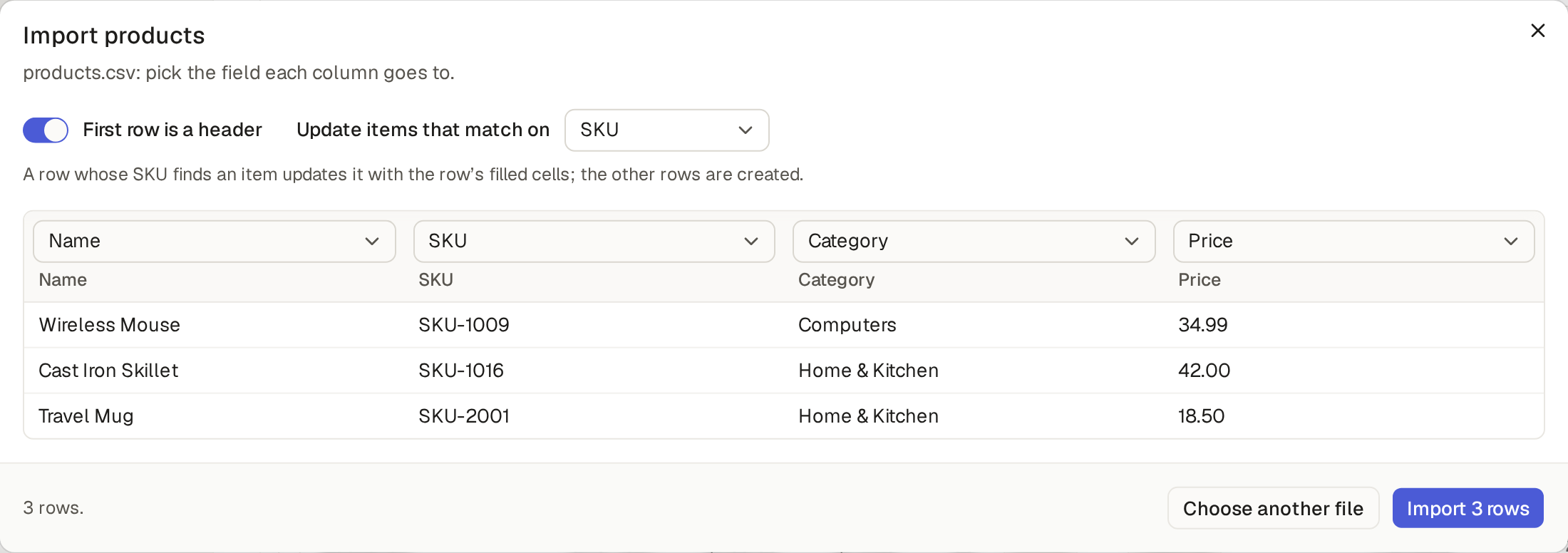
A row whose SKU is already in the list changes that product, with the row's cells that are not empty: an empty cell leaves its field as it was. A row whose SKU is new, or empty, adds a product. Each change is checked like an edit you make yourself, and a row that breaks a rule fails with its reason, as a new row does. Here the end reads "1 product added and 2 products updated."

Undo an import
To take an import back, click Undo this import at its end, then Undo in the box that asks first, "Undo this import?". The products it added are deleted and the ones it changed get their old values back. An item someone changed since is left as it is, and the box that follows lists it.
To export a list, open it and click Export: you get a CSV or Excel file of what you see.
- Open a list, and filter or search it if you want only part of it.
- Click Export. The menu says whether you get The whole list or The filtered list.
- Pick CSV or Excel: a message says the base exported 31 products, and the file downloads.
The exported file holds what you see: only the items your role may see, and only the fields you may see. When the salesperson exports Products, the cost and margin columns are not in it.
Its columns are the list's columns, in the same order: a view that shows six columns exports those six. A column that shows a field of another item, such as a customer's city on an order, is not in the file.
All of your base's data downloads as one zip file, from the base's settings. The base's admins export it.
- Click Settings, then General.
- Under Export your data, click Export data.
- A zip file named after the base and the day downloads: every item of your tables, one file per table, and the files uploaded to them.
The zip also holds a list of the base’s users, so that the ids of the people in the items (who is assigned, who made or changed an item) can be read as names, the comments of those items, the channels you may read with their messages, your direct messages and group chats included, a private channel you are not a user of left out (Export your channels), and the folders and files of the Files page (Export your files). It is the one export of the base's data (Export the base’s data).
Ask the assistant "Export this base's data" and it answers with a link to the zip: click it and the zip downloads.
The assistant builds a base's tables from a spreadsheet you attach, then imports its rows. The base's builders do it. Start from a new base with no app (Open, add and switch between your bases) or add to the base you have.
- Open the Assistant. Drop your spreadsheet on it, or click the paperclip, Attach a spreadsheet, a photo or a PDF. A .csv file or an .xlsx workbook with several sheets both work.
- Say what you want, such as "Build the tables from this workbook", and send. The assistant reads the sheets' headings and a few rows, and proposes a table for each sheet, with the links between them, as one card.
- Click Apply. The tables are made.
- A second card, "Import books.xlsx", says which sheet goes to which table and how many rows each has. Click Apply.
- The rows are imported, and the assistant reports what failed and why, such as "Row 5: Amount: Type a number such as 1,500.50".
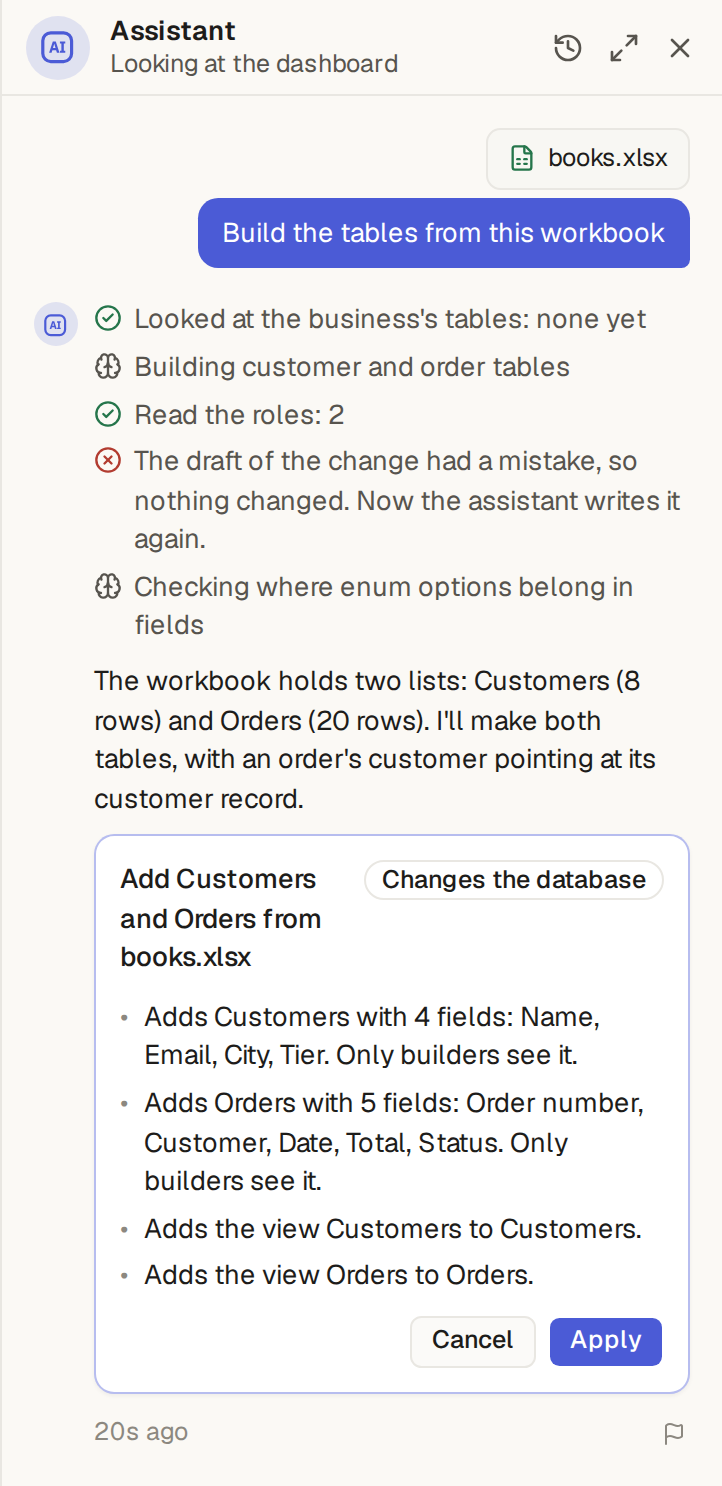
The new tables start private, as every new table does: give your team's roles access next (Make a role or change its rules with the assistant).
Import a spreadsheet into the lists you have
Into lists your base already has, you need not build the tables: anyone who may add items to those lists drops the spreadsheet on the assistant the same way and gets only the import card.
Some work goes on by itself after you close its box. Each such work is a background job:
- an import of a file into a list, a zip into Files or a Slack export into Chat;
- a long export, whose file waits for you on the job's page;
- an agent's run that waits for its turn.
The base's admins see them all: click Activity, then Background jobs. The list is newest first, each job with its kind, its status, its progress, when it started and how long it took. Click a row to open its page, with its log, its result and its file. The page of an agent's run has the button Open its run on agent runs, which opens the same run on Agent runs (See everything a run did).
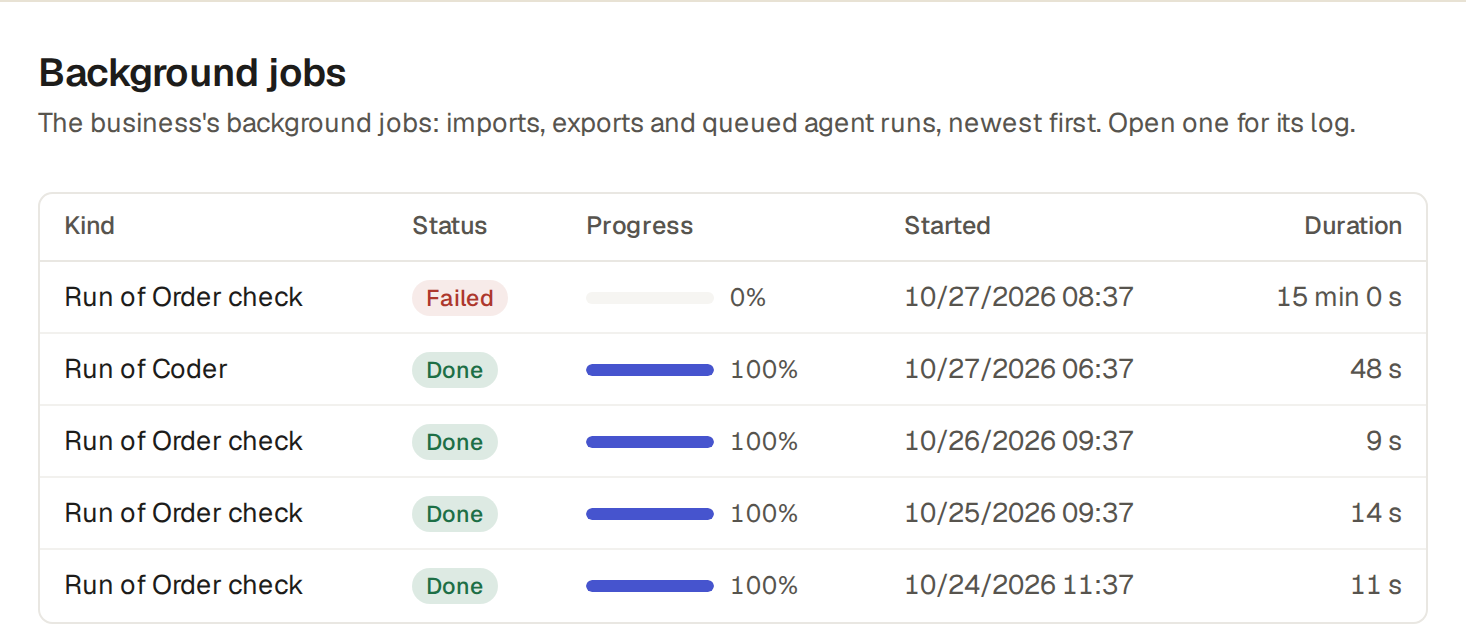
A user of your staff sees the background jobs they started, an external user sees none, and the admins and the base's builders see every job.
Imports keep these rules:
- Each row of an import is checked like an item you add yourself: required fields, choices, numbers and dates, and what your role may add.
- A row that matches an item but changes none of its values counts as unchanged, so importing the same file twice updates nothing the second time.
An AI client connected to the base exports the base's data with the tool export_data, as the assistant
does. A script downloads the zip with an API token of an admin, at GET /api/builder/export (Use your base from a script with an API token).
With an API token, GET /api/tables/_background_jobs/items lists the background jobs, and the assistant
and AI clients do it with the tool list_background_jobs.