Work on an item: comments, history and AI
Open an item’s page with its related lists, comments and history, put in a saved reply with /, write with AI, and restore a deleted item.
An item's page shows the item's fields, then its related lists, its comments and its history: click an item in a list to open it. The page leaves out the fields with no value, so a new customer's page shows only what is filled in; its edit form shows them all. A "No" and a 0 are values, and show.
When you may not change or delete an item
Where you may not change or delete the item, Edit and Delete show greyed out, and pointing at them tells why: signed in as a salesperson, a delivered order of his reads "Sales change their own orders until they are delivered" (See who may do what: the Roles page).
Change a status in one tap
A single choice, such as an order's Status, changes in one tap, with no edit form: click it on the item's page, pick the new choice, and the base saves that field alone at once. So a plumber marks a job In progress or Done from the job's page, on the phone.
- The menu offers only the choices the item may take (Offer only the choices that fit the item, such as an invoice’s status).
- Where you may not change the field, it shows as plain text.
- While a workflow holds the item, the workflow moves its own step, and its status shows as plain text too (Start and stop a workflow on an item).
See the items that point at this one
Related lists, below the item's fields, show the items that point at this one, such as a customer's Orders. View all opens the list with every one of them, whatever the list's default view filters out, and New opens a new order with the customer already set.
- Each list has the title its reference gives it.
- A list with no items shows only its title, its count of 0 and New.
- A reference can also leave its list out, or show it as a timeline (Show the items that point at an item on its page).
Comment on an item
Comments, below the item's fields: write one and click Add. Everyone of your team who may see the item reads it, and nobody else.
- Markdown works: bold, italic, code, code blocks, lists, quotes, tables and links; a link to another site opens in a new tab.
- A customer of an external role reads only the comments sent to them by mail and their answers (Open a customer portal).
- Where the table mails its comments to someone, such as a quote request's sender, a comment can go to them by mail, and their reply lands here, marked By mail (Mail a comment and get the answer on the item).
- Where the table shows each item's own mail address, the item's page shows it with a copy button, and a mail to it lands here the same way (Give each item its own mail address).
- A comment shows on every open page of the item within a few seconds, with no reload.
- Unlike a message in a channel (Chat with your team: channels and messages), a comment takes no thread.
- The AI menu beside the box drafts a reply from the item and its comments, rewrites or translates what you wrote, and summarizes the comments; on a comment, it shows the comment in your language. The text stays in the box until you click Add (Write, rewrite and translate with AI).
- Type / in the box to put in a saved reply (Put in a saved reply with /).
Edit or delete your own comments
Each comment has a menu. On a comment you wrote, it offers Edit and Delete. Edit changes the text in place, and the comment then shows edited. Delete asks you to confirm, then removes the comment.
- You edit and delete only your own comments, never another user's, an agent's or one that came in by mail.
- A comment that went out by mail stays sent: an edit or a delete changes it only in the base.
Mention a user with @
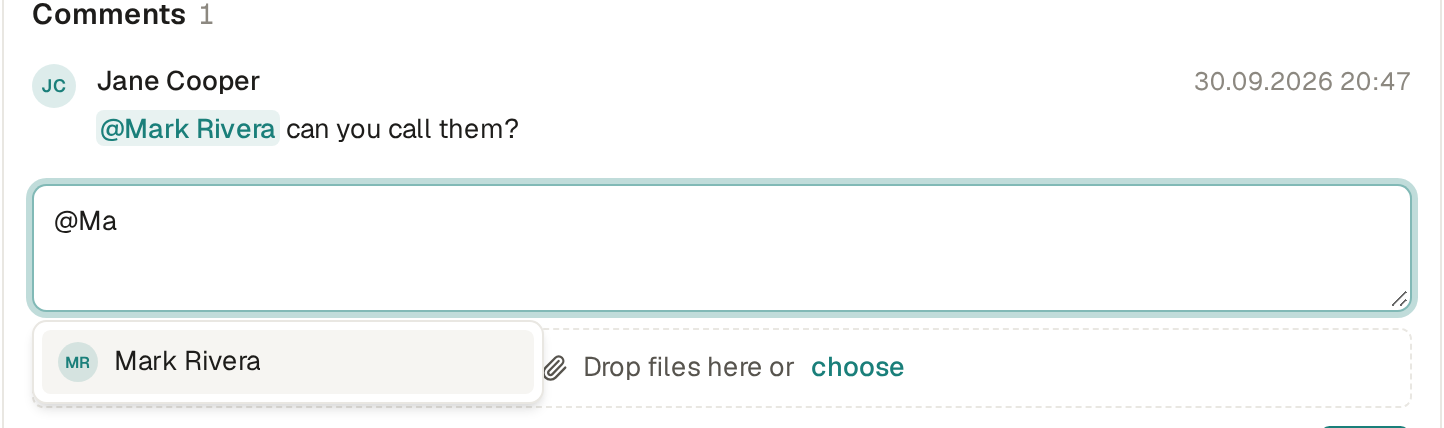
Mentions: type @ in a comment and the box offers the users who may see the item; keep typing to narrow it, then click a name or pick it with the arrows and Enter. "@Mark Rivera" goes into the text, and once you click Add he gets "Jane Cooper mentioned you on ORD-00005" in his Inbox, and by email unless he turned those off (See everything open for you in the Inbox). Someone who may not see the item is not offered.
See an item's history
History shows who changed what and when, by their name, each field's old and new value, and "via assistant" when the assistant made the change for someone. Fields you may not see stay out of it.
View history, in the more menu, shows the line "Created … · Updated …" and the item's History, which are hidden until you click it. They show for this item only, this time: open another item or reload the page, and they are hidden again. A customer of an external role sees only the line "Created …", and no history.
Turn comments and history on for a table
A new table shows neither comments nor history. The base's builders turn each on under the table's View items, Activity. If they turn one off later, the base keeps the comments or the history already written.
Follow an item
At the top of the page, beside Edit, are Follow and Duplicate.

Follow tells you what happens to the item from then on, in your Inbox: each new comment, a reply that came by mail, and each time its workflow moves it to another step, finishes it or fails it. The button turns to Following; click it again to stop.
- Nobody follows an item until they click it.
- You are never told of what you did yourself, and an agent's comment tells nobody.
- A new table has no Follow button: the base's builders turn it on under the table's View items, General.
Duplicate an item
Duplicate opens a new item's form filled in from this one, with its rows, such as an order's lines. Nothing is saved until you click Save.
- Auto-numbers, unique fields, files, passwords and the fields the base works out start empty, so the copy gets its own number.
- Duplicate copies what a person entered, not where the item stands: an order's Paid at stays empty, and the fields an automation or a custom action sets start at their default, so a paid order's copy starts Pending and an issued invoice's copy starts Draft.
- Duplicate shows where the base's builders turned it on, with the Duplicate switch on the table's Create items page, or by asking the assistant; in the shop, Orders, Products and Quote requests have it.
Report an item to Base Captain
Report, in the more menu, tells Base Captain that the item breaks the law or the rules; each comment has Report in its own menu, and each file shown on the page or in a comment has it too. Pick a reason, add a note if you like, and click Send. It sends us a copy of what you report, as you see it, a person reads it, and you hear back by email (Report abuse). Report shows on an item you may only read too.
A saved reply is a text that you write once and put into a comment or a mail answer with a few keys, such as a thank-you for an order or the steps of a refund. Its places in double braces get the values of the item you are on. The base's builders make the saved replies, for the roles they pick.
- In the box of a comment on an item, or of an answer to a mail in the Inbox (Answer a mail, with files), type / at the start of the box or after a space or a new line. The saved replies of your roles show in a list.
- Type a few letters to narrow the list by name. When no name matches, the list says "No saved replies match."
- Pick a reply with the arrows and Enter, or click it. Its text, with the item's values, replaces the / and what you typed after it. Press Escape to close the list and keep what you typed.
- Change the text if you like, then click Add or send the answer.
If none of your roles has a saved reply, / types a plain /. Saved replies need no AI: they work when the assistant is off for the base.
Make a saved reply
- Click Builder, then Saved replies, then New saved reply.
- Give it a Name, such as "Thanks for your order": the list in the box shows it by this name. The Key follows from the name, and you cannot change it after you save.
- Write the Text. A place in double braces gets a value of the item: {{number}} for a field of the item, {{customer.name}} for a field of the item it points at, and {{settings.address}} for a field of the base's settings. For example, "Hello {{customer.name}}, thank you for your order {{number}}." on an order becomes "Hello Ada Lovelace, thank you for your order 1042." A date shows in the base's date format and a choice by its label, as in an email. On a mail, {{name}} and {{subject}} give the sender's name and the mail's subject.
- Under Roles, select the roles that may use it, such as your managers for a refund. Select no role and every role that can see the item gets it.
- Click Save reply. The saved reply applies at once, with no box.
To change a reply, open it from Saved replies, change it and click Save reply. Delete, on its page or beside it in the list, asks "Delete the saved reply Thanks for your order?": click Delete saved reply.
Limits and details
- A reply does not belong to one table: it fills what the item has, and a place the item does not have stays empty.
- A field that you may not see stays empty too, so a saved reply never shows you a value that the item's page hides from you.
- A base keeps at most 200 saved replies.
You can also ask the assistant, such as "Make a saved reply named Shipping delay that says the order ships a week
late". It shows the change before it happens, as for any change to the base
(Ask the assistant and review its changes). Through the API under your token, the saved replies are in the base's
spec, and an item's saved replies, filled for you, are at GET /api/tables/<table>/items/<id>/replies (Use your base from a script with an API token).
An AI menu writes in the box for you: beside the box where you write a comment on an item (Open an item’s page: comments, history, Follow and Duplicate), beside the box where you answer a mail in the Inbox (Answer a mail, with files), and beside a long text field in an item's form. The menu offers:
- Draft a reply, in a comment or a mail: the AI writes a draft from the item and its comments. Draft with instructions does the same with your own instructions, such as "Say that the parts come on Monday".
- Rewrite changes the text in the box: friendlier, more formal, shorter, longer, with the spelling fixed, or simpler.
- Translate changes the text in the box to another language that you pick from a list. On a comment or a mail that someone wrote, Translate shows it in your language, and Show original shows it as it was written.
- Summarize, in a comment or a mail: the AI writes a summary of the item's comments in the box.
A draft shows in the box while the AI writes it. A rewrite or a translation shows the words that changed: click Keep to keep the new text, or Undo to go back to yours. When the AI does not know a fact, such as an order number or a date, it writes a placeholder in square brackets, such as [order number]: fill it in before you send. Nothing is sent or saved until you send the comment or the answer, or save the item.
Limits and details
- Each click counts in the fair-use limits as a message to the assistant does (What AI your plan includes). Past a limit, the menu says when it is back.
- While the base keeps its data from AI, the menu does not show (Keep your records away from AI).
- Customers in an outside role, such as the customer portal's, do not get the menu.
With an API token, as you (Use your base from a script with an API token), POST /api/assistant/write does the same, with the action, draft, rewrite, translate or summarize, the item's table and item, and the box's text. A rewrite also takes the style, friendlier, formal, shorter, longer, spelling or simpler; a translation the language, such as "Spanish"; a draft, if you like,
your instructions. The answer comes as a stream (text/event-stream), the text in pieces,
then the whole text with "done": true.
A deleted item can be restored from Recently deleted until it is erased, 30 days after its delete by default. You see what you deleted; the base's builders see everything deleted.
- On the list, open the Views menu, beside Filter, and click Recently deleted.
- Open the item. Its page says who deleted it and when, with its last values, and the day it will be erased. The list shows that day too, under Erased on.
- Click Restore. The item is back where it was, and its history reads "restored this customer".
Choose when deleted items are erased
A deleted item is erased for good, with its history, 30 days after its delete. The base's admins set how many days: in Settings, General, change Erase deleted items after, from 7 to 9999 days, and click Save settings. The day every deleted item will be erased moves at once.
Erase an item sooner
To erase an item sooner, delete it first: the base's builders find Erase beside Restore on the deleted item's page. Erase removes its values from its history, which still shows who changed what and when, and its files. It cannot be undone. An item's page offers Delete only.
Limits and details
- A deleted item's files are kept 90 days: an item restored later comes back without them.
- To undo what the assistant changed, many items at once, use Undo on its card (Ask the assistant and review its changes).