Sign in, join a base and switch bases
Sign in to all your bases in one place, join a base from an invitation, sign in with a mailed code when you forget your password, and switch bases.
You sign in to every base in one place, the Base Captain sign-in page at www.basecaptain.com, though each base has its own web address. You are the same user in every base where you have a role: one email, and one password if you choose one.
- Open your base's address. If you are not signed in, the base takes you to the sign-in page at www.basecaptain.com, which says "Sign in to continue to Demo Company", with the base's logo.
- Enter your Email and click Continue.
- Enter your Password. Or click Email me a sign-in code and enter the six-digit code we mail you. If you have no password, you get the code button alone.
- Leave Remember me for 30 days ticked on your own computer. Untick it on a computer you share.
- Click Sign in. The base opens on the page you wanted, its Dashboard if you opened its address.
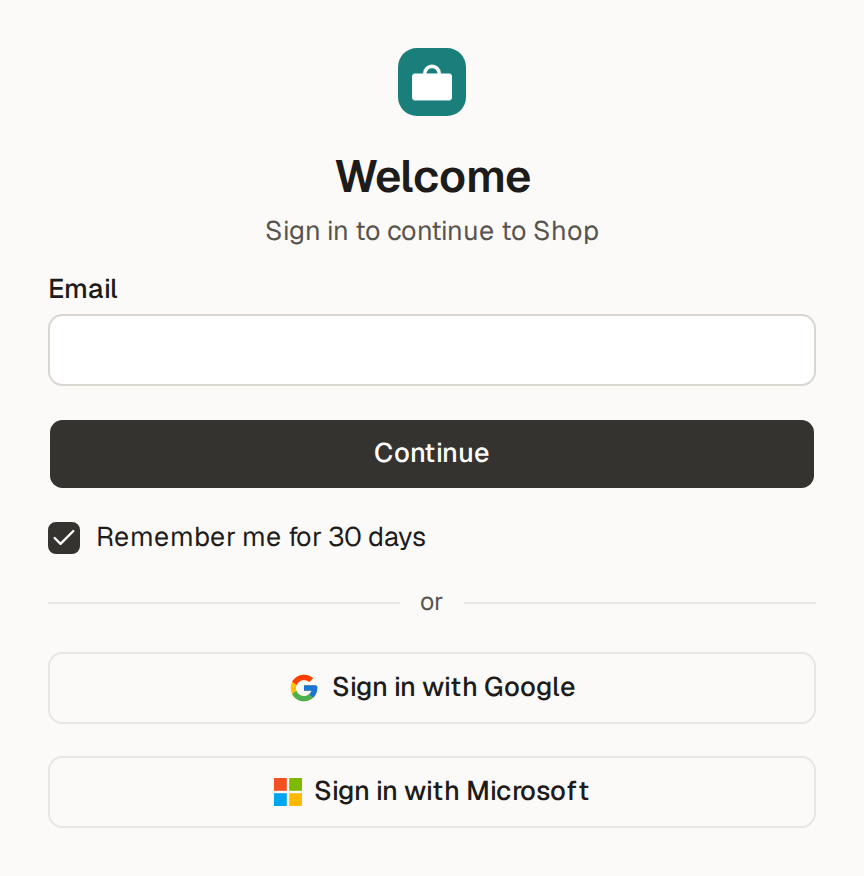
If you turned on two-factor sign-in, the sign-in page then asks for the code from your authenticator app, after your password or the mailed code (Set preferences, password and security).
Sign in with Google or Microsoft
The Base Captain sign-in page also offers Sign in with your Google account and Sign in with your Microsoft account: click one, choose your Google or Microsoft account, and the base opens, with no password and no code from your authenticator app. Remember me holds for it too. It works when the address Google or Microsoft confirms is your email, and if you were invited and have not joined yet, it accepts your invitations.
On the Base Captain sign-in page, an address no user has becomes a user at once, with your name from Google or Microsoft and no email to confirm, since they already confirmed it: you land signed in on Create your base. You then have no password: sign in with Google or Microsoft or a mailed code, or set a password under Settings, Security (Set or change your password).
Sign out
Sign out, in the menu of your picture at the bottom of the rail in any base, or at the foot of the page at www.basecaptain.com, signs you out of Base Captain and of every base in that browser. Your other devices stay signed in: to sign them out too, use Sign out other sessions (Sign out of other devices).
Limits and details
- The mailed sign-in code works once, for 15 minutes.
- With Remember me for 30 days unticked, the sign-in lasts a day.
- Once you are signed in, every other base where you have a role opens with no form and no click: open its address, or a link to one of its pages, and you are in. Each base stays signed in as long as your sign-in does, so with Remember me ticked, 30 days in every base.
- If you are signed in but have no role in the base you opened, a page says that your email "has no access to Demo Company", lists your bases, and offers Sign out, to sign in as another user.
- Signing in to a base with Google or Microsoft never makes a user: with an address no user has, you are back on the sign-in page with "No user has that address", and you join by invitation (Join a base from an invitation).
- An address the provider has not confirmed, such as a work address Microsoft does not vouch for, is refused with "The provider did not confirm that address".
An invitation to a base is an email such as "Admin invited you to Demo Company", sent when one of the base's admins adds you as a user (Invite a user and give them roles). The email says who invited you, the base, and your role or roles, each with a line that says what the role can see and change. It also says in one sentence what Base Captain is.
- Open the link in the email. It opens on www.basecaptain.com, as every sign-in page does.
- The page says who invited you, "Join Demo Company, invited by Admin", and shows your email. Enter Your name and, if you like, a Password of at least 8 characters.
- Click Join. You are signed in, and the base opens, with the role you were given.
When you are not a user of Base Captain yet, the invitation's link asks your name and, if you like, a password, as in the steps, with no payment method. If you are a user of Base Captain already, you are asked first: the page offers Accept, and you are a user of the base once you click it. The base then opens, through the sign-in page if you are not signed in yet.
Accept an invitation without its link
To accept an invitation to a base without the email's link, sign in at www.basecaptain.com with a code mailed to your address, or with Google or Microsoft, and your invitations are accepted. You can also sign in at www.basecaptain.com: Create your base opens with your Invitations above it, each with Accept and Decline (Open, add and switch between your bases).
Limits and details
- The invitation's link works one time, for 7 days: the mail gives the date it stops.
- Until you accept, you are not a user of the base.
- Your name, and your password if you chose one, are yours in every base you join.
- When you want a base of your own, click your picture in the base, then New base: Create your base opens.
When you forgot your password, sign in to Base Captain with a code mailed to you: you need no password to sign in.
- On the sign-in page, at www.basecaptain.com, enter your email and click Continue.
- Click Email me a sign-in code and enter the six-digit code from the mail "Your Base Captain code: …". With two-factor sign-in on, the page then asks for the code from your authenticator app too.
- You are signed in, back in the base you came from, or in the base you opened last. To choose a new password, click Settings, then Security (Set or change your password).
All your bases open from www.basecaptain.com, where you sign in to them, and from the menu of your picture in any base. The Sign in link at the top of this site goes to www.basecaptain.com.
- Sign in at www.basecaptain.com with your email and your password or a code mailed to you.
- The base you opened last opens, at its own address, and you are signed in there already. When you have no base yet, or an invitation waits for you, Create your base opens instead.
- To open another base, click your picture at the bottom of the rail: the menu lists your Bases. Click one, and it opens with no new sign-in.
Add another base
For a second set of work, click your picture, then New base, and create another base (Create your base). An empty base opens with the assistant beside it, asking what the base will keep track of. Pick one of its starts, describe your business in a sentence, or drop in a spreadsheet, a photo of a paper form or a PDF. The assistant proposes the tables, and nothing changes until you click Apply (Ask the assistant and review its changes).
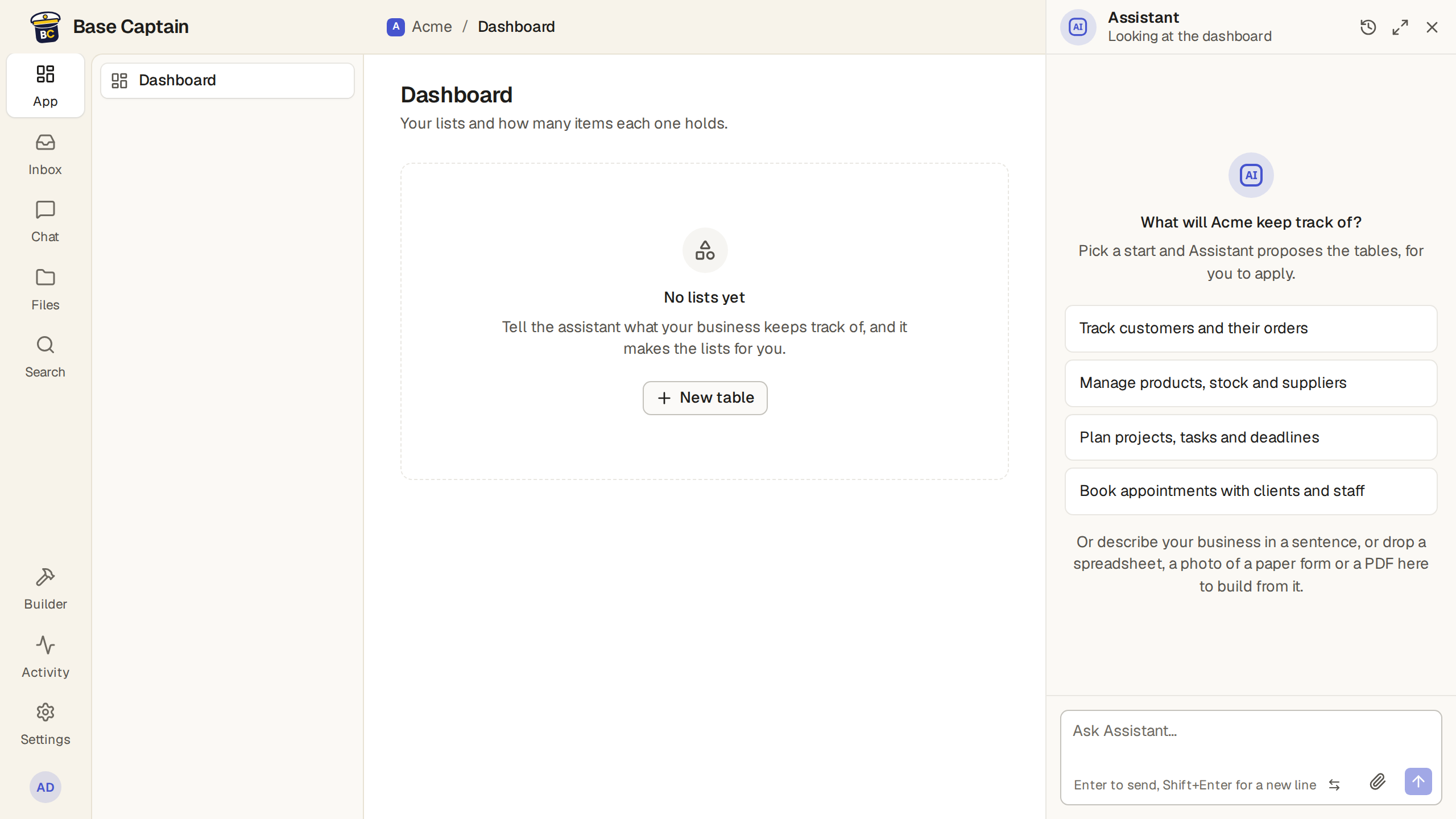
To start a client's base from yours, or to try a big change first, copy your base: the copy is a new base with its own address (Copy a base).
Limits and details
- Base Captain makes the base's address from its name, a hyphen and four random characters, such as shop-k7q2.basecaptain.app for a base named Shop.
- The address is the base's for good, and no other base ever gets it. You cannot change it yourself: if you need another, ask us and we change it. The base keeps its old addresses too, so a link, a bookmark, an API call or a mail to an old one still reaches it.
- The owners of a base manage it in its own Settings: its plan in Plan, and Copy this base and Delete this base at the foot of General (Create, copy, export and delete a base).
- Your own settings are in Settings in any of your bases, and at the foot of every page at www.basecaptain.com (Set preferences, password and security).