Make items from webhooks and incoming mail
Make items from webhooks and mail that come in, let Triage decide what happens next and who gets a mail, and get answers on an item by mail.
An incoming webhook makes an item in your base from what another service sends, such as your website's contact form. The service calls your base's address, and Base Captain makes an item from what it sent. Then Triage reads the item and starts the right workflow (Let Triage start workflows, fill in fields and give out mail). Work can come in by mail too (Make an item from each mail that comes in).
- In Automations, click New automation, name it "Website messages", pick Quote requests and, under Runs, When a webhook is called.
- Under Secret, click Add secret, keep the name it suggests and click Add secret in the box. The secret checks calls that come in, so it is never sent anywhere.
- Under The new quote request, say where each value comes from in what the service sends, with Use a placeholder: for example Subject "Message from {{payload.name}}", Email "{{payload.email}}" and Details "{{payload.message}}".
- Click Save automation. The page shows the webhook's whole URL once: copy it into the other service now. From then on the page shows the secret's name in its place.
Each call makes one quote request, then runs the automation's actions for it; the item's history says Webhook created it. A URL takes at most 60 calls a minute, and whoever has it may call it, so keep it as you would a password.
Find or update an item instead of making one
What comes in can name an item by a field no two items share, such as a customer's email, rather than by the base's own id, which the other service does not know.
- The example shop's Web orders makes an order from each call and finds its customer by the email sent; when no customer has it, it adds one from the name sent with it.
- An automation can also change the item it finds instead of making a second one: an order sent again with the same reference updates the first.
- An email that matches no customer, when the automation does not add one, refuses the call rather than leaving the customer empty.
- A mail that comes in works the same way.
Ask the assistant for it in your words, such as "When the website sends an order, find the customer by email, or add them", and apply its card.
A base has a mail address for each automation that runs when a mail arrives, and a mail sent there becomes an item. The address is the base's mail address with a + and a part you choose before the @, such as shop+requests@….
- In Automations, click New automation, pick Quote requests and, under Runs, When a mail arrives.
- Type the address's part, such as "requests": small letters, digits and dashes. The page shows the whole address, with a button to copy it.
- Under The new quote request, say what goes where with Use a placeholder: for example Subject "{{mail.subject}}", Email "{{mail.from}}", the sender's address, and Details "{{mail.text}}", the mail's text. "{{mail.name}}" is the sender's name. Pick a files field of the list to take the mail's attachments.
- Click Save automation, then give the address to whoever should write to it.
Each mail makes one quote request, with its sender, subject, text and attachments, then runs the automation's actions for it; the item's history says it came by mail. The example shop's Mail requests does this and starts Quotes on each one.
Limits and details
- A mail may be up to 25 MB, attachments included, and up to 20 attachments are kept.
- An address takes 60 mails a minute; more wait and come in a little later.
- A mail to the base's own address, such as shop@…, or to a part that no automation has comes into the base's Mail (Get and answer mail in a shared inbox) and waits in the Inbox of the users who give it to someone to answer.
Held mail is a mail that Base Captain keeps back because it failed the checks that prove a mail comes from its sender's domain: Base Captain checks each mail that comes in first. A mail that fails them, which may be someone else writing in the sender's name, makes no item and does not come into Mail. It waits in Activity, Held mail until one of the users who build the base releases it or deletes it.
- Open the mail in Held mail: its sender, the address's part, its subject, its text, the names of its files and why it was held.
- Click Release to make the item, or put it in Mail, as if it had passed, or Delete to drop it.
With an API token, /api/builder/held-mail does the same, and the assistant and AI clients do it with list_held_mail, release_held_mail and delete_held_mail.
Triage decides what happens next to the work that comes in, on every table of the base: an item comes in, Triage reads your instructions, and it starts a workflow, fills in fields, suggests a value, or does nothing. Triage also gives each new mail an owner when your instructions say who. Triage is a built-in agent of every base: you set its instructions, where it runs and its picture on its page, and its runs show on Agent runs.
For example, a customer sends "How much for 50 chairs?". Triage finds the instruction "Price questions use Quotes" and starts Quotes. A customer writes the review "Good lamp, but it came late." The shop's instruction "Set a review's sentiment from its title and text: positive, neutral or negative. A mixed review, which both praises and complains, is not sure." applies, but Triage is not sure, so it suggests the Sentiment Neutral. A customer sends "Thank you!", and Triage does nothing.
- Click Settings, then Triage. The page shows what Triage does in one line first.
- Turn on Enabled: Triage reads only the changes made after you turn it on. Its Instructions say in plain words what goes where, as you would tell a new colleague, such as the shop's "Price questions go to Quotes…". Where it runs says who supplies the AI model: Base Captain, Anthropic or OpenAI with your own API key, or Claude Code or pi on your paired machine with its own login, and which model; a user who manages AI changes it. On your machine, each event is one question with no tools: the coding tool cannot run a command, read a file or open a page. Picture sets its emoji and colour. Lower, The workflows that Triage can start, each with its "Use this when…", which Triage reads with your instructions. Click Save triage.
- Call the webhook of Make an item from each incoming webhook with a message asking what two Espresso Machines cost. The new request's history shows Triage and its reason, such as "Started Quotes: the message asks how much two Espresso Machines cost…", and the request walks Quotes to Sent.
- Click See what it did, at the bottom of the page: History opens with only the changes Triage made (See who changed what). Click See its runs: Agent runs opens with only Triage's runs, each with the event's item, what Triage was told and what it answered.
With Triage on, it reads each item that users, schedules, webhooks and mails create or change, on every table of the base, with a workflow or not. It starts a workflow or fills in fields when it is sure, suggests a value when it is not sure, or does nothing.
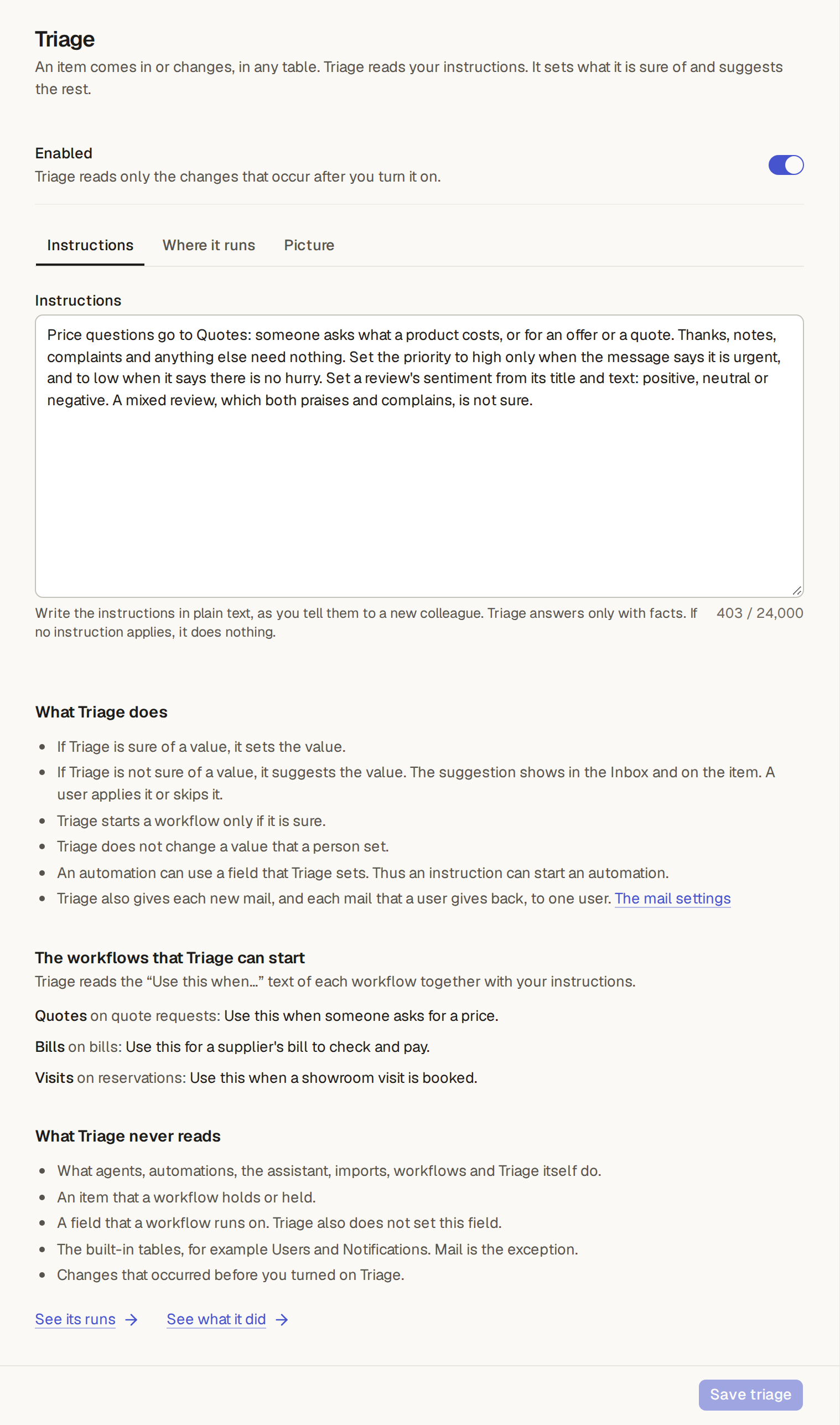
What Triage never reads
What Triage never reads, lower on the page, lists what Triage leaves alone, so it cannot start work in a loop:
- what agents, automations, the assistant, imports, workflows and Triage itself do;
- an item that a workflow holds or held;
- a field that a workflow runs on, which Triage does not set either;
- the built-in tables, such as Users and Notifications, but for Mail;
- the changes made before you turned Triage on.
Apply or skip a suggestion of Triage
Triage says of each value whether it is sure, never how sure in numbers. It sets a value it is sure of, and starts a workflow only when it is sure. A value it is not sure of is a suggestion, such as "Triage suggests Sentiment: Neutral." for a mixed review, with its reason. The suggestion shows in the Inbox of the users the item concerns (See why an item needs you) and on the item's page, on every table, with a workflow or not:
- Apply sets the value as you, under your role: what your role may not change on the item, you cannot apply. The item's history shows the change by you, via Triage.
- Skip changes nothing.
- The suggestion stays until someone clicks Apply or Skip: a comment does not remove it, and a workflow that stops does not remove it.
- A newer suggestion for the same field takes the place of the older one.
- A value that a person set stays. Triage does not change a field that a person filled in, and when a person fills in a field while Triage reads the item, Triage drops its value for that field. A value you apply counts as yours.
Make AI check a condition: a rule and an automation
Your automations act on a value that Triage sets, or that you apply, as on any other change. So a rule and an automation make a condition that AI checks. In the shop, Triage sets the Sentiment of each review, and the automation Negative review: tell the team runs when a review's Sentiment changes to Negative and emails [email protected]. So each review that complains comes to the team's mailbox.
Triage gives a mail its owner
Triage can also give a mail of the base's Mail its owner (Get and answer mail in a shared inbox). When Triage is on, it reads each new mail and each mail that its owner gave back. It reads your Rules, such as "Invoices go to Ana. Complaints go to Ben.", the users who may see Mail, and, for a mail given back, its earlier owners and their reasons.
- Triage gives the mail to one user, or it does nothing when your instructions say nobody or when it is not sure who. The mail's history shows Triage and its reason.
- It never gives a mail again to a user who gave it back.
- After the second give-back of a mail, Triage does not read it again: the triagers give it to someone.
- If a person gave the mail an owner first, the answer of Triage changes nothing.
- While Triage is on, the triagers get a notification only for a mail that Triage leaves with no owner. While it is off, or while the base keeps its data from AI, each mail waits for the triagers, and they get its notification at once.
Limits and details
- Each item and each mail that Triage reads uses a little of the plan's AI (What AI your plan includes).
- While the base keeps its data from AI (When the base keeps its data from AI), Triage reads nothing: it sets no value and makes no suggestion.
Triage with the API, the assistant and AI clients
- With an API token, a change with put_triage turns Triage on or off and sets its instructions and where it runs, and the assistant and AI clients do the same with get_triage and put_triage.
- With the same token,
GET /api/me/inboxandGET /api/tables/<table>/items/<id>/needslist the suggestions, each with itsfieldandvalue, andPOST /api/tables/<table>/items/<id>/needs/<need>/applyand…/skipanswer one. The assistant and AI clients do the same with get_inbox, apply_suggestion and skip_suggestion.
A signed webhook proves that a call comes from its service, such as GitHub or Shopify, and an incoming webhook can check the signature and take only some of the calls. How to set it up is on its own page: Check signed webhooks and filter calls.
A comment on an item can go out by mail, and the answer comes back to the item as a comment. For the users who build the base: on a table's View items page, beside the comments' switch, pick under Mail comments to an email field of the table, or of the item a reference names, such as an order's customer.
- On an item with that address, the comment box then offers Send by mail to the person: the comment goes out as a mail from Base Captain's address under your base's name, such as "Shop via Base Captain", and shows "Sent by mail to …".
- The comment's files go with it, attached to the mail, 25 MB together at most: more is refused with "The files are too big to mail: 25 MB at most.", and nothing is saved or sent. The item's own files stay on the item.
- Send comments by mail by default, beside Mail comments to, turns Send by mail to on when you start a comment on an item with that address. You can still turn it off for a note to your team. It is off for a new table; Helpdesk's tickets have it on, so each reply goes to the customer.
- Only a person's comment is sent by mail, never an agent's.
Where the replies land
The replies to a mailed comment go to the item's own address, which nobody can guess, and land on the item as a comment by their sender, marked By mail, a user's reply too, with the quoted text cut and its attachments as the comment's files.
- The user who sent the mail has the reply in their Inbox.
- When an automation sent the mail, such as a quote mailed to a client when its status changes, the reply goes to the user whose change started the automation, in the base, through the API or by the assistant.
- When no user started it, such as on a schedule, by an agent, a webhook, a mail that came in or the base's code, the builders have the reply, unless the table's Replies by mail tell is set to Only its followers (below).
- The item's followers are told too.
- Mail sent to the base's own address works the same way, in its Mail (Get and answer mail in a shared inbox).
- Replies come back only while the base takes mail; Automations only is enough (Turn mail on for your base).
- An automation can run when a comment goes out by mail or an answer comes back (Run an automation on a new comment).
A customer with an external role, as in the customer portal, reads on the items they may see the comments sent to their address by mail and the answers they sent from it, and no other comment. So they read in the portal what you wrote to them, and never a note to your team (Open a customer portal).
An item's own mail address lets anyone send or forward mail to the item, such as a lawyer who forwards the court's mail to a matter. For the users who build the base: on the table's View items page, beside Mail comments to, turn on Mail address for each item. The item's page then shows its address, such as shop+r-k7q2…@…, with a copy button.
Give the address to whoever writes about the item, or put it in Cc when you write yourself. A mail from anyone to this address goes on the item as a comment by its sender, marked By mail, with its attachments as the comment's files.
- It is the same address the replies come back to, and nobody can guess it, but whoever has it can add a comment to the item: give it only to the people who write about the item.
- The address works only while the base takes mail (Turn mail on for your base); Automations only is enough. When the base takes no mail, the item's page shows no address.
- In an email's subject and text, {{link.mail}} is the item's address, such as "Send us your documents for this
matter at {{link.mail}}", and a print template has it as
{{.mail}}. - With an API token, the item read by
GET /api/tables/<table>/items/<id>has itsaddress, and the builders turn the setting on with the table'sitem_addressthrough the builder API. - The assistant and the AI clients read the address with
get_item, and you can ask the assistant, such as "Give each matter its own mail address".
Who hears of a reply
A mail to an item's own address, or a reply to a mail that an agent or a schedule sent about the item, has no user who sent it. On the table's View items page, beside Mail address for each item, Replies by mail tell says who hears of it:
- Its builders, the default: each user who builds the base has "… answered by mail on …" in their Inbox, and a mail too if they get their notifications by mail.
- Only its followers: no builder is told for being a builder. Pick it when an agent's own work reads the replies, such as an agent that signs up somewhere with the item's address and reads the code that comes back.
- Under both, the reply lands on the item as a comment, the item's followers are told, and a reply to a mail that a
user sent still goes to that user. The builder API names the setting
replies_tell:"followers", or none for the builders.