Invite users, owners and customers
Invite users and give them roles, change or remove them, make a user an owner, and open a portal where your customers sign in or sign up.
You invite a user to your base in Settings, Users: Base Captain mails them a link, and they join with the roles you pick. The base's admins manage its users, from Settings in the rail; in the example shop, that is the admin. Settings, Users is the one list of the base's users: your team joins and leaves the base there.
An admin invites a user to the base from Settings, Users, and picks their roles in the same step.
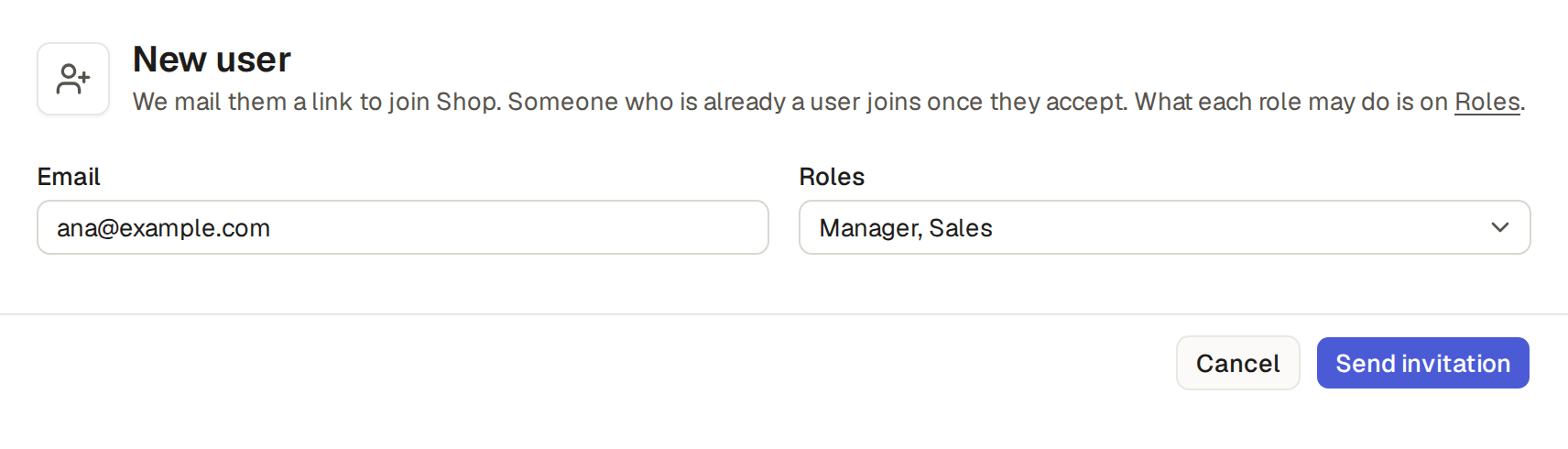
- Click Settings, then Users, then New user.
- Enter their Email and pick their Roles, one or more. The list shows each role's type beside it (Roles and their types: admin, staff and external), and under its name one line that says what the role can see and change (A role's description).
- Click Send invitation. The link in the mail works once, for 7 days. The user shows on the list as Invited, with a paper plane button at the end of their row that sends the invitation again, with a fresh link.
What the invitation mail says
The invitation mail says who invited them, the base, and each role with its description. It says in one sentence what Base Captain is. It says that the link works one time and stops after 7 days, with the date. For example: "Nina Cooper invited you to help in Nina Bakery, on Base Captain. Your role: Mechanic. Sees the jobs they do and changes their work and status." A user with several roles gets one line for each role. The mail is the same when you invite with the API or the assistant.
Invite someone who is a user of Base Captain already
An invitation to someone who is a user of Base Captain already asks them first. They show as Invited, and are not a user of the base and cannot sign in to it until they accept, from the email or at www.basecaptain.com. They get the same mail, with a link to accept the invitation and a line that says they are not a user of the base until they accept. What the invited user sees is in Join a base from an invitation.
Give the new user their record
When the role links its users to their records (Give each user their own records) and no record has the address you entered, the invite form also offers the role's records that have no user yet. Pick the one that is theirs, or leave it empty: the record you pick is theirs once they join. The assistant asks you which record, and the API takes it too. A role linked through a table that extends another, such as Staff, does not need a record first.
Limits and details
- A user invited with an admin or staff role also finds the base under Bases in the menu of their picture.
- Until an invited user joins, the base's mail counts their address as outside the base: on the Free plan with no payment method, the base does not mail them (Name your emails and choose where answers go). The invitation itself always goes.
An admin changes a user's roles, or removes the user from the base, on the list in Settings, Users.
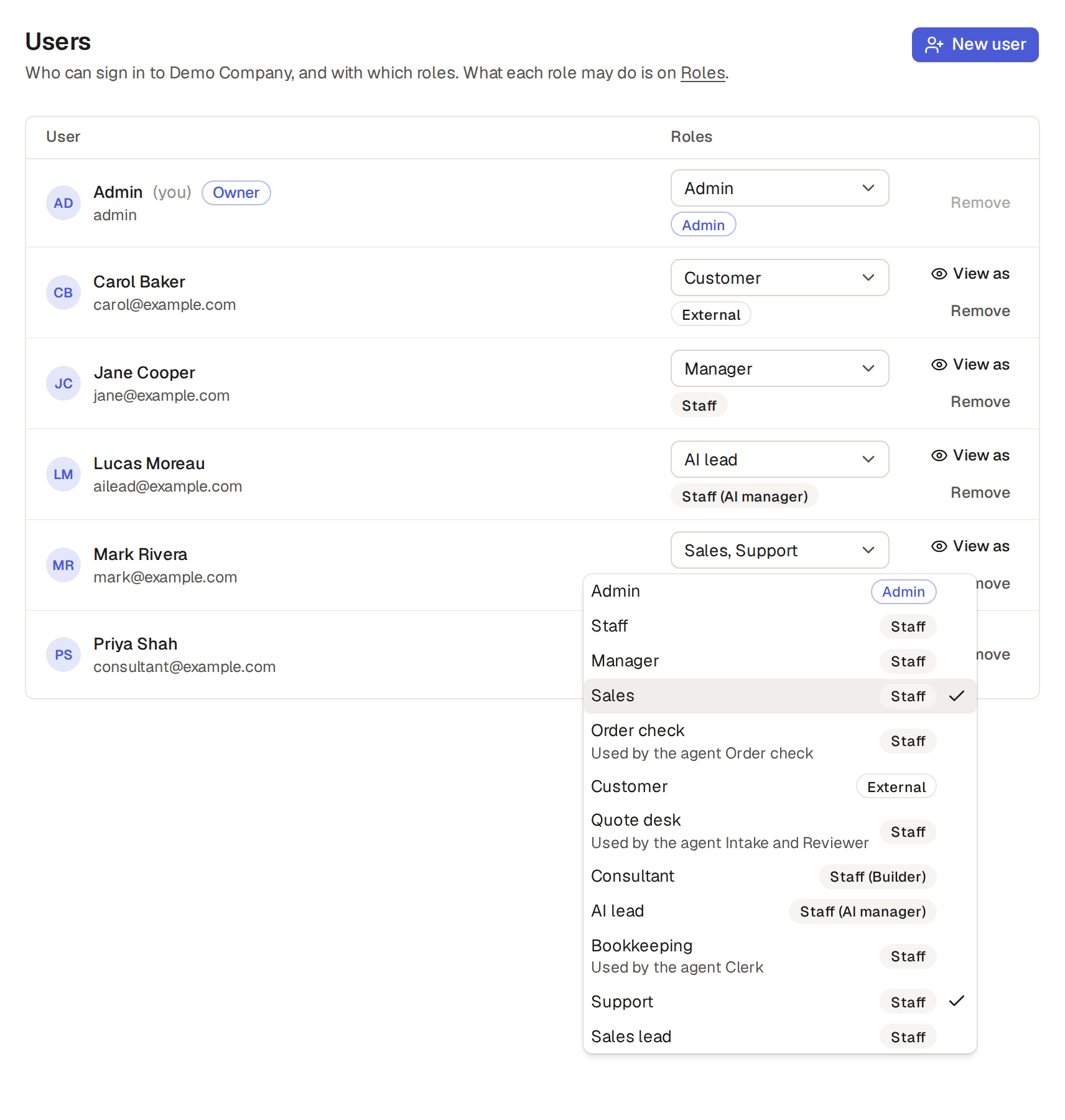
- To change a user's roles, open their Roles list, tick the roles to give and untick the roles to take away. The roles are saved when the list closes. Beside each role, the list shows its type: Admin, Staff, Staff (Builder), Staff (AI manager) or External.
- To remove a user, click the Remove button, a person with a minus, at the end of their row, and confirm. They can no longer sign in to the base, and the base leaves their list of bases; what they made stays, with their name on it.
A user keeps at least one role.
An owner of a base is a user with the owner mark, who pays for the base and decides its plan. The user who creates the base is its first owner, and the list in Settings, Users shows Owner beside each owner. Where Base Captain says "the owner", it means any owner of the base.
What only an owner does
- Pays for the base and changes its plan, in Settings, Plan (Upgrade to the Pro plan).
- Copies the base and deletes it, at the foot of Settings, General (Copy a base, Delete a base).
- Saves the base as an app of their own.
- Gives or takes away the owner mark.
Only the owners see the base's plan. Plan and the copy and the delete at the foot of General do not show to the other users at all. Another button past your role shows greyed out, and pointing at it tells why.
Give or take away the owner mark
- In Settings, Users, click the user's name to open their page, turn on its Owner switch and confirm.
- To take the mark away, turn the switch off and confirm.
Limits and details
- Only an owner changes the switch. For anyone else it is greyed out: "Only an owner of the base can do this."
- A user who has not joined yet cannot get the mark.
- The mark does not change a user's roles, so it gives them no more access.
- Only a user with an admin or a staff role can get the mark. For a user with an outside role only, such as a customer, the switch is greyed out: "An owner needs a staff or admin role." An owner keeps an admin or a staff role: a change of their roles that removes all of them is refused with the same sentence.
- A base always keeps an owner. While a user is its last owner, the switch is greyed out and they cannot be removed: "A base needs an owner." Give the mark to someone else first.
The owner mark in the API
Under an owner's API token, PUT /api/builder/users/{id} with {"owner": true} or {"owner": false} gives or takes away the owner mark.
The list of users, GET /api/builder/users and the tool list_users, shows who is an owner.
No assistant and no AI of your own gives or takes away the mark.
A customer portal in Base Captain is an external role, such as the shop's Customer: people outside your team sign in to the same base and see only their own records, nothing of Builder or the staff's pages, and in Settings only their own pages. An admin sets it up.
- Invite your customer on Users with the role Customer, marked External.
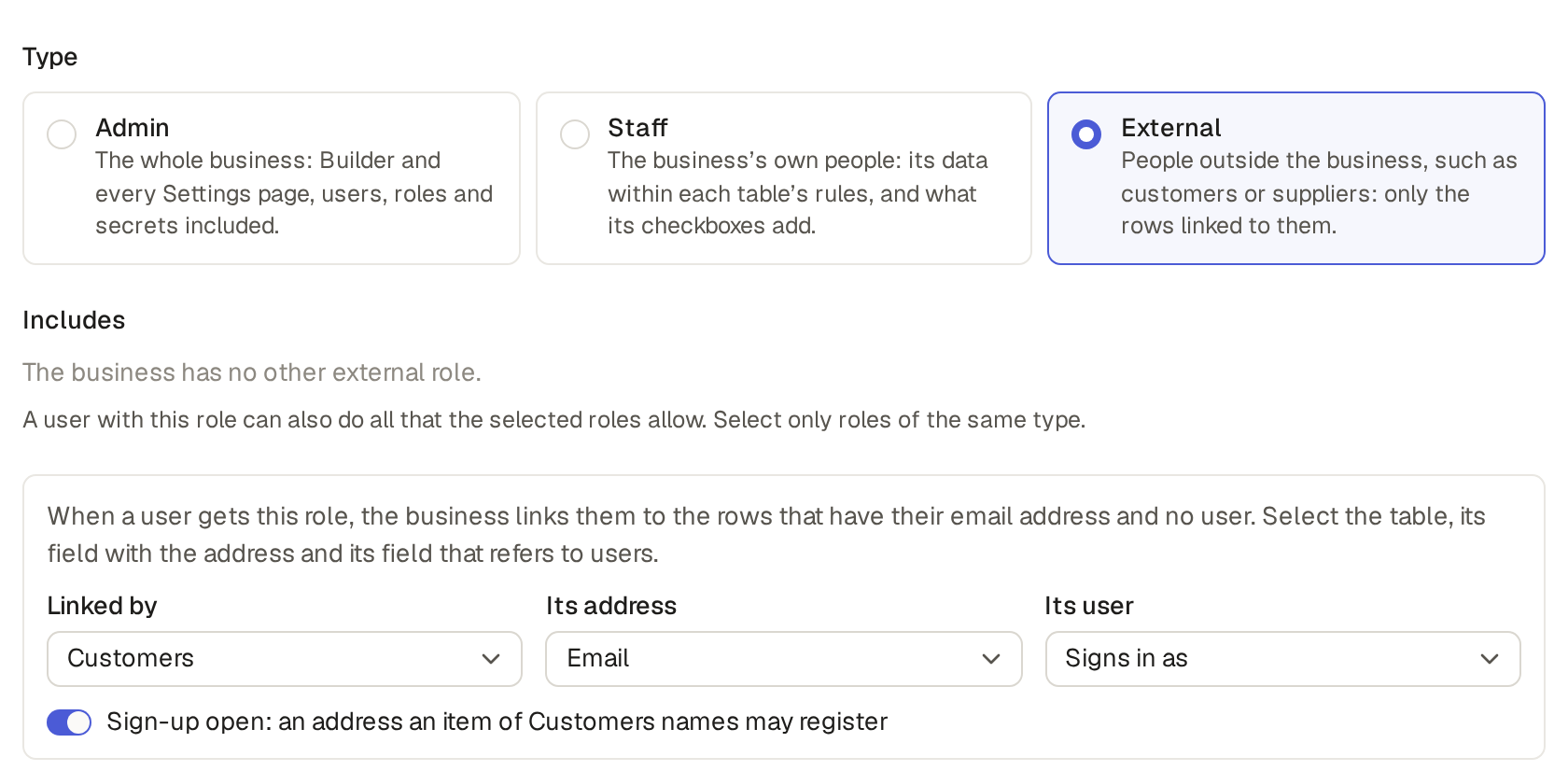
- Once they have joined, their customer record is theirs. The role's page says how: Linked by Customers, Its address Email, Its user Signs in as. A new user of the role gets the customer records whose Email is their address and whose Signs in as is empty: Base Captain sets it to them. For a record added later, or under another address, open it, click Edit and set its Signs in as to them yourself. That link is what makes the records theirs.
- They open the base's address and sign in on the sign-in page it leads to, at www.basecaptain.com, which says "Sign in to continue to Demo Company" with the shop's logo. In the shop, Carol Baker sees Products, Customers and Orders: her own customer record, her 3 orders and the products she ordered ("Customers see the products they ordered"), with no dashboard, no Inbox, no Chat and no Builder; her Settings holds only her own pages.
Make a customer portal for a base of your own
For a base of your own, make a role of type External on the Roles page, pick what links it under Linked by, Its address and Its user, and click Save role. Then give it row rules that tie each record to its customer, such as "Signs in as is Me", or ask the assistant for all of it.
What a customer sees
- A user of an external role sees only the default view of each table, in the sidebar and in the Views menu. A link to another view opens the default view. The list does not show the table's description, because you write it for your team. Carol sees Orders, not Unpaid, Board or Orders per month.
- On an item's page, a user of an external role reads only the comments sent to their address by mail and the answers they sent by mail, with no box to write a comment. They see when the item was created, and not its history. A note your team writes without Send by mail to stays hidden from them.
- In Helpdesk, a customer opens their ticket and reads each reply of Support and their own answers (Mail a comment and get the answer on the item).
- Only an admin can set Signs in as: for every other role, it is read only.
Customer sign-up lets your customers join your base by themselves instead of waiting for an invitation. It needs an external role linked to their records, as the shop's Customer is to Customers. Only an external role has sign-up, and an admin turns it on.
- Click Settings, then Roles, then the pencil beside Customer. Turn on Sign-up open and click Save role. The sign-in page, when it comes from the base, now offers Sign up to an address no user has.
- Your customer opens the shop's address, enters the address you know them by, clicks Continue, then Sign up. The page asks for the code we mail, whatever the address.
- Only an address that the Email of one of your customers names gets the mail, "Your code for Demo Company: 042137". The code works once, for 15 minutes.
- They enter the code, then Your name and, if they like, a Password of at least 8 characters. They are signed in, and the shop opens for them as a Customer, with the customer records whose Email is theirs.
Or ask the assistant, in a base of your own too: “Let customers sign up by themselves” gets a card that links the role to your customers and opens sign-up, and once you click Apply the sign-in page offers Sign up. Turn Sign-up open off and the sign-in page no longer offers Sign up.
Limits and details
- Every other address gets no mail and does not become a user: they join only by invitation.
- Someone who is a user already, from another base, clicks Email me a sign-in code on the shop's sign-in page: when the Email of one of your customers names their address, the code signs them in and makes them a Customer; otherwise it only signs them in, and they are not a user of the shop.
- When the external role links through a table that extends another (Give each user their own records), such as Customers that extends Contacts, only the address of a contact that is a customer gets the mail. A contact that is only a supplier, or an address that no contact has, gets no mail. The new user is linked to the contact with their address.