Run agents on your own computer: machines
Run agents on your own computer: install the daemon, pair the machine, add coding tools, put agents on it, share the work between machines in a pool, lend its browser to your agents, and revoke it.
A machine is a computer of yours, Linux or a Mac with Apple silicon, that your base's agents can work on. It runs the Base Captain daemon, a small program that keeps it connected to your base and starts the coding tools installed there: Claude Code, Codex, pi and opencode.
- An agent on a machine runs on that coding tool's own login, so your Claude Code or Codex plan pays for it, not the plan's AI, and it goes on when the plan's AI stops. Claude Code can also take its model from a secret of your base, on your account at Anthropic (Run a Claude Code agent on your base's own Anthropic key). pi can also take its model from Base Captain, on the plan's AI, with no key on the machine (What AI your plan includes).
- opencode also works with no login. It then offers its free models, each marked "free", which cost nobody anything, and the models of a local Ollama if the computer has one. A free model is offered for a limited time and has a daily limit. The provider of a free model can keep what the agent reads and use it to train models (AI and your data), so give it only data that you can share.
- A machine agent can do what the coding tool can: run commands, read and write files, open web pages. In the base it has the same permissions as any agent: in a chat it can do what the assistant can do for you, and by itself it works on the base's items (Make AI agents that work in your base).
- It runs as the computer's user who started the daemon, with whatever that user can reach. Pair a machine only if you trust it and whoever set it up.
The daemon installs with one line in a terminal, and the machine pairs with your base by a code. The base's admins and AI managers do it, on the computer the agents will use.
- In your base, click Settings, then Machines. Under Install the
daemon, copy the line with the copy button. It holds your base's own address:
curl -fsSL https://<your base's address>/api/machines/install.sh | sh - Paste it into a terminal on the computer and press Enter. It installs the daemon for your user, without administrator rights, starts it, and prints a link and a code: "To connect this machine, open … and type the code ABCD-EFGH there."
- Open the link, signed in to your base. Under Pairing code, type the code the terminal printed and click Continue. Approve a machine shows the computer's user and name and, after Asked from, the address the request came from: check that it is the computer you are setting up. Under Name, say what the base calls this machine, such as "laptop".
- Click Approve. The terminal says the machine is paired and which coding tools it found, and the daemon goes on running in the background. The machine shows on the Machines page as Online.
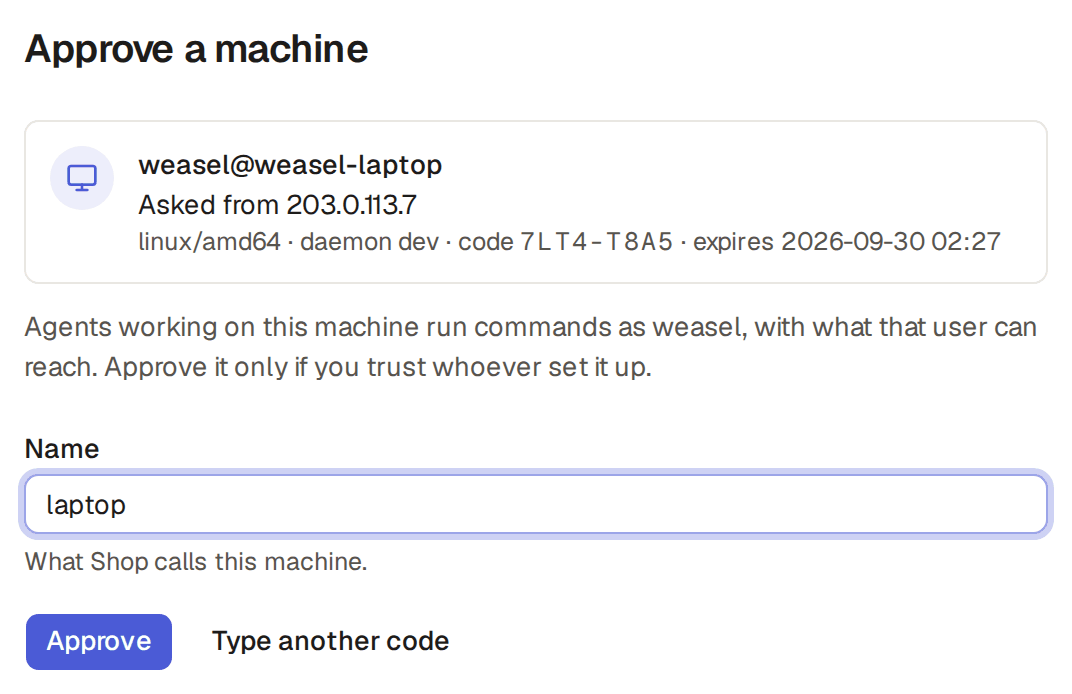
- The code works once, for ten minutes, and the link never carries it: a machine is approved only when someone types its code, so a link that someone sends you cannot pair their computer.
- Enter a code on the Machines page opens the same page.
- If computers you do not know keep asking, Clear waiting pairings on that page ends every request nobody approved.
- A computer that runs the daemon already pairs with one more base with
basecaptain start --server <that base's address>, as the page says. One daemon serves every base it is paired with.
Updates of the daemon
The daemon updates itself; nobody runs a command on the machine. When Base Captain ships a new build of the daemon, each machine hears of it the next time it connects, downloads it and checks its signature: the daemon takes only a build signed by Base Captain. It then restarts at the first moment it has no run going, so no run is interrupted, and is offline for the few seconds the restart takes. A machine that is busy all the time stops taking new work two hours after it heard of the new build, lets the runs it has finish and then restarts: the Machines page shows when it stops taking work. Work that comes meanwhile waits and starts when the machine is back, and nobody is notified unless it lasts. When the new build changes how the daemon talks to Base Captain while the machine has runs going, those runs go on and the Machines page shows the machine as Updates itself when its runs end: new runs start after: there is nothing to run on the machine.
basecaptain update, run in a terminal on the machine, is still needed in three cases:
- once, on a machine whose daemon was installed before 30 September 2026; after that it updates itself;
- when you do not want to wait for a free moment;
- when the Machines page shows the machine as Needs an update: run basecaptain update and it has not updated itself.
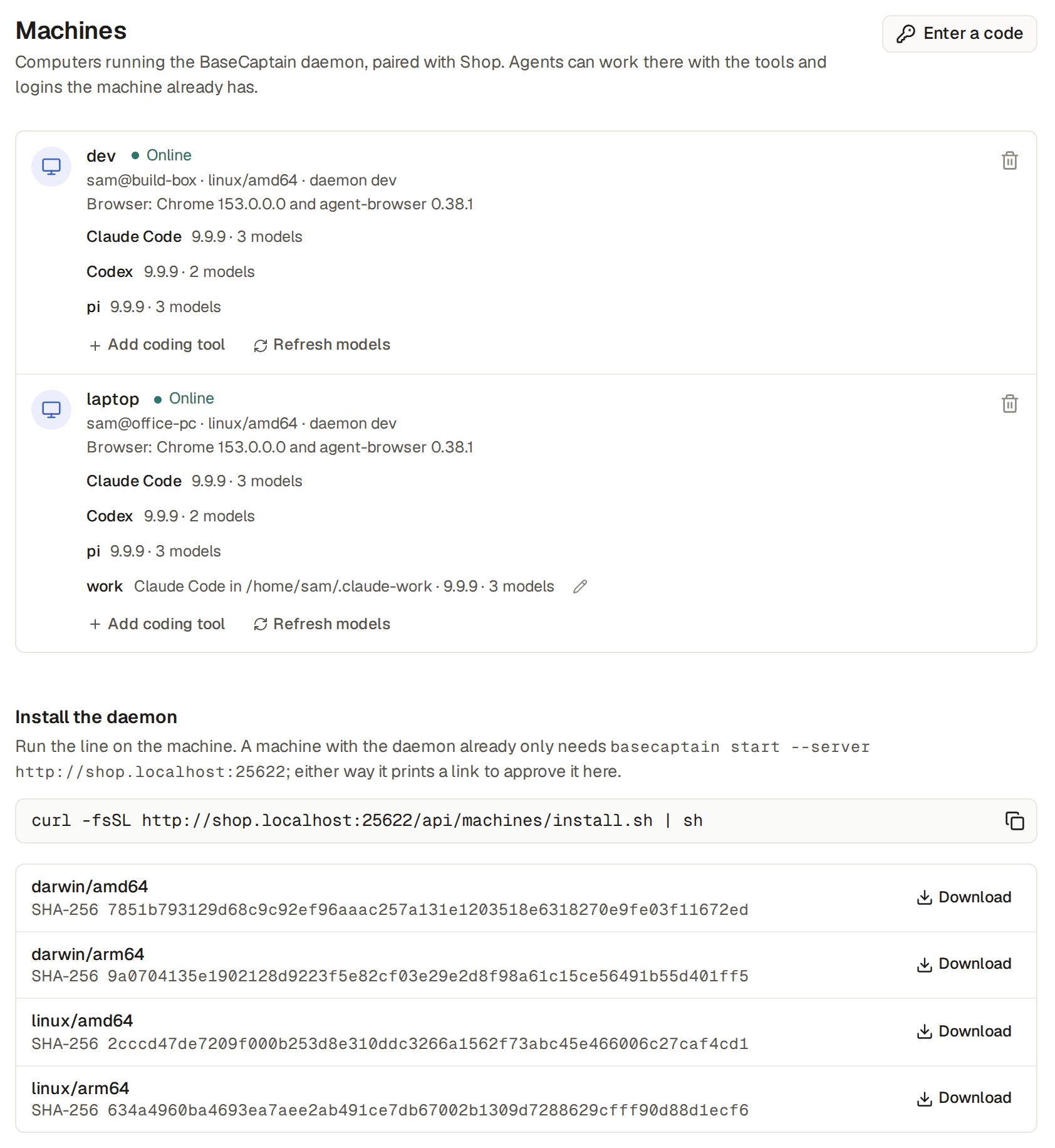
The Machines page, in Settings, shows each machine with:
- its name and its state: Online, Offline, or Never connected before its first connection;
- the computer's user and name, its system and the daemon's version;
- Browser: the browser its agents can use, or why they cannot (Let a machine agent use the browser);
- Works for agents in Base Captain, a switch, off until a builder turns it on (Lend a machine's browser to agents in Base Captain);
- each coding tool it found, with its version and how many models it offers. Refresh models asks the machine again, after you install a tool or change its login.
The daemon uses opencode version 2 only. Install it on the computer with curl -fsSL https://opencode.ai/v2/install | bash. Version 1 and version 2 cannot be on the same
computer. If the machine has opencode 1, the Machines page shows opencode as not installed; hold the
pointer over it to read the sentence that tells you to install version 2, with this line. If you add a coding tool
whose program is opencode 1, the Add coding tool dialog refuses it and shows the same sentence
under Program.
A machine that goes offline keeps its agents' work waiting until it is back. If it is still offline after five minutes with work waiting, the builders get a notification, so a restart tells nobody. A machine waiting for an update tells them after one hour. The Machines page also offers the daemon itself to download, for each system, with its checksum.
A coding tool keeps its login in a folder of its own. To use a second login on the same computer, such as a work one beside your own, add the tool again with that folder.
- On the computer, sign in to the coding tool with its configuration folder pointed at a new folder, such as
~/.claude-work. - Under the machine on the Machines page, click Add coding tool.
- Give it a Name, such as "work", pick its Kind, and enter the Configuration folder. Leave Program empty to use the one the machine found.
- Click Add coding tool. The machine checks the program and the folder ("no such directory" if it is not there), never the login itself.
An agent on that machine can then name "work" as its coding tool, rather than Claude Code.
A machine agent is an agent whose Runs on is Your machine.
- In Settings, Agents, click New agent and, under Runs on, click Your machine.
- Pick its Machine and its Directory, the folder its runs start in; the machine checks the folder when you save.
- Pick its Coding tool, then its Model and Reasoning from what the tool offers there, or leave the defaults.
- For Claude Code, Where its model comes from may be A secret of this base in place of This machine's login. The key then stays in your base and never goes to the machine, and the base's account at Anthropic pays (Run a Claude Code agent on your base's own Anthropic key).
- Permission sets what the tool may do without asking; what it will not allow by itself is refused, since nobody is there to click yes. Tools only lets the agent use the base's tools and what Base Captain gives it on the machine (the browser, looking at a page, saving a file, the web search, as far as its Internet allows), and nothing of the coding tool's own: no shell, no file edit, no web. Read its directory adds reading the files of the agent's directory; a file outside it is refused, and there is still no shell, no writing and no web. Approved edits lets the tool make its own edits, and Full access allows everything. Every coding tool keeps to the permission. pi and opencode have no Approved edits: an agent on them has Tools only, Read its directory or Full access.
- Several runs in its directory at once lets the agent's runs work in a directory at the same time as other runs. If you do not select it, a run that an automation starts waits while a run of an agent without this setting works in the same directory. A run from a chat never waits.
- Runs at once is how many runs that automations and workflows start may work at once on the machine, in all of the agent's directories: 1 to 10, and 1 if you change nothing. More runs wait, and an item that its workflow marks as urgent goes first when a run ends. A run from a chat never waits and is not counted.
- Finish as for any agent: instructions, role, who may chat with it, then Save agent.
A chat with a machine agent is like a chat with the assistant: it knows the page you are on, takes a file you attach, and shows a card for a change you must confirm (Chat with an agent). The run ends at the card, so the coding tool never waits for your click. Apply makes the change in Base Captain itself, Cancel makes none, and either way the agent goes on in the same conversation. If the machine is offline by then, the change is still made, and the chat says that the machine is offline instead of the agent's answer.
A machine agent also answers when someone mentions it in a channel, with the card and the click as in a chat (Ask an agent in a channel).
Limits and details:
- If the machine lacks the tool or the model, the agent's page says so before anyone tries it, and a chat or a step is refused with that sentence.
- Only builders chat with a machine agent unless you tick other roles, and ticking a role that is not a builder's shows a warning: its users get a shell on the machine through this agent.
- The example shop's Coder works on the machine dev through Claude Code.
One machine holds only so many runs at once. A pool is a group of your machines with a name, and an agent can run on a pool in place of one machine. Each run then starts on a machine of the pool that has room, and a new machine in the pool takes work with no change to an agent.
- On the Machines page, click New pool and name it.
- Put machines in it: on a machine, pick the pool under Pool. For a new machine, click Add a machine on the pool and run the line it shows on that machine. The machine joins the pool at once, with no code to type. The line works one time, for 10 minutes, and a person who has it can pair one machine with your base in that time, so give it to nobody.
- On the agent's page, pick the pool under Machine.
Give the machines of a pool the same paths
The agent has one directory and one coding tool name for every machine of its pool. So each machine needs the same directory path and coding tools of the same names.
- The Machines page says what each machine lacks, with the agents it stops there: "The machine dev3 has no coding tool named claude1." A machine takes the runs of every agent it lacks nothing for.
- Check again asks the machine again, after you made a directory on it.
- Copy the logins from … copies the Claude Code logins that Add another login made on another machine of the base. Each token travels encrypted for the new machine, so Base Captain carries it and cannot read it. Log Codex in on the machine itself.
Where a run starts
- On the machine that holds a directory of the run's item, so the files of one item stay in one place.
- Else on the machine with the most room. The Machines page shows each machine's runs, its CPU pressure, its disk pressure and the memory its runs hold. A run does not start by itself while every task of a machine waits for its disk (disk pressure 20% or more): "This machine's disk is busy (disk pressure 34%). Starts when it is free." A run that ends while the machine is under pressure (memory, CPU or disk) uses no attempt.
- When no machine can take the run, the work waits, says why for each machine, and starts when a run ends: "Waits: no machine of the pool Workers can take this run now."
Runs at once counts on each machine: an agent with 2 runs 2 on each machine of its pool, so one more machine is that many more runs.
Take a machine out of the work
Switch Takes new runs off before you update or restart a machine. It finishes its runs and starts no new run, and the pool's other machines take the work. Revoke a machine that is gone for good: the work that waited for it starts again on another machine of the pool.
A machine agent with Internet or Only these websites may open web pages in a
browser on its machine, and with look, which it always has, ask what a page shows, on the plan's AI.
With No internet it has no browser. The machine needs Google Chrome; the Machines page's Browser line says what it found, or what to install.
Every run opens its own Chrome, with a profile of its own that is removed when the run ends. With Internet, the browser opens any public web address, never the machine or its network, and starts
with no logins. With Only these websites, the agent's form takes the Websites the
browser may open. Write example.com for that site only, or *.example.com for every
subdomain of it, but not example.com itself. The browser opens no other address, and it starts with a
copy of the logins of the computer's browser (the ones basecaptain browser login made), so it can open
the sites you are logged in to. What its pages change in that copy goes when the run ends. A page that tries to
steer the agent cannot take it to a place you did not name.
A machine whose Base Captain is too old for a permission, or to keep the coding tool off the internet, refuses the run and asks you to update Base Captain on the machine. You can also set the permission and the internet with an API token, in the agent, and ask the assistant to set them.
A machine with Works for agents in Base Captain on lends its browser to the assistant and your agents in Base Captain, which have no browser of their own: it answers their searches, reads their pages and takes their pictures, from its own address. A page's picture always needs a machine. The machine needs Google Chrome, and no coding tool. How each web tool goes, when it goes to AnyAPI instead and what it answers when it cannot, is on one page: Search the web, with Ask a question about a web page and Take a picture of a web page.
- Click Settings in the rail, then Machines.
- On the machine's row, turn on Works for agents in Base Captain. The switch says what it lends: "This base's agents in Base Captain search the web, take pages' pictures and read pages' text from this machine, from its address, which sites see as yours."
- The switch is off on every machine until a builder turns it on, and only a builder may turn it.
- With it on, every user who chats with the assistant or an agent in Base Captain, and every agent working by itself, searches and opens pages from that machine's address, which the sites see as yours. They get the results and the answers and nothing of the machine: no file, no login, nothing of its network.
- Each machine has its own switch in each base: a machine paired with two bases searches only for the base where it is on. If several machines have it on, any one of them that is online answers.
The machine's two Chromes
A search opens Google's results page in a Chrome of its own on the machine, never the person's and never the agents' browser. It is signed in to no account, so your Google account never sees an agent's search, and it is kept between searches, so Google's cookie consent is given once. The machine reads at most ten results from the page and opens none of them.
A page's picture is taken in another Chrome, whose profile is empty before every picture: no cookie and no login, not even the ones you made in the agents' browser, so an agent never sees a site as you are signed in to it. The machine opens the page at the size of a computer screen and sends back its first screen. A page to read opens the same way, and the machine sends back only the page's text.
Both of these Chromes reach the web only through the daemon, which never opens an address of the
machine itself or of its network: not localhost, not a router, a printer or another computer at home or
in the office. A page that sends them on to such an address is refused, and a page that shows a picture from such an
address is taken without it. The agents' own browser, for machine agents, is not changed.
Give the Chromes a display
These two Chromes run headless, with no window, unless you give them a display. On a machine with a screen of its
own that nobody uses, such as a server with a virtual display, run basecaptain base-captain-display :1 in a terminal on the machine, with the name of its display. Each
time one of these Chromes starts, it opens in a window of 1920 × 1080 on that display, so sites see it as a person's
browser and block it less often. basecaptain base-captain-display off makes them start headless again.
- The pictures' Chrome starts for each picture, so the next picture follows the command at once.
- The search's Chrome stays open between searches and closes after 10 minutes with no search, so the searches follow the command when it starts again: after at most 10 minutes with no search, or at once when you restart the daemon.
- You set it on the machine only, never on the Machines page, so nobody opens windows on a person's screen from the web.
- If the display does not answer, the Chromes run headless and the search goes on.
With an API token, a builder turns the switch with PUT /api/builder/machines/<id> and {"works_for_agents_in_base_captain": true}, and GET /api/builder/machines shows it on
each machine. Ask the assistant "Let agents in Base Captain search from laptop" and it does the same with the tool set_machine_base_captain_work, also through Base Captain's MCP server; list_machines shows
each machine's switch.
Claude Code and Codex plans have usage limits, and so do opencode's free models, each with a daily limit. When a run reaches one, it ends with "The coding tool's plan limit is reached. It resets at …", with the time it resets.
- In a chat, wait for that time or chat with another agent.
- In an automation or a workflow, the work waits instead of failing, and starts again by itself at that time. The builders get a notification. A workflow step can name a fallback agent that works instead (Limit what a workflow spends, or pause all of them).
Revoking a machine ends its access to the base at once.
- On the Machines page, click the bin beside the machine, Revoke.
- The box "Revoke laptop?" says what happens: the machine's access ends, its daemon is disconnected at once and what it was running stops. Click Revoke machine.
Pairing a machine again under the same name brings it back, with the agents that named it. Revoking it in one base leaves it paired with your other bases.