Make a table and its fields
Make a table in Builder and add its fields: what is required or unique, each field’s width and default, and choices that follow the item.
Make a table in Builder for each kind of thing your base keeps, such as Customers or Orders, and give it fields: what each item stores. Making and changing tables is for the base's builders. You can also ask the assistant for them in plain words.
A new table is made in Builder with New table, and its fields are added on its Fields page. Making tables is for the base's builders.
- Click Builder in the rail. Its sidebar lists the base's tables by name, in the order of the Data sidebar; click All tables, then New table.
- Enter its Name, such as Suppliers. The Slug (its address), Singular and Plural fill in from it. Pick an Icon for the sidebar.
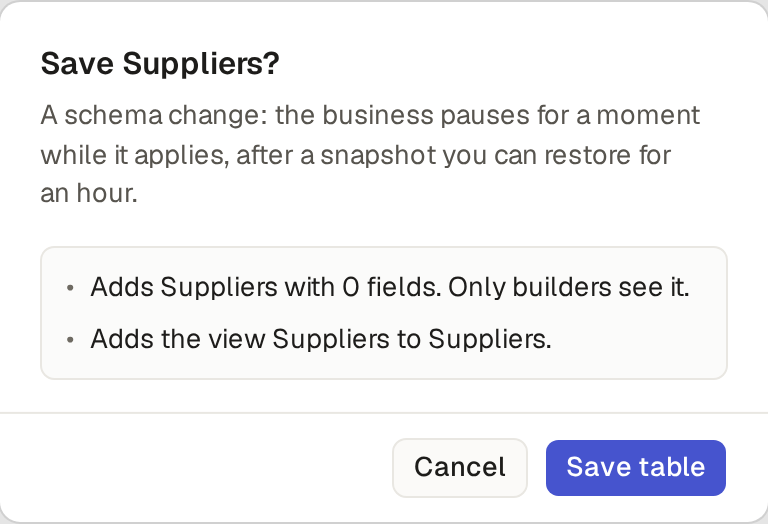
- Click Save table. A box shows what the change does, "Adds Suppliers with 0 fields. Only builders see it." and "Adds the view Suppliers to Suppliers.", before anything happens. Click Save table in it. A message says the table is created, Suppliers is in the sidebar, and the table opens on its Fields page.
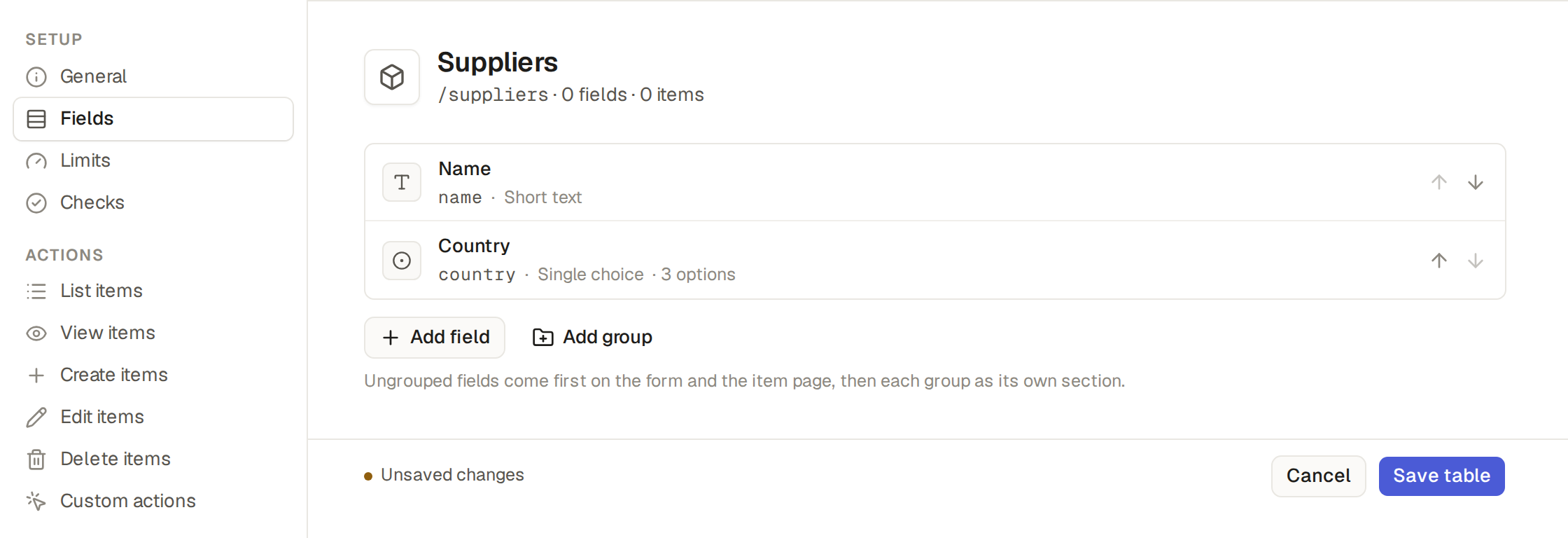
- Click Add the first field. Give it a Title; the Key fills in. Pick its Type (Choose a field’s type) and click Done. Add the rest with Add field, order them with the arrows, and click Save table.
Limits and details
- A table has at most 200 fields; a change or an import past that is refused and says so.
- A new table comes with a view named as the table: a grid of every item, with all the table's list columns, its header row, the ticks to act on several items at once, edit in place, and each row's Edit and Delete buttons. It is the table's default view, which opens when you click the table in the sidebar. It is a view like any other (Make a view for everyone).
- A new table is private: only the base's builders see it until you give other roles access (Invite users, owners and customers).
A table's pages in Builder choose what users may do with its items, builders too, in the base, through the API and through the assistant: the List items, View items, Create items, Edit items and Delete items pages. A page switched off stops that action for everyone. Those pages also choose which buttons users get, such as Search, Export or Import on the list, and how many items a page of the list shows.
- Click Builder in the rail, then the table in the Builder sidebar.
- Pick a page in the menu beside the page: under Setup, General, Fields, Limits and Checks; under Actions, List items, View items, Create items, Edit items, Delete items and Custom actions; under Layouts, the table's Views, Forms and Print templates; under Automation, its Automations and Workflows.
- Change what you need and click the page's own Save table.
Two of those pages also set how wide a page is:
- The List items page sets the list's Page width: Normal, the width every page has, Wide, Narrow or Full. It also sets whether users may save views of their own of the table (Save a view of your own).
- The View items page sets the item's Page width the same way.
The Fields tab of the List items page sets which fields the list shows: a field that is Hidden there is left out of the list, for everyone. A new long text or line items field starts Hidden; every other new field starts Visible.
All tables, at the top of the Builder sidebar and in the path along the top, lists every table at once, in the sidebar's order. All automations and All workflows, beside it, list those of every table (See every automation of the base).
The Label field, on a table's General page in Builder, names each item: in its page's title and the path along the top, in the pickers and the references that point at it, in mails, in the Inbox and in its history.
- The Label field is a short text field, and it can be a computed one (Work a value out with a computed field (a formula)), such as a certificate named by its type and its holder: "Working at height, Leo Marsh".
- If you leave it on Automatic, the base uses the first short text field.
A table is changed on its pages in Builder, and a change of what the table stores shows what it does before it is saved. Changing tables is for the base's builders.
- Click the table in the Builder sidebar and open the page you need.
- Change it and click Save table. A change that is only how the table looks and works applies at once, with no box: names, icons, descriptions, groups and the label field; a field's title, description, group, order, pick columns, options' labels and colours, custom actions and code; and the table's pages' switches but Items keep a manual order, field rules, payment, item address and lasting link. A change that adds, removes or retypes a field or a table, or changes the checks, limits, row rules, or what a field accepts, opens a box first, as does any change that drops data or deletes. The box names the data the change drops, such as the values of a field you remove, and how many, and you can still cancel.
- Confirm in the box. The box closes and a message says the change is saved, with the new version's number; what the version changed is in Activity, Versions.
To change the order of the tables in the Data sidebar and the Builder sidebar, click All tables, then drag a table by its handle or move it with its up and down arrows. Move as many tables as you need, then click Save order, or Cancel to keep the old order. Both sidebars list the tables in their new places, for everyone, as one change of the base with its version like any other.
To delete a table and all its items, click Delete at the left of the bar at the foot of its page, then Delete table in the box.
Limits and details
- Adding or removing fields pauses the base for a moment, after a snapshot you can go back to for an hour (Ask the assistant and review its changes, Versions).
- A change that leaves the stored data as it is, such as an option's colour, applies at once.
A table's description says in one line what its list holds and what users do there, such as "The orders customers place; open one to ship it or refund it." It shows under the list's title, for everyone who may open the list, and in the tour a new user gets on their first visit (Take the tour of a base). The base's builders write it.
- Click Builder in the rail, then the table, such as Orders.
- On its General page, write the Description: one line, at most 200 characters.
- Click Save table. The description applies at once, with no box.
The assistant writes a description for each table it makes or changes, and every module's tables come with one. Ask the assistant for another in plain words, such as "Describe Orders as the orders customers place", or set it through the API under a builder's token (Use your base from a calendar or a script).
A field's options are in its box in Builder, below its type: whether it is required or unique, whether only the base's actions change it, whether it shows in the list, its group, its default value and its description. The base's builders set them on the table's Fields page.
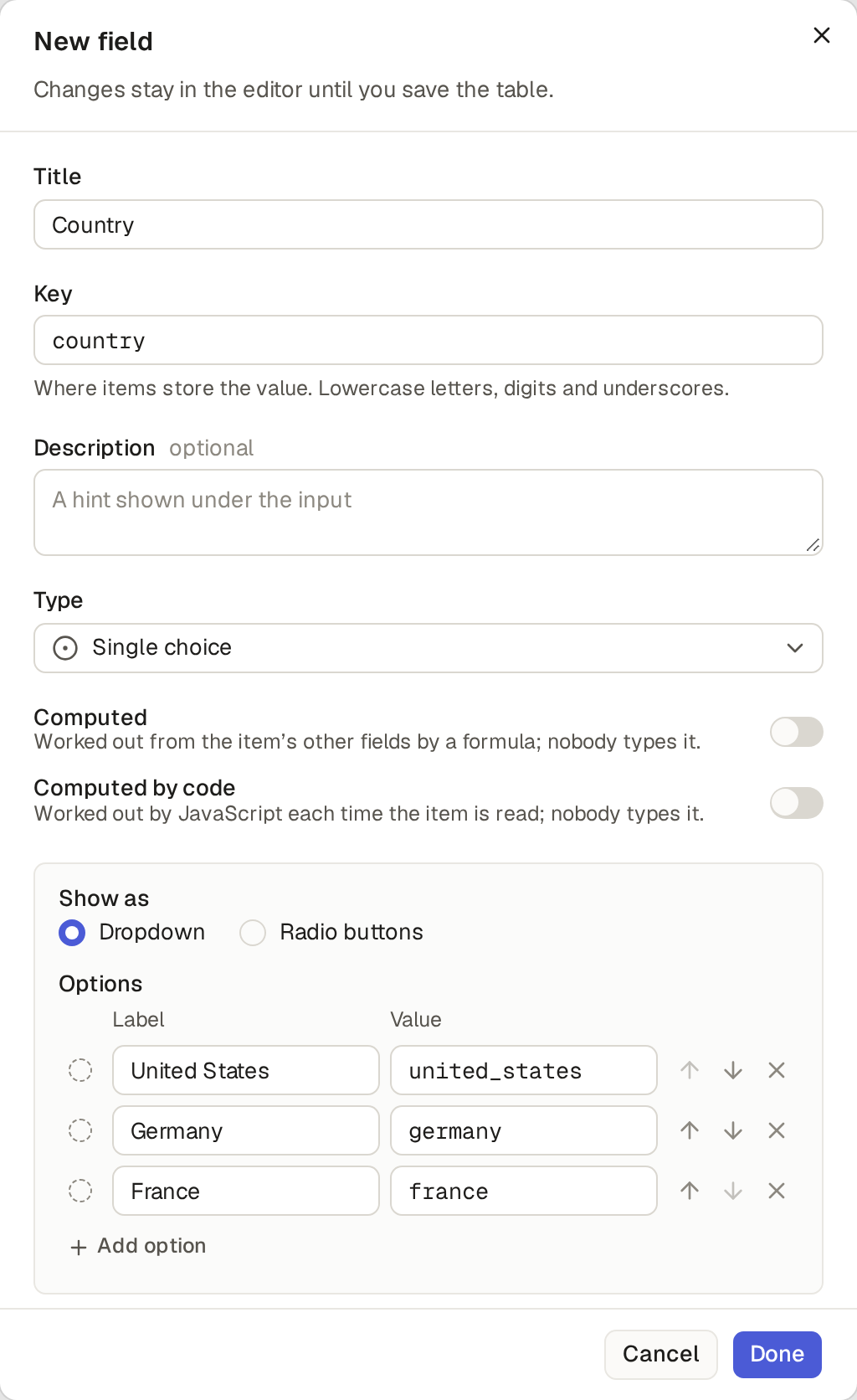
- Required: an item cannot be saved without a value. Forms mark the field with a red star. Where only one value is possible, a choice with one option or a reference with one item you may pick, a new item's form picks it for you; you can still change it.
- Unique (short text, integer, decimal, single choice, date, date & time and reference): no two items may have the same value, such as a product's SKU.
- Only actions change this field: only the base's actions, automations, workflows and code change the field. People cannot change it on a form, by an import, by a bulk edit or through the API, whatever their role. Use it for a value that an action keeps, such as a stock level or a balance: a read-only field rule stops the actions too. In the inventory, On hand changes only through Record a sale, Write off, Receive and the other actions.
- Group: the section the field shows in on forms and item pages, such as an order's Fulfilment. Add group on the Fields page makes one. Switch on Folded on the new form for a group the first item does not need: the new item form shows the group closed under its title, and a click opens it. The group opens by itself when it holds a required field with no default value, or a field with an error. The form of an existing item shows every group open.
- Default value: what a new item starts with, such as a new order's Status, Pending, or a due date 30 days from today (Give new items default values).
- Description: a hint shown under the input.
Limits and details
- Changes stay in the editor until you save the table.
- Remove field asks first, since saving then deletes the values stored in the field from every item.
A field on a form is about as wide as its values, up to a largest width that its type gives, and the base's builders can set another Maximum width for one field.
- In Builder, open the table, then its Fields page, and click the field.
- In the field's box, under Group, find Maximum width. Pick Default for the width of its type, Full for the width of the form, or Custom. For Custom, type a number of pixels from 60 to 2,000 in the box. Another number is refused: "A custom maximum width is 60 to 2,000 pixels".
- Click Done, then Save table.
If you set nothing, the type of the field gives its largest width:
- 240 pixels: an integer, a decimal, a duration, a date, a date & time, and a short text with a maximum length of 40 characters or less.
- 320 pixels: a single choice shown as a dropdown.
- 384 pixels: a short text with the format email address or URL.
- 448 pixels: any other short text, a reference and references.
- The width of the form: a long text, a password, a multiple choice, a single choice shown as radio buttons, child rows, files and a signature.
Limits and details
- A yes / no field has no Maximum width. A computed field, a rollup, a lookup and an auto-number have none either, and neither has the input of a custom action.
- A field is never wider than its form. On a phone, in a narrow window and in a box over the page, a field that is wider than the form gets the width of the form.
- The width applies where people fill in the field: the new and edit forms, the form that + New opens over a reference picker (Offer only the items that fit in a picker, and add one with + New), the form of a custom action, a change of many items at once (Change or delete many items at once) and the public forms (Make a public form anyone can fill in). A filter, a cell of child rows and the item's page keep their widths.
You can also ask the assistant: "Make the contact's name 300 pixels wide." Through the API under a builder's token
(Use your base from a calendar or a script), the field's props hold the setting: "max_width": "custom", "max_width_px": 300, or "max_width": "full".
A field's default value is what a new item starts with in that field, whether the item is made from its form, an import, a script with an API token, a webhook, a button's steps, an AI client or the assistant. The base's builders set a default under Default value in the field's box, or ask the assistant for one.
A default can be:
- A value: a new order's Status is Pending, a new line's Quantity is 1.
- Today or Relative to today, an amount of days, weeks, months or years, on a date: an invoice due 30 days from today. Now on a date and time, and The user filling the form on a reference to the base's users, whoever makes the item. Set them under Default value in the field's box; they are worked out when the item is saved, in the base's time zone.
- One that reads the rest of the item: ask the assistant, such as "Fill a line's unit price from the order's price list, at the price in force on the order's date". The default reads what the new item holds and, for a line, its order. The field's box then reads "Filled in on create by a rule the assistant wrote".
- Lines to start with, on a Child rows field (Edit an item’s lines with child rows): ask the assistant, such as "A new visit gets the checks of its unit's kind". A new item made with no lines comes with those, and you fill in each one. On its form the lines show as soon as what they read is filled in, and follow it until you edit, remove or add a line. Changing the item later adds no lines. The field's box reads the same "Filled in on create by a rule the assistant wrote".
While you fill a new item's form, its defaults show as you go and follow what they read: pick another product and the line's unit price changes with it. Once you type in a field, pick in it or clear it, what you put there stays: a unit price you typed is not replaced when you change the product.
The table's Form code can also fill in values the same way, while the form is filled, where a rule cannot say it: a price from quantity tiers, or a company's details from a tax registry. The assistant writes the Form code when you ask (Add buttons and behaviour with the assistant), and the base's builders read and change it on the table's General page (Read, change and try the base’s code). Form code fills only the fields you have not touched, and saving stores what the form holds.
In the example shop, a new invoice is due 30 days from today and its Owner is whoever makes it, and a new order line's Unit price comes from the order's price list.
Limits and details
- A default fills only a field the new item leaves empty, once, when the item is made, and never changes the field after: a default is a copy, not a link. So raising a price later leaves the orders already made at the price they were made at.
- A field added with a value as its default gives that value to the items already there; one added with today, a date relative to today, now, the user filling the form or a default the assistant wrote leaves them empty.
A choice field can offer only the options that fit the item it is on. In the example shop, an issued invoice's Status offers only Issued, Paid and Cancelled: an issued invoice never goes back to Draft, while a draft invoice offers every status. Ask the assistant for such a rule in words: "An issued invoice can only become paid or cancelled". Each option the rule narrows then reads "Offered by a rule the assistant wrote" in the field's box.
Limits and details
- A new item is offered every option: the rule reads the item as it was last saved.
- An item's form offers the options that fit the item, and always the value it already holds, so saving it unchanged goes through.
- Changing the field to an option that does not fit is refused from wherever the change comes, such as a change of many items at once, an import, a button's step, a script with an API token, an agent or the assistant: "Not a choice for this item", on the field or on the line. A board's drag and a change in the grid offer every option and show that message when the change is refused.