Set preferences, password and security
Set your preferences in every base, your password, two-factor sign-in, sessions and API tokens, the base’s secrets, its history and the security log.
Your preferences in Base Captain are yours as a user, one user with one email: the same in every base where you have a role and at www.basecaptain.com. Click Settings, at the foot of the rail. Under Personal:
- Appearance: the look (colorful, or plain with only black, white and gray), the theme (light, dark or your computer's), the accent color and the density, then under Date and time your time zone, the date format and the first day of the week;
- Notifications: whether your notifications are emailed and pushed to you;
- API tokens: your API tokens and the AI clients you connected, how to connect one, and your calendar links of every base (Make an API token for a program).
At www.basecaptain.com, Settings at the foot of the page opens the same settings in a box (What a base is, and how to switch bases).
Email notifications
With Email my notifications on, Base Captain emails you your notifications while you are away from it: a step that waits for you, an approval and a mention at once, and the others together in one email, at most 4 an hour. While you use the base, no email comes. The steps that one action makes wait for you come in one email that lists them. A workflow that finishes an item sends no email, unless its notice quotes a comment, such as why they refused: the notice stays in your Inbox (See everything open for you in the Inbox). The emails and the pushed notifications of every base follow your choice: turn off Email my notifications in one base and no base emails them to you.
Time zone and date format
The time zone is Your location until you pick another: dates and times show in the time zone of your computer or phone, and follow you when you travel. Pick Base default to follow each base's own, so one base may show Berlin time and another New York time. Your time zone also sets which day is Today in the filters of your lists and views. The date format is Use the base's until you pick one, and shows the format of the base you are in, such as 31/12/2026 in a base set to dd/mm/yyyy. The base's admins set both for everyone in Settings, General (Set the logo, time zone and currency). Pick your own to keep it in every base, such as when you work across borders.
In every base
A preference you change in any base holds there at once and in every other base and at www.basecaptain.com, the assistant's send key too (Enter or Ctrl+Enter, chosen in its panel): a base open in another tab or on another device takes it at once, the others the next time a page of theirs loads. A change you make with an API token or through the assistant holds in every base the same way, once someone has that base open in a browser. If two bases change the same preference at the same time, the later change wins everywhere.
Your saved views stay each base's own: a view you make in one base is not in your other bases, since it names that base's lists and data. Your API tokens are yours as a user, each for all your bases or for one base (Make an API token for a program). The views you hide from your sidebar and the view each table shows stay each base's too. A device that allows push notifications allows them for the base it is on: turn it on in each base you want them from.
Your Base Captain password holds in every base where you have a role, as do your two-factor sign-in and sessions: you sign in only at www.basecaptain.com, with your password, a code we mail you, or Google or Microsoft.
- Click Settings in the rail, then Security. Password is at the top of the page. Click Change your password. If you have no password, because you signed up with a code or with Google or Microsoft, the page says so, and the button is Set a password.
- If you have a password, enter your Current password. Or click Email me a code instead, then Email me a code, and enter the code we mail to your address under Code from your email.
- Enter a New password of at least 8 characters, and again under Confirm new password.
- Click Save password. Every other device where you were signed in is signed out; this one stays signed in.
Limits and details
- Forgot it? You need no password to sign in: Email me a sign-in code on the sign-in page mails you a code (Sign in when you forgot your password).
- Every wrong try to sign in counts, a wrong password or a wrong code: after ten for one email from one internet address, or thirty from one internet address, within 10 minutes, signing in is refused until those minutes are over, and the page says how long to wait: "Too many attempts. Try again in 10 minutes."
- A code ends after five wrong tries: ask for a new one.
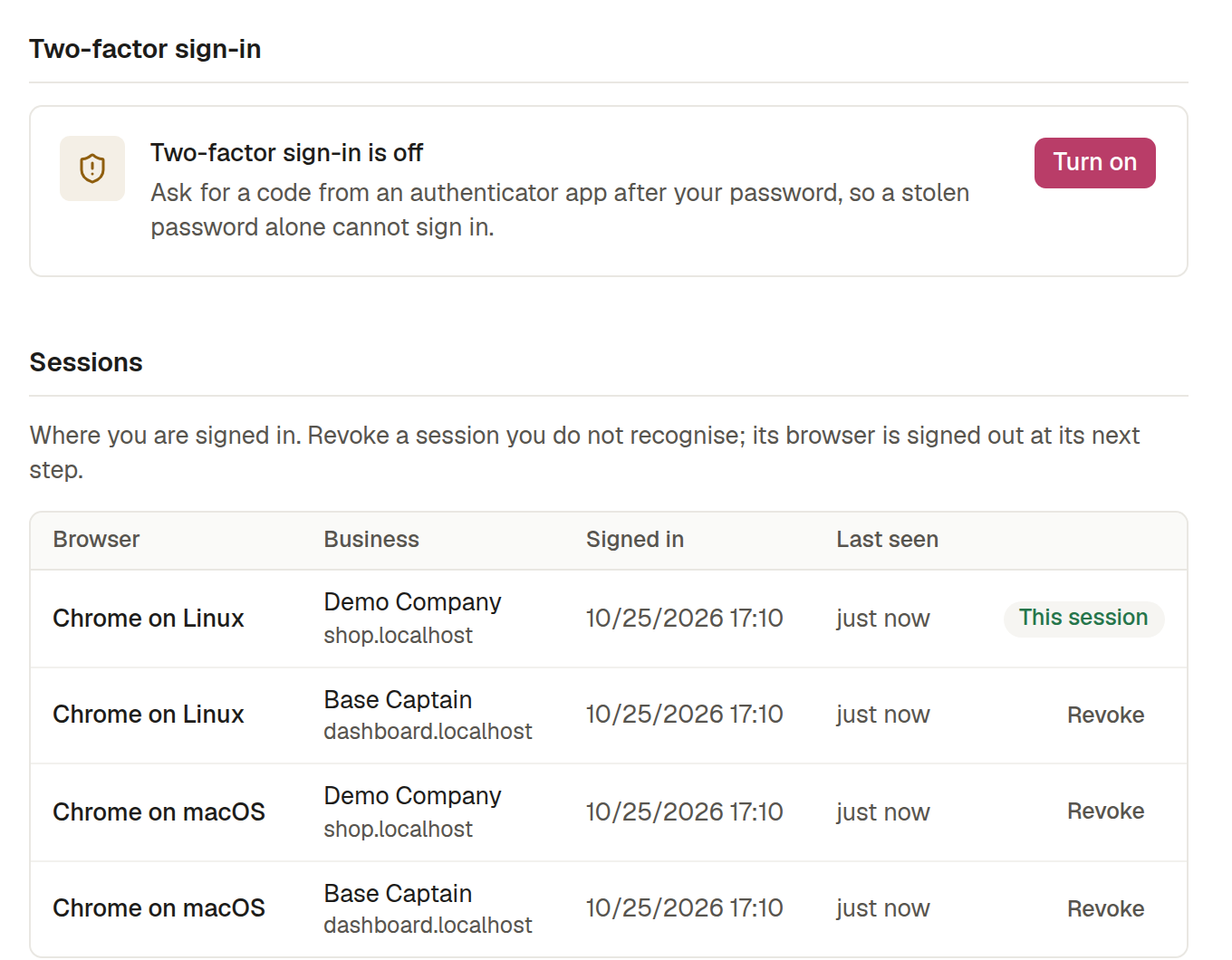
Two-factor sign-in makes Base Captain ask for a code from an authenticator app on your phone after your password or the code we mail you, so a stolen password, or someone who reads your mail, cannot sign in alone.
- Click Settings, then Security, and under Two-factor sign-in click Turn on.
- The box shows a Key, once. Add it to an authenticator app such as 1Password, Google Authenticator or Authy: type it in, or on your phone tap Open in authenticator app.
- Enter the six-digit Code the authenticator app shows and click Turn on. A wrong code is refused with "Invalid code".
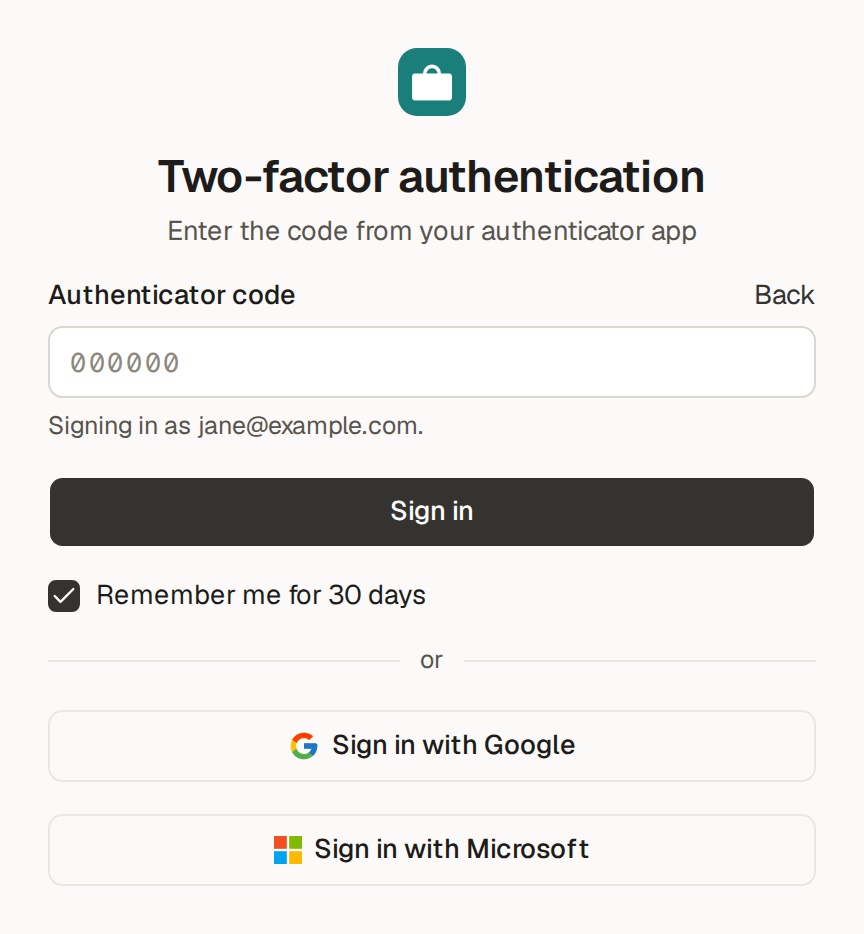
From then on, signing in to any of your bases asks, after your password or the mailed code, to "Enter the code from your authenticator app". To turn it off, click Turn off on the same page and enter a current code. Each code works once: right after using one, wait for your authenticator app to show the next. Signing in with Google or Microsoft asks for no code, since they check it is you their own way (Sign in to your base).
Your sessions are the browsers signed in to Base Captain as you.
- Click Settings, then Security. Sessions lists the browsers where you are signed in, on every base: the browser, the base, when it signed in and when it was last seen. The one you are using says This session and comes first, then the most recently seen. With more than ten, the list shows the first ten and Show all lists the rest.
- Click Revoke beside a session you do not recognise, and confirm. That browser is signed out at its next click.
- Or click Sign out other sessions, at the top of Sessions, to sign out everywhere but here.
Sign out, in the menu of your picture at the foot of the rail, signs this browser out of Base Captain and of every base at once, wherever you click it, and leaves your other devices signed in: Sign out other sessions ends those.
An API token lets another program, such as a spreadsheet add-on or a nightly script, use your Base Captain bases as you. It has exactly your permissions, your role in each base: with the salesperson's token, a program sees his orders and none of the manager's. It may do what you do in a base, the work of Builder and Settings included as far as your role reaches them, but it never signs in or touches your password, two-factor sign-in, sessions, email address, tokens or your bases' plans, copies and deletes. A token reaches all your bases, those you have now and those you join later, or one base alone.
- Click Settings, then API tokens under Personal, then New token. At www.basecaptain.com, click Settings at the foot of the page, then the tab API tokens.
- Name it for what will use it, such as "Nightly export".
- Under Bases, keep the base you are in, choose another of your bases, or choose All your bases. With all your bases, select It can create bases to let the program make new bases for you, each on the Free plan. Click Save.
- The token shows once: click the copy button, give it to the program, and click Done. It stays filled in under Header, for a client that cannot sign in until you leave the page.
Changes a program makes with your token show under your name in the item's history, "via API". Make one token per program, so you can stop one alone: click the bin beside it, Revoke, and then Revoke token. Whatever uses it stops working at once. Each token shows the bases it reaches and when it was last used.
Limits and details
- You may have up to 50 API tokens, the AI clients you connected among them.
- A token for one base cannot create bases.
- When you leave a base, your tokens and calendar links of that base alone are deleted.
To connect a calendar app to a calendar view, see Use your base from a calendar or a script. To connect Claude, ChatGPT, Claude Code or another AI client, see Connect Claude, ChatGPT or Claude Code.
An AI client that you connect to Base Captain with a sign-in, such as Claude, Claude Code or ChatGPT at www.basecaptain.com/mcp, gets an API token named after it (Connect Claude, ChatGPT or Claude Code).
- Click Settings, then API tokens. Each AI client you allowed is listed by its name, marked AI client, with the bases it reaches and when it was last used.
- Click the bin beside one, then Revoke token. Its next call is refused. To use it again, connect it again.
Only you revoke it, here, in your browser: no AI and no token can. If you continued without signing up and then keep a temporary base, your AI stays connected and works as you.
Secrets are the keys and passwords your base uses to reach other services: the token a webhook sends, the address of a Slack webhook, an MCP server's key, the secret in an incoming webhook's address. Only admins add, replace and delete them; builders and AI managers see their names, to pick one in an automation or an MCP server, and never their values.
- Click Settings, then Secrets.
- Click Add secret. Give it a Name in capitals, such as TICKETS_TOKEN, and paste its Value. A name already used is refused: to change that secret, use its Replace.
- Say where it is sent. A value that is an address, such as a Slack webhook's, starts with https:// and asks nothing
more: it is sent only to its own address, at the start of a call's URL. A call can go to a page under that
address, but never to a different address on the same host. Otherwise pick one:
- Which service is this key for?, such as Twilio or Slack. The key goes only where that service takes it, such as the Authorization header.
- Other service: its address, such as api.example.com, for a service that is not on the list. The key goes in a header, a query parameter or the path of a call's URL, never in a call's body. An address of a service on the list is refused, such as "api.telegram.org is Telegram's: choose the service Telegram.": choose that service instead.
- It checks calls that come in, for the secret of an incoming webhook or a signing secret, which is never sent anywhere.
- Before saving, the dialog says it in words, such as "TWILIO_AUTH_TOKEN will be sent only to Twilio (api.twilio.com), and only where Twilio takes its key". Click Add secret.
Where a secret may go
Only the person who enters the value chooses where it goes, and only by entering it again. No automation, MCP server or assistant changes it; the assistant may tell you which secret to add and for which service, but never fills in where it is sent. A call that would carry a secret anywhere else is refused with "The secret TWILIO_AUTH_TOKEN may not be sent to …", shown where that automation, run or check shows its errors, and nothing is sent. A secret goes only over https too: a call to an http:// address is refused with "The secret TWILIO_AUTH_TOKEN may be sent only over https, never over http to api.twilio.com".
On its own host too, a secret goes only in its places, so it does not reach someone else's address on a host many customers share, such as discord.com or hooks.slack.com. Elsewhere it is refused, and nothing is sent:
- For a service from the list, a key in a body, in another header or in the URL is refused: "The secret TWILIO_AUTH_TOKEN may not be sent in the body: it goes only in the Authorization header".
- For another service, a key in the body is refused: "The secret TICKETS_TOKEN may not be sent in the body: it goes only in a header, a query parameter or the URL's path".
- A value that is an address goes only at the start of the URL, never up out of it, such as with /../: "The secret SLACK_WEBHOOK_URL may not be sent in the body: it goes only in the URL, at its start".
These rules hold for the base's code, a webhook an automation calls and an MCP server's headers alike, and no setting changes them.
See, replace or delete a secret
The list of secrets shows each secret's name, when it was set and where it is sent, never its value, to anyone, such as "Sent to Twilio (api.twilio.com)" or "Checks incoming calls". Automations and MCP servers name it where it is needed, and the assistant and the agents see only its name and where it is sent. The code Base Captain writes for your base never holds the value of a secret that is sent: Base Captain fills it in on the way out.
To change a secret, click the circle of arrows beside it, Replace, paste the new value and choose again where it is sent; the bin beside it, Delete, deletes it. From then on, an automation or a run that would send it is refused with "The secret NAME may not be sent to …", naming the host it was going to, and nothing is sent; a secret that checks incoming calls no longer matches any call.
Limits and details
- Stripe's key and its webhook's signing secret, and PayPal's client ID, secret and webhook, are not in this list: they are the providers', in Settings, Payments, where you add and remove Stripe and PayPal (Add Stripe to your base). A secret named STRIPE_SECRET_KEY or STRIPE_WEBHOOK_SECRET cannot be added, replaced or deleted here: "This secret belongs to the Stripe provider: change it in Settings › Payments". Neither can PAYPAL_CLIENT_ID, PAYPAL_CLIENT_SECRET or PAYPAL_WEBHOOK_ID: "This secret belongs to the PayPal provider: change it in Settings › Payments".
- A secret saved before secrets were tied to where they are sent says "Enter again to choose where it is sent", and is sent nowhere until you do.
- Use the narrowest key the service offers, such as a read-only one when reading is all your base does, and replace a key at once if you think it leaked.
Every item in a Base Captain base keeps its history, at the bottom of its page: who changed it, when, and each field from what to what. You see the changes of the fields you may see and no others. Where the change did not come from a person's own click, the history says how:
- via agent: an agent, in someone's chat or by itself (See an agent's changes in an item's history);
- via automation, Workflow and Triage: the base's own work (Move items from step to step with workflows). A person's name with Triage is a Triage suggestion that person applied;
- Public form and Webhook: an item that came in from outside;
- via API: a program with someone's API token.
Changes to the base itself, its lists, fields and settings, are its versions, in Activity, Versions (Ask the assistant and review its changes).
The History page
The users who build the base also see every change at once: click Activity, then History. Its list is newest first, one line for each save, bulk edit, import or assistant's run, such as "Jane Doe changed 3 orders"; click a line to open it to its items, each a link to its page, and their fields from what to what. Filter it by person, by table, by how the change was made (on the web, by the assistant, an agent, an import, an automation, a schedule, a webhook, Triage…) and by its first and last day. Export saves what the list shows as CSV or Excel, one row per change, in the list's order.
The security log of a Base Captain base shows its admins who reached the base and who changed its access: click Activity, then Security log. Only an admin sees it: a builder or another role does not. The log records each of these, with its time:
- a user signed in to the base, or failed to sign in with a wrong password or code;
- a user turned two-factor sign-in on or off, or made or revoked an API token, an AI client's connection among them;
- an admin changed a user's roles, from what to what, invited a user or removed one;
- someone connected or disconnected an MCP server, or set or deleted a secret.
Each line shows When, What, Who did it, the User it is about, and a Detail: the name of the token, the secret, the MCP server or the AI. The list is newest first. Filter it by What, by User and by its first and last day, From and To. Export downloads the lines of the filter as CSV.
A user's own events, such as a failed sign-in or two-factor turned off, show in every base where that user has a role. The log never shows a secret's value, a token, a code or a password. Nothing deletes a line of the log. Admins also read the log through the API under their API token and through the assistant.