Move items from step to step with workflows
Make a workflow move an item from step to step by itself: start and stop it, change it as a table, text or canvas, add approvals and set its brakes.
A workflow in Base Captain (an automated process) moves an item from step to step by itself. The workflow runs on one field of a list whose value is one of a few options, such as a status: each option is a step. For each step you say who works it, what they are told and where each way it can end leads.
A step's workers are agents (Make AI agents that work in your base), actions the assistant wrote for your base, users (the users of a role, or the user a field of the item names), or a customer, by a link mailed to them.
The example shop's workflow Quotes runs on the Status of a quote request:
- New: the agent Intake reads the request, sets its priority, names the product and sets the quantity asked for.
- Quoting: the action Make quote works out the price.
- Review: the agent Reviewer checks the quote. Approved sends the request on to Sent; Changes needed sends it back to Quoting.
- Sent: the customer works this step, by a link mailed to the request's Email. They read the quote and click Accepted, which moves the request to Accepted and makes an order from it, or Declined (Let a customer answer a step by link).
- Waiting, Accepted, Declined and Failed have no one working them: the workflow lets go of the request there.
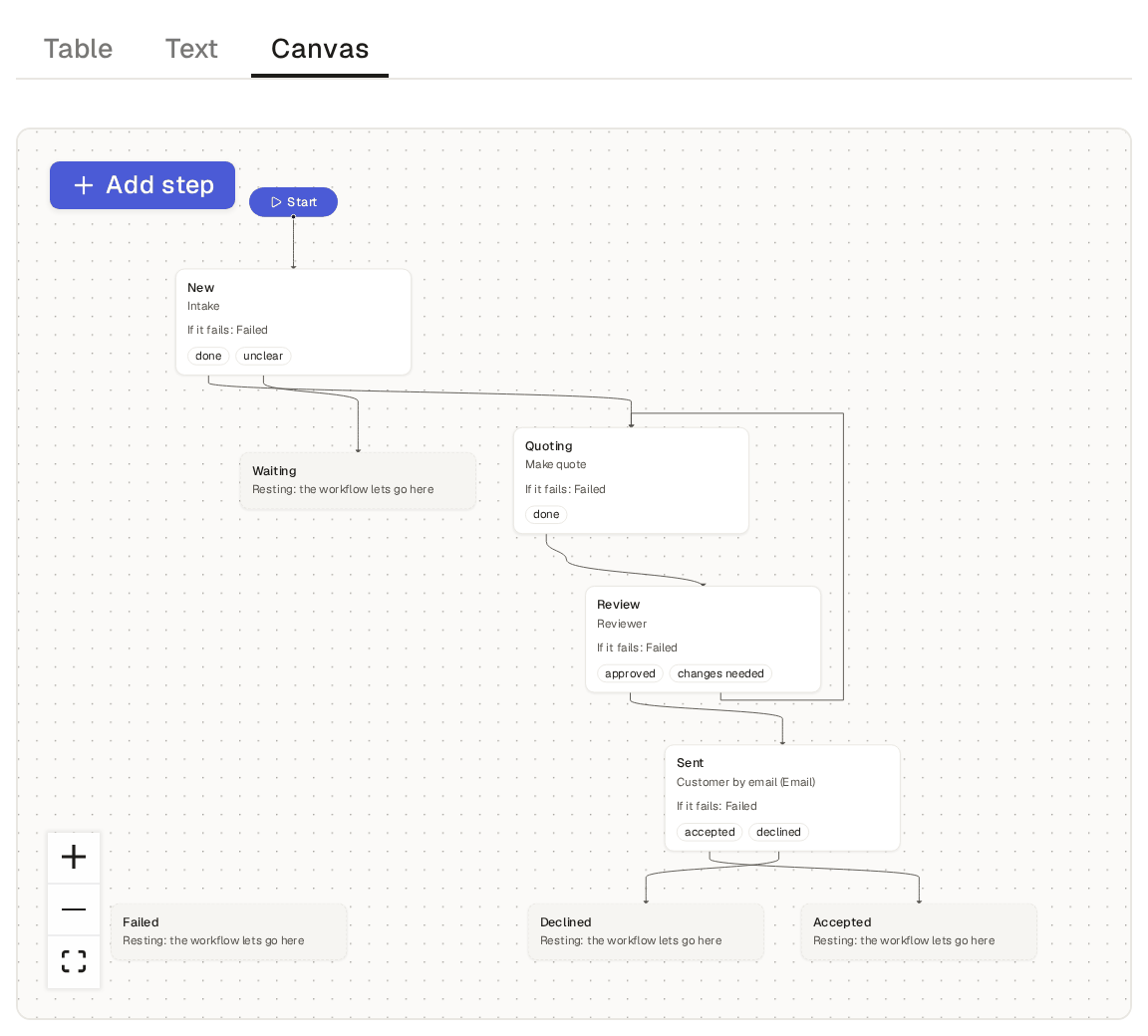
The outcome failed is for the workflow itself, not for people. Every working step can end in failed, which leads where you say:
- A step ends in failed when an approval sends the item back (Add approvals and several workers to a step), or when its worker fails three times.
- A person who works a step sees only the step's own outcomes, never failed.
- To end the work on an item, stop the workflow (Start and stop a workflow on an item).
A workflow starts on an item from the item's page, with the Workflow box under its fields. Only the users who may change the item's status themselves, and the users who build the base, may start or stop a workflow on an item. Someone who only picks a step's outcome does not see Stop workflow.
- Click Quote requests in the sidebar and open Office chairs for a new team.
- Click Start Quotes, one of the request's buttons at the top of its page. Under the request's fields, the Workflow box shows Quotes with the step the request is on, New, and under Step: New the agent Intake, Working.
- Stay on the page: it follows the request as it moves. Within a minute it has walked New, Quoting and Review and waits at Sent, with a priority and a quote, for the customer's answer to the mail they got.
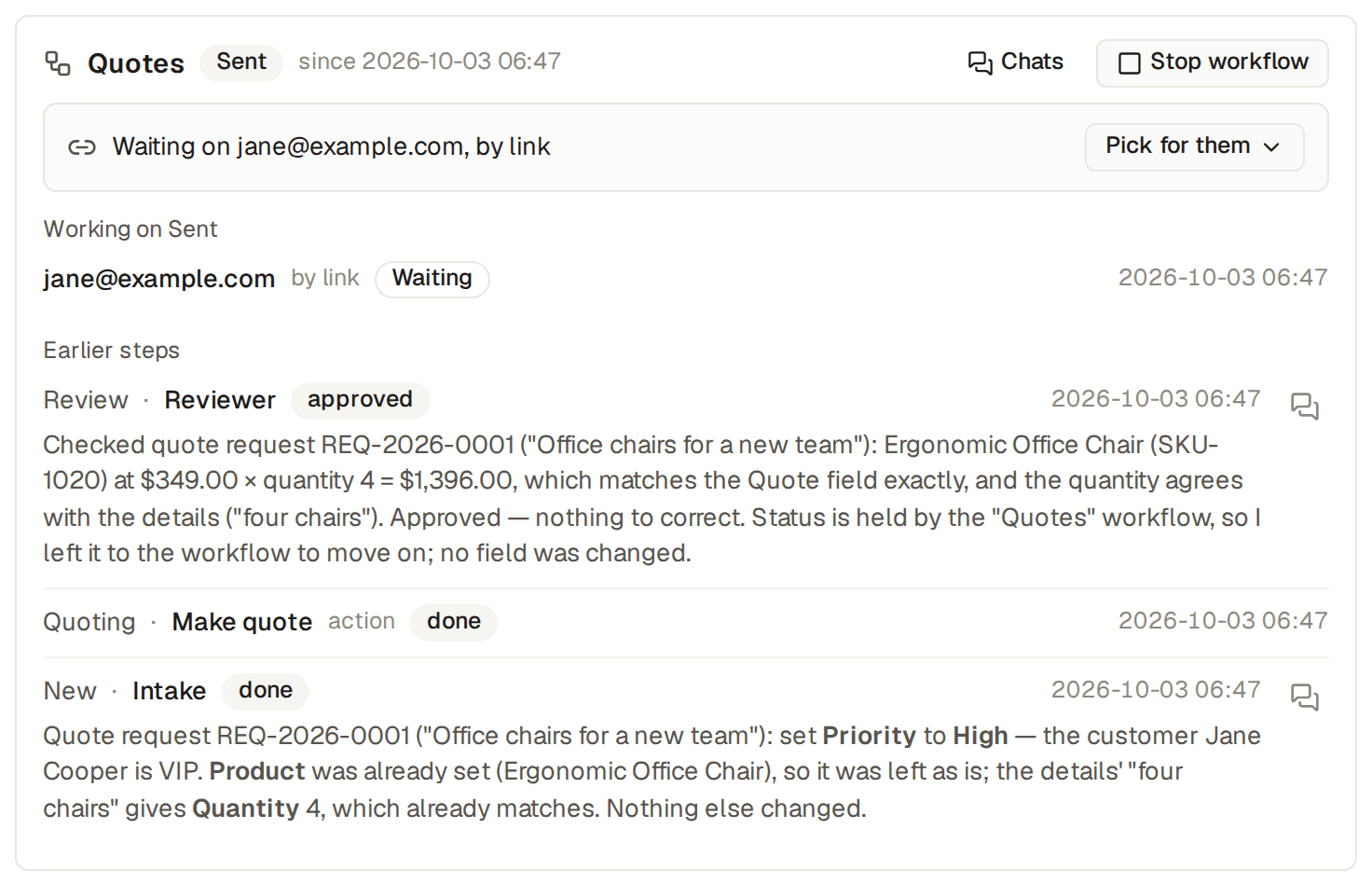
- Earlier steps shows each worker's outcome and what it wrote about its work, which is also posted as its comment.
- Chats opens what each agent did.
- The item's History names every change: the agent's "via agent", the workflow's own moves, the customer's answer by Customer link, "Accepted through the mailed link.", and, once they accept, "Handed over to an order" with a link to the new order, which says "Handed over from a quote request".
While a workflow holds an item, the item's step moves only by the workflow: nobody changes the status by hand, a board will not let you drag it, and on the item's page the status shows as plain text, not a menu. To take the item back, click Stop workflow: the work in progress stops and the status is yours again.
An automation can stop a workflow too (Run actions when an item changes). In a base made from the Invoices and payments app, a payment that settles an invoice stops the invoice's payment reminder, also at Reminder to check, and the invoice is Paid. The invoice's history says "Stopped by the automation Settled invoices are paid."
A workflow that starts by itself on a schedule
A workflow can start on items by itself when an automation on a schedule starts it on the items of a view (Run an automation on a schedule). The Workflow box of an item that no workflow holds then says so, and tells you that the workflow will start by itself.
- In a base made from the Commercial cleaning app, a planned visit says "Every day at 06:00, the automation “Every morning: start today's visits” starts Visits on the visits in “Planned for today”." and when it starts next, such as "Next: tomorrow at 06:00", in your own time zone.
- The time of the schedule is in the base's time zone, which the box names when it is not yours.
- The workflow starts on the item only if the item is in that view at that time.
- You can still click Start Visits to start it now.
- Everyone who may see the item sees these lines.
The item's workflow in the API gives the same list, as scheduled, and the assistant reads it too: ask
"Will this visit start by itself?", and it answers from the schedule instead of starting the workflow by hand.
A workflow is made and changed in Builder, on its table's Workflows page, by the users who build the base. You can also ask the assistant to make or change a workflow (Ask the assistant and review its changes).
- Click Builder, then Quote requests, then Workflows, then Quotes.
- The page has three tabs that show the same workflow three ways: Table, a form with every step one under the other; Text, the whole workflow as text, to copy it into another base; and Canvas, a map of the steps. A change in one shows in the others.
- On the canvas, click a step to change it in the panel beside it, drag from one of its outcomes to another step to change where it leads, and click Add step for a new one.
- Click Save workflow.
New workflow, on a table's Workflows page, starts a new workflow on that table: pick its Field, and a step appears for each of the field's options.
- Use this when… says in a sentence what the workflow is for.
- The Enabled switch, turned off, lets go of every item the workflow holds.
Base Captain checks the whole workflow each time and names the step that is wrong, such as an outcome that leads nowhere. Base Captain also refuses a change elsewhere that would break a workflow, such as removing an option a step uses.
To see the workflows of every table at once, click Builder, then All workflows, beside All tables. Each row shows the workflow's table, the field it runs on, its steps and its Enabled switch. Click a row to open the workflow.
A workflow step can have several workers, let the first worker settle it, wait for an approval first, or hand the item over to a new item. You set each one on the step, in the workflow's page in Builder:
- Several workers. Tick more than one worker and each works the step on its own; the item moves once all have finished. Where they disagree, the outcome lower in the list wins, so list the outcomes from best to worst: one Changes needed beats one Approved.
- Whoever comes first. Turn on Any one of its workers settles it and the first worker that picks an outcome moves the item. The step closes for the other workers, and it goes from their Inbox. In a donations base, the fundraiser or the lead of the donor's team sends the thank-you letter, whoever comes first. You can also ask the assistant: "Let whoever comes first send the thank-you letter."
- An approval first. Under Approval before its workers start, pick A user who may edit the item or A builder. The item then waits at that step, in the Inbox of those who may approve, and its Workflow box says so, with Approve, which lets the workers start, and Send back, which moves the item where failed leads.
- A hand-over. Hand over… beside an outcome makes a new item from this one, with the values you give, and can start a workflow on the new item. In Quotes, Accepted makes an order: "Hands over to a new order".
A workflow's brakes keep its agents from running away with your time and money. Each workflow has them, on its page under Brakes:
- Time limit per step, in minutes: a run past it is stopped and the item needs a person.
- Runs per hour: past it, more work waits for the next hour, and the item says until when.
- Entry limit: how often an item may enter one step before it needs a person.
The base's fair-use limit of AI stands above the brakes: when agents and workflows reach it, the work of every workflow waits where it is, and starts again on the 1st of the next month (What AI your plan includes).
Pause agents and workflows stops all of the base's agents and workflows at once. The admins and the AI managers can do this:
- Click Settings, then AI settings.
- Turn on Pause agents and workflows, and confirm.
- To start again, turn it off, and confirm.
While they are paused, no agent's, automation's or workflow step's work starts, and no schedule fires. What is running finishes, the assistant still works, and your team keeps working as usual. The AI settings and Agents pages and each item's workflow say when they are paused.
Some workflow work waits rather than fails: when the AI service does not answer, or a coding tool on a machine has reached its plan's limit (When a coding tool's plan limit is reached). The step's worker then shows as waiting, with why and until when, and starts again by itself. Pick a Fallback agent, where a worker would wait on a step to have another agent work it instead.