Print an item, save a PDF, send it by link
Print an item or a view, or save it as a PDF, with only the fields each person may see, and send it to a customer by a private or a lasting link.
To print an item in Base Captain, open the item and click its Print button, then print the page or save it as a PDF. The button comes from a print template, which makes a page from one item, laid out for paper: an invoice from an order, a sheet from a product. The example shop has an Invoice for orders and a Product sheet for products.
Each print template of the item's list is a button at the top of its page, for your team and for your customers: Print Invoice on an order, Print Product sheet on a product.
- Open an order: in the sidebar, click Orders, then an order's number.
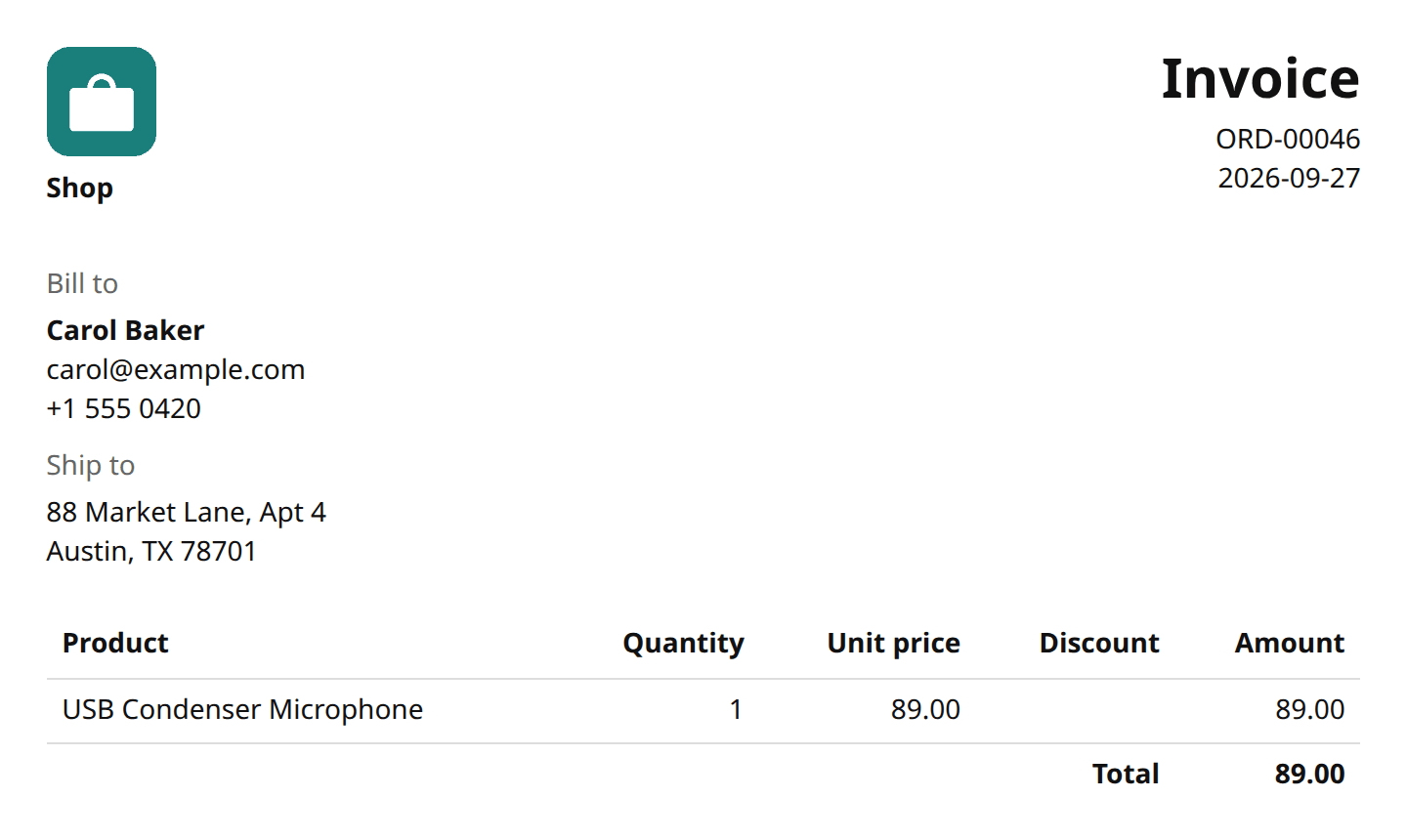
- Click Print Invoice, at the top right of the order's page. Your browser's print window opens on the invoice: the shop's logo and name, who it is billed to and where it ships, each line with its quantity, price and amount, and the total.
- Print it, or pick Save as PDF as the printer to keep it as a file and send it to the customer.

Three print templates or more
When a list has three print templates or more, the item's page has one Print button instead of a button for each, which lists them: click one to print it.
A print for some roles only
A print template can be for some roles only (Add a print template). Then only those roles see its button, and nobody else can open it, through its address, the API or the assistant. In the Guesthouse app, only the admins and reception print a booking's Registration card and Bill, and the managers too when the base has Staff.
A print only when a condition holds
A print template of an item can also be offered only when a condition on the item holds, such as a receipt only for a visit that took place. While the condition does not hold, the item's page shows no button for it, and nobody can open it, through its address, the API or the assistant, whatever their role. Change the item so that the condition holds, such as setting the visit to Done, and the button shows after you save. In the Physiotherapy clinic app, the Treatment receipt is offered only for a visit the patient attended or cancelled late. A link or a mail that carries the print is not changed by the condition (Send a printed item to a customer by link).
A printed item shows only the fields the person printing it may see, so one print template serves the whole team. The Product sheet shows a product's cost and margin to the admin and leaves them out for the salesperson.
- Signed in as an admin, click Products in the sidebar, then Espresso Machine.
- Click Print Product sheet, at the top of the page: the sheet lists Price, Cost, Margin and Stock.
- Sign in as a salesperson and print the same sheet: it lists Price and Stock, and nothing shows that anything was left out.
Dates and amounts on a printed item print as the base's pages show them, in the Date format and the Currency of Settings, General (Set the logo, time zone and currency). In a base set to dd/mm/yyyy and GBP, an invoice dated 6 November 2026 for 1250 prints "06/11/2026" and "£1,250.00", whoever prints it: the settings of the person who prints do not change the page. An amount in a currency of its own prints in that currency, such as "$1,250.00". The base's mails write dates and amounts the same way (Run actions when an item changes).
A print template can also print a view's items on one page, instead of one item: a price list over a view of products, or a statement of account over a view of invoices still to be paid. The page says what the view holds, with its filters in words at the top, such as "Status is Issued", lists its items and ends with the totals. The example shop has a Statement of account over its view Open invoices.
- Open the Invoices list, and pick Open invoices in its Views menu.
- Click Print Statement of account, above the list. Your browser's print window opens on the page.
- Print it, or pick Save as PDF as the printer.
A view's print shows what you may see of the view and nothing else: the salesperson's statement holds only his invoices, and its totals add up only those. The totals add up every item the view holds; the page lists the first 1,000 and says when there are more. Someone who may not see the list cannot print it, nor can a role that the print template is not for. A view's print template is not on an item's page, and the item's print templates are not on the list.
A private link lets someone who is not a user of the base, such as a customer, see one item, printed with a print template. Nobody makes the link by hand: the base mails it, in two cases.
- A workflow's step waits on the customer: entering the step mails them the link, and its page has a button for each way the step can end (Let a customer answer a step by link). The example shop's quote requests send their Quote this way.
- An automation's email carries it, with Link to and the print template in its Insert a field menu (Run actions when an item changes). The example shop's Send invoice mails a customer the link to their Invoice once their order is paid.
Attach the print to a mail as a PDF
An automation's email, or a custom action's, can also carry the printed item itself, as a PDF file: the remittance advice to a supplier, an invoice to a customer. Pick the print template under Attach a print in the automation's email, or ask the assistant. The file takes the print template's name and the item's, such as Remittance advice PAY-0012.pdf. If the PDF cannot be made, the mail is not sent, and the base's problems say why.
What the link's page shows
The page of a mailed link carries your base's name and logo, the printed item, a Print button and a Download PDF button, and says until when the link works. Download PDF saves the printed item as a PDF file, with the print template's name and the item's, as an attached PDF has, and needs no sign-in. The page fits a phone's screen too, and shows the images the print template takes from the item's files.
The link's page shows everything the print template prints, whoever opens it, and nothing else of the item: leave off the print template what the customer should not see. It shows the print template also when the template is for some roles only, or offered only when a condition on the item holds: you picked that print for the person when you set the link. An attached PDF does the same. A link cannot change anything but pick a step's outcome.
Pay from the link's page
When the item's table takes payments (Take payments with Stripe or PayPal), the link's page also asks to pay the item, naming it, with a Pay button while the item is unpaid and the base holds Stripe or PayPal: one button for each when it holds both. Pay opens a fresh page of Stripe or PayPal each time; once the item is paid, the button is gone. A provider in test mode says Test mode beside its button.
When a link stops working
A mailed link works for thirty days at most, a step's only until the step moves on, and none outlives its item. After that it says "This link no longer works: it has moved on.", "This link has expired." or "This link was withdrawn."
See, revoke and send again the links of an item
On the item's page, Links lists the item's lasting link first, when its table has one (Give each item a lasting link: a check page), then the links mailed, newest first: whom each was mailed to, when it was sent, until when it works while it is live and when it expired once expired, and whether it is Live, Moved on, Expired, Revoked or Answered, with the answer.
A user who may edit the item clicks Revoke to stop a mailed link at once; a box asks "Revoke the link mailed to …?", and Revoke link revokes it. While a workflow step waits on the customer, the same user clicks Send the link again beside the newest link to mail it again at once, with a new link (Mail the customer again when they do not answer).
A lasting link is a public page of its own for each item of a table, at your base's address, that never expires. It shows the item printed with one print template of the table, to anyone who opens it, with no sign-in. The Issued certificates add-on gives each certificate one, its check page: whoever is shown the certificate, such as an employer, opens the page and sees that your base holds it and whether it is still valid.
The base makes the lasting link when it makes the item, in every way: on the item's page, by import, with an API token, from an automation or from the base's code. The builders give a table its lasting links through the builder API (Print links and PDFs with an API token or an AI client).
What a lasting link's page shows
The page of a lasting link carries your base's name and logo and the printed item, as a mailed link's page does, with Print and Download PDF, but it has no end date, and it cannot answer a step or take a payment. It also has Copy the link, which copies the page's address, so a person can send it on; a mailed link's page has none, as its link is private. The page shows the item as the base holds it now: change the item, and the page shows the change at once. So a printed copy that someone changed does not match it.
Put the lasting link on paper as a QR code
On the item's page, Links shows the lasting link first, under the name of its print template, such
as Check page, with its address and a copy button, which says when the address is copied. To put
the address on paper, a print template reads it as {{.lasting_link}} and draws it as a QR code
with qr (Write a print template: fields in double braces): a
phone that scans the printed page opens the link. An automation's email writes it as {{link.lasting}} (Run actions when an item changes).
When a lasting link ends
A lasting link has no Revoke: it ends only when its item is deleted. Then its address shows your base's name and logo and the table's sentence, such as "The base holds no such certificate." When you undo the delete, the address shows the item again.
Printed items and their links keep these rules:
- On the Free plan, the links that show a printed item to someone who is not a user of the base open once an owner adds a payment method (What the Free plan includes).
- A printed item shows what is in your base and nothing from elsewhere: it cannot load an image or a script from another website.
- A link in a print template opens its address in a new tab when someone clicks it, in the base's print and on a link's page alike, such as a certificate's Add to LinkedIn. The print still runs no script and sends no form.
With an API token, GET /api/tables/<table>/items/<id>/links lists an item's links, its
lasting link first, with "lasting": true and its address in url; a DELETE of
the lasting link is refused: "A lasting link ends only when its item is deleted."
POST /api/tables/<table>/items/<id>/links/<link>/resend sends a step's link again and
answers the new link; it is refused for a link that is not a step's, "Only a workflow step's link can be sent
again", and after the step moved on.
Anyone, with no token, downloads a link's page as a PDF at GET /api/links/<token>/pdf, the token
being the end of its address.
The assistant and the AI clients read a link's address with list_links, and send a step's link again
with resend_link.
The assistant and the AI clients print an item with print_item: give it the table, the item and one of
the ids in the item's prints (get_item lists them). It answers the print's name, its link,
which is the address the Print button opens, and the page's text. A print that the item does not
have for that person, as the button would not show it, is refused as the address is: "Not found."
The builders give a table a lasting link with the table's lasting_link through the builder API: the
print template its page shows, and the sentence its address says once the item is deleted.