Choose field types, lookups and formulas
Pick a field’s type, show amounts in a currency and time in hours and minutes, and add auto-numbers, rollups, lookups and computed fields.
A field's Type, picked in the field's box on a table's Fields page in Builder, sets what the field holds. The Type list offers:
- Short text: a name, a code or a title; its Format can be any text, an email address, a URL or an address (Link an address to a map).
- Long text: notes and descriptions, several lines; its Format sets how the item's page shows the text (Show long text as Markdown, JSON or code). In the item's form, the AI menu beside the field rewrites or translates its text (Write, rewrite and translate with AI).
- Integer and Decimal: numbers, with an optional minimum and maximum; a decimal has its number of decimals, and can be an amount in a currency (Show amounts in a currency). A number can have a Unit instead, such as kg, pcs or %, shown after its value, "2.5 kg" or "40%", and after the box in forms. A time spent, such as hours worked, is a Duration, typed and shown in hours and minutes (Type and show a time spent in hours and minutes).
- Yes / no: a switch, such as VIP or Gift wrap.
- Single choice and Multiple choice: options you list, such as an order's Status or a customer's Marketing channels. A single choice shows as a Dropdown or as Radio buttons. The dot before each option picks its colour, one of nine or No colour: the value then shows as a badge in that colour in lists, on boards, in group headers and on the item's page, as the shop's order statuses do.
- Date and Date & time.
- Reference and References: a link to one item, or to several, of another table (Link an item to another table’s items with a reference).
- Files: documents and pictures attached to an item, or a signature signed on the screen (Take a customer’s signature on the screen).
- Child rows: lines edited inside the item, such as an order's lines.
- Rollup: a sum, count, minimum or maximum over the items that point at this one (Add up related items with a rollup).
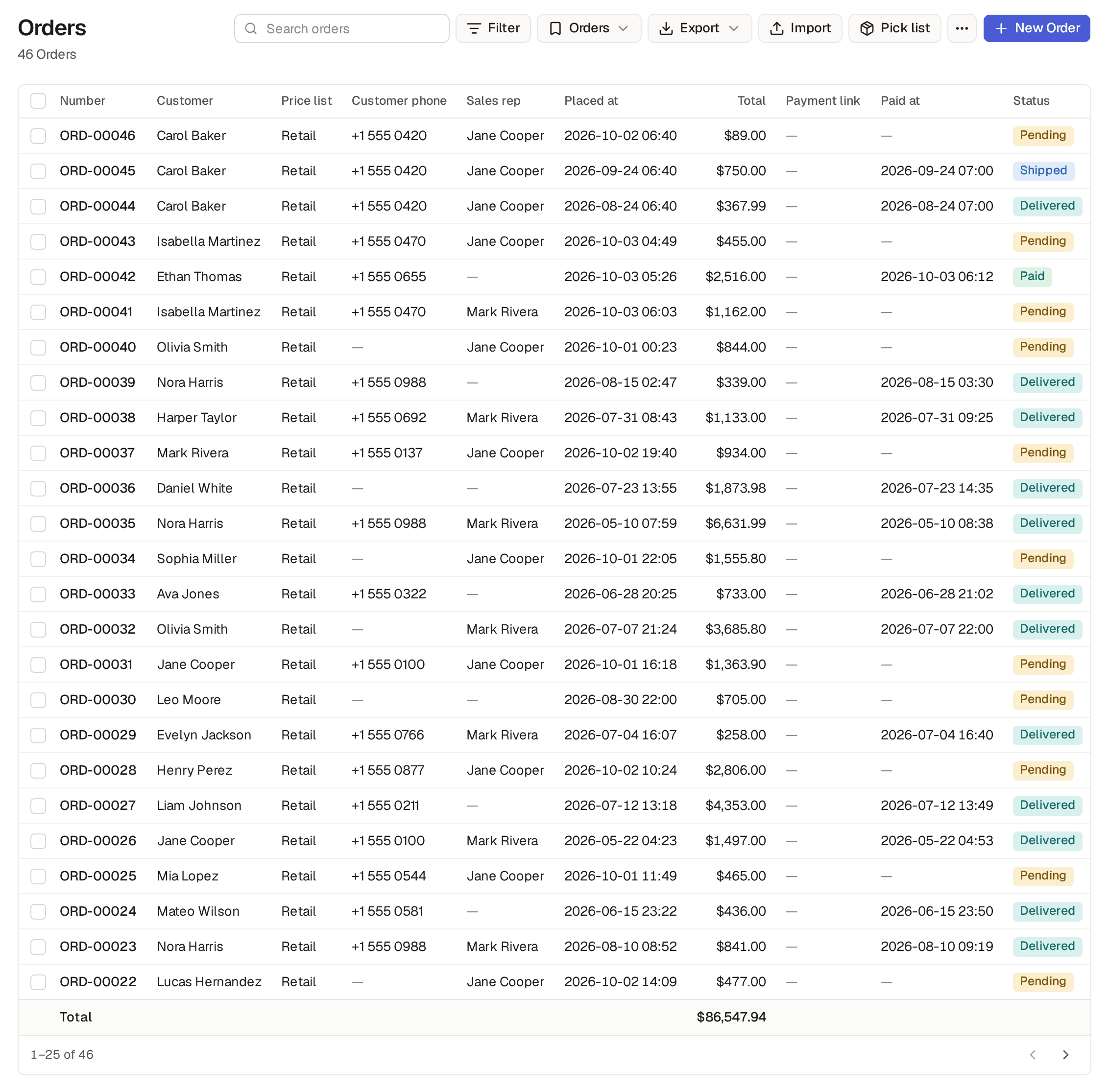
- Lookup: a field of the item a reference points at, such as an order's customer's phone (Show a field of a linked item with a lookup).
The example shop uses every one of them: open an order or a product to see them filled in.
A long text field's Format, in the field's box in Builder, sets how the item's page shows the text. The format is one of these:
- None: the item's page shows the text as it was written. This is the default.
- Markdown: the item's page shows headings, lists, bold, italic, code, code blocks, quotes, tables and links. A link to another site opens in a new tab. A picture from your base's own files shows on the page. A picture from another site shows as a link with its name and the site's name, and opens when you click it. HTML in the text shows as text. A list shows the text without the Markdown marks. The box where you write has a Preview tab and buttons for bold, italic, a list and a link.
- JSON: the base refuses text that is not valid JSON, in a form, through the API, in an import and from an agent, and tells you why. The item's page shows the text in a fixed-width font, as it was written.
- Code: the item's page shows the text in a fixed-width font and keeps its spaces.
- Address: a Map link shows next to the text (Link an address to a map).
Limits and details
- When the assistant makes a field for notes, a description or a summary, it sets the format to Markdown.
- Mails, print templates, CSV files and the API give the text as it was written, in every format.
A short or long text field with the format Address holds a place that people go to, such as a customer's site, and shows a Map link next to the address on the item's page and in the lists. The link opens the address in Google Maps in a new tab; on a phone, it opens the maps app.
- A print template can show the link too, and the assistant adds it when you ask.
- A lookup of such a field, such as a visit's site address, shows the link too.
- The value does not change: filters, the API and CSV files read it as before.
You can also ask the assistant: "Make the site's address an address field."
A price, a cost or a total reads as money when its field has a currency. In the shop, prices, costs, margins and totals are in US dollars, the order's Total rollup included. The base's builders set the currency in the field's box.
- In Builder, open the table, then its Fields page, and click a Decimal field, such as a product's Price.
- Beside Decimals, pick the Currency. The base's currency, first in the list, shows the amount in the currency of the base, set in Settings, General (Set the logo, time zone and currency): change the base's currency, and every such field follows it. Or pick A fixed code and type a three-letter code such as EUR, GBP or USD. Leave None for a plain number.
- Click Done, then Save table, and confirm.
The amount then shows with its currency and the field's decimals in lists and their Total row, on the item's page and on the dashboard's cards, as $1,234.50. The modules' amounts use the base's currency, so a base made from an app in the United Kingdom shows pounds.
Give each item its own currency
When each item has its own currency, such as an invoice in EUR and another in RON, choose From a field instead of a code, and pick the field that holds it: a choice or text field of the table holding a code such as EUR, or a lookup of one, so an invoice's lines read the invoice's currency. Each amount then shows in its own item's currency, as the Invoices and payments app's invoices and lines do.
Amounts in different currencies are not added up. The Total row under a list sums them only while the items it shows hold one currency; otherwise it reads "Several currencies: filter by Currency to see the total". Filter the list to EUR and the total shows, in euros. In the same case:
- The header of a group of a grouped grid reads "Several currencies".
- An automation's digest mail says the same in place of a mixed total.
- A chart of such a sum leaves out a group whose items hold several currencies, and says the same under the chart.
- A tile of such a sum (Show counts and totals above a list) reads "Several currencies" in place of its number.
Limits and details
- Anything but three letters is refused with "A currency is three capital letters, like EUR", and a field with a Unit takes no currency: "A field takes a currency or a unit, not both".
- A field takes a currency or a currency field, not both.
- While the base has no currency, an amount in the base's currency shows as a plain number.
- The currency only changes how the amount looks: nothing is converted. In a form you still type a plain number, with the code shown after the box, and filters take plain numbers too.
- An XLSX export writes the amounts as numbers formatted in their currency, so a sum in the spreadsheet still works; a CSV export writes plain numbers.
A Duration field lets people type and read a time spent in hours and minutes, "2 h 15 min", not 2.25, while the base keeps a number it can add up: hours worked, the length of a visit or an appointment's minutes. The base's builders switch it on in the field's box.
- In Builder, open the table, then its Fields page, and click an Integer or Decimal field, or add one.
- Switch on Duration. On an integer, the number counts minutes; on a decimal, it counts hours, with 2 decimals.
- Click Done, then Save table, and confirm.
In a form, in a cell of the grid, in a public form and when you change many items at once, type the time the way you say it: 2:15, 2h 15m, 2 h, 135m or 1.5h. Under the box, the base shows what it understood, "2 h 15 min", or "Enter a duration, such as 1:30 or 1 h 30 min" when it cannot read it. A plain number is in the field's own count: 135 is 135 minutes on an integer, 2.25 is 2 hours 15 minutes on a decimal.
The time then shows as "2 h 15 min" in lists, on the item's page, on boards and calendars, in print templates, mails and digests: "2 h" for whole hours, "45 min" under an hour, and "26 h 5 min" past a day. The Total row under a list adds the times up and shows the sum the same way, unless the field has No total switched on (Add up a list’s numbers in the Total row).
Limits and details
- A duration takes no unit and no currency: "A duration takes no unit or currency".
- Only typing and reading change. The API, filters, sorts and the CSV and XLSX exports keep the number: 2.25 on a decimal in hours, 135 on an integer in minutes. So a filter "is more than 2" on a field in hours still works, and a sum in a spreadsheet still adds up.
- When the assistant makes a field for a time spent, it makes it a duration.
A table can take payments through Stripe or PayPal, with no code: turn on Takes payments in Builder, on the table's View items page, tab Payments, once the base holds one of them, and each unpaid item gets Ask for payment, once or each month or year (Take payments with Stripe or PayPal).
An Auto-number gives each new item the next number when it is saved, such as an order's ORD-00046; nobody types or changes it, and no number is skipped. The base's builders switch it on in a short text field's box.
- Add a Short text field and switch on Auto-number.
- Write the Number format: {0000} is the counter, padded to as many digits as zeros, and {yyyy} or {yy} the year, so INV-{yyyy}-{000} starts at INV-2026-001.
- Switch on Start again each year to go back to 1 on the first of January; the format then needs the year.
- Leave Numbered when empty to number each item as it is made. An invoice, though, takes its number
only when it is issued: write a condition in SQL over its fields, such as
status = 'issued'. The item then stays without a number until a save makes the condition true, and takes the next one there and then.
So a draft you throw away leaves no gap: the example shop's invoices are numbered INV-2026-0001, INV-2026-0002 and so on in the order they were issued, and its drafts have no number. A number once taken is never changed or taken back.
A Rollup field adds up the items that point at this one, read-only and always current: a sum, a count, a minimum or a maximum. An order's Total is one: Over the items of Order lines, Function Sum, Of the field Amount. The Total changes as soon as a line does. A customer's Orders is a count, and Last order the latest date.
- Only the order lines where adds a filter.
- Each reader's rollup counts only the items they may see.
- Turn on Count every item to count all the items that point at this one, also those the reader cannot see: a campaign's Raised then shows every gift, but the reader sees only the total, not the gifts.
- A reader who may not see the field that the rollup adds up does not see the rollup.
A lookup shows a field of the item a reference points at, as a field of its own: the shop's orders have a Customer phone, the phone of the order's customer, in their list. A lookup is live: change the customer's phone and every order of theirs shows the new one at once. The base's builders add lookups.
- In Builder, open the table, then its Fields page, and add a field.
- Pick Lookup as its Type, then one of the table's references, such as Customer, and the field of the customer it shows, such as Phone. The lookup takes that field's type, its options, decimals, currency or unit.
- Click Done, then Save table.
Nobody types a lookup: it is read-only on the item's page and its form, as a computed field is, and an import skips it. A lookup shows in lists, on boards, in print templates and exports, and you filter, sort and group by it like the field it reads, which a column reached through a reference does not do (Filter and show columns through a reference).
A lookup is for a value that should follow the other item. A value taken once, when the item is made, such as the price on an order line or the address on an invoice, is a field of its own.
Limits and details
- A lookup reads one step: a lookup of a lookup is refused, "A lookup reads one level".
- A lookup keeps the rules of what it reads. Someone who may not see the customer sees the order's Customer phone empty, and someone from whom the customer's phone is hidden does not see it on the order either: in the shop the salespeople see no phone, on the customer nor on the order (Invite users, owners and customers).
- A field a lookup reads cannot be removed or change its type until the lookup goes: "The lookup Customer phone of Orders reads this field: change it first".
A computed field works its value out from the item's other fields with a formula, such as a product's Margin, its price minus its cost. Nobody types it: it is read-only on every page, never a box of the item's forms, and always current. The base's builders add computed fields.
- In Builder, open the table, then its Fields page, and add a field.
- Pick its Type: what the result is, such as Decimal for an amount.
- Switch on Computed and write the Formula in SQL, the language of the base's
database, over the item's fields by their keys:
price - cost. Required, unique and a default do not apply to it, so the box leaves them out. - Click Done, then Save table.
The computed field shows on the list and the item's page like any other, and you can filter and sort by it; an export holds it too.
Formulas that build on each other
A formula can also read the table's other computed fields, its rollups and its lookups, and today's date, current_date. So each amount is worked out once and the others build on it. The invoices of the Invoices and payments app:
- Paid, a rollup: the sum of the invoice's payments.
- Balance:
total - paid, what is still owed. - Settled, a yes / no:
paid >= total, which turns to Yes with the payment that covers it. - Days left:
due_date - current_date, which counts down each day to the due date.
A formula that reads a rollup, a lookup, another such formula or today's date is worked out each time the item is read, and its box says "Worked out when read"; the others are kept with the item. You notice no difference: both are always current, filtered, sorted and totalled as their type.
Computed by code
For what a formula cannot say, such as a customer's total of paid orders, read from another list, switch the field to Computed by code and write its code in the field's box instead (Read, change and try the base’s code). Its value is worked out each time the item is read. When the code fails on an item, the field reads empty there, and the failure is in the code's run log, under its box.
Limits and details
- A formula the database cannot work out, such as one naming a field that is not there, is refused when you save, with why under the formula's box, such as "The formula gives a number; margin_on is a date", and nothing changes.
- A formula that ends up reading itself, through the fields it names, is refused: "This formula reads itself through Balance, Total".
- Someone from whom one of the fields a formula reads is hidden does not see its result either.
- When you change a formula, the box that shows what the change does before you save says how many items change: "Changes the formula of Total: 12 of 340 invoices will change." The assistant's card for the change says the same.